

Email Templates let you design an email once — with a drag-and-drop block builder — and reuse it across your workflows instead of writing the HTML by hand every time.
Step 1: Open Email Templates and Start a New Template
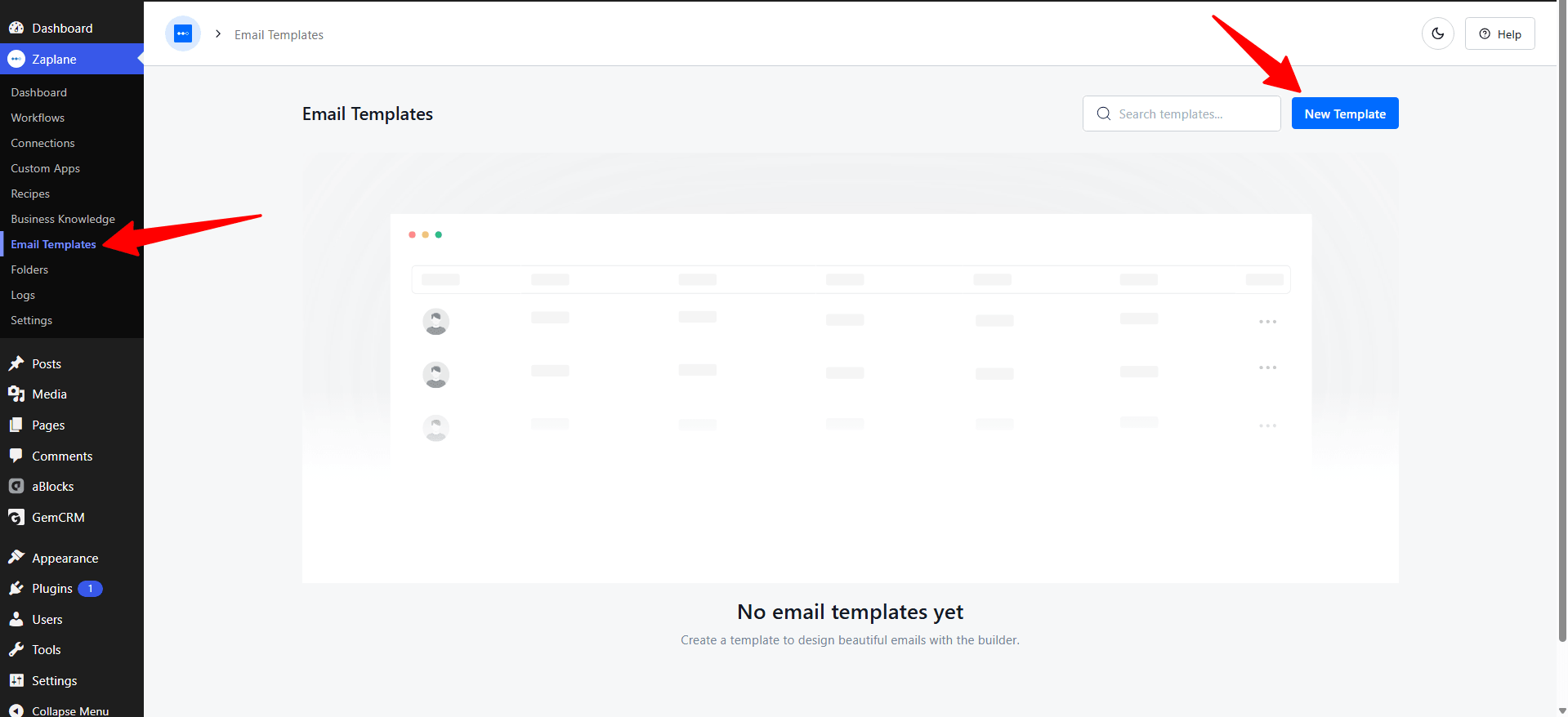
- Go to Zaplane > Email Templates, then click New Template.
Step 2: Name Your Template and Add Blocks
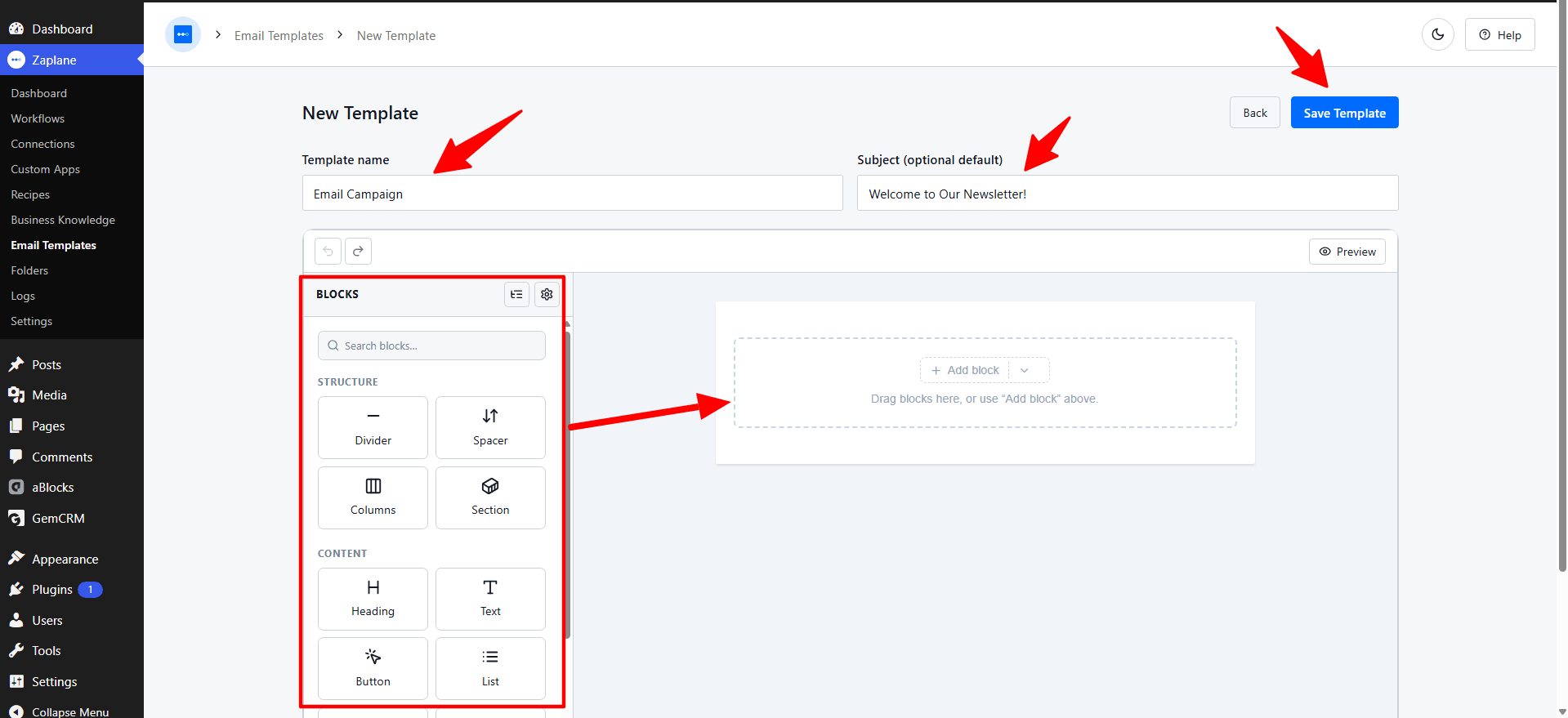
- Enter a Template name and an optional default Subject. Then build the email by dragging blocks from the BLOCKS panel on the left — under Structure you’ll find Divider, Spacer, Columns, and Section; under Content you’ll find Heading, Text, Button, List, and more — into the canvas on the right, or use the Add block button. Use Preview to see how it will look, then click Save Template when you’re happy with it.
Done!
Your email template is saved and ready to use as the message content in any workflow action that sends an email.