

The Router tool checks a value and sends the workflow down a matching path — anything that doesn’t match any route falls through to a Fallback path — so you can branch your workflow based on conditions like a form field or status.
Step 1: Create a Workflow
Go to Zaplane > Workflows from your WordPress dashboard, then click Create Workflow to open the workflow editor.
Before adding a Router tool, you need to set up a trigger first. Here is how to do it quickly:
- Click Select an app under the Trigger box, then choose Apps.
- Search for and select your trigger app — in this example, we are using aBlocks Contact Form.
- Choose the Trigger Type that matches the event you want to watch for, then click Continue.
- On the Configure tab, set up any required options, then click Continue.
- On the Test tab, click Test Trigger to confirm it is working correctly, then click Save.
Once your trigger is saved, proceed to the next step to add the Router tool.
Step 2: Add the Router Tool
Click the + icon on your workflow canvas to open the Add Action panel, then select Router from the list of built-in tools.
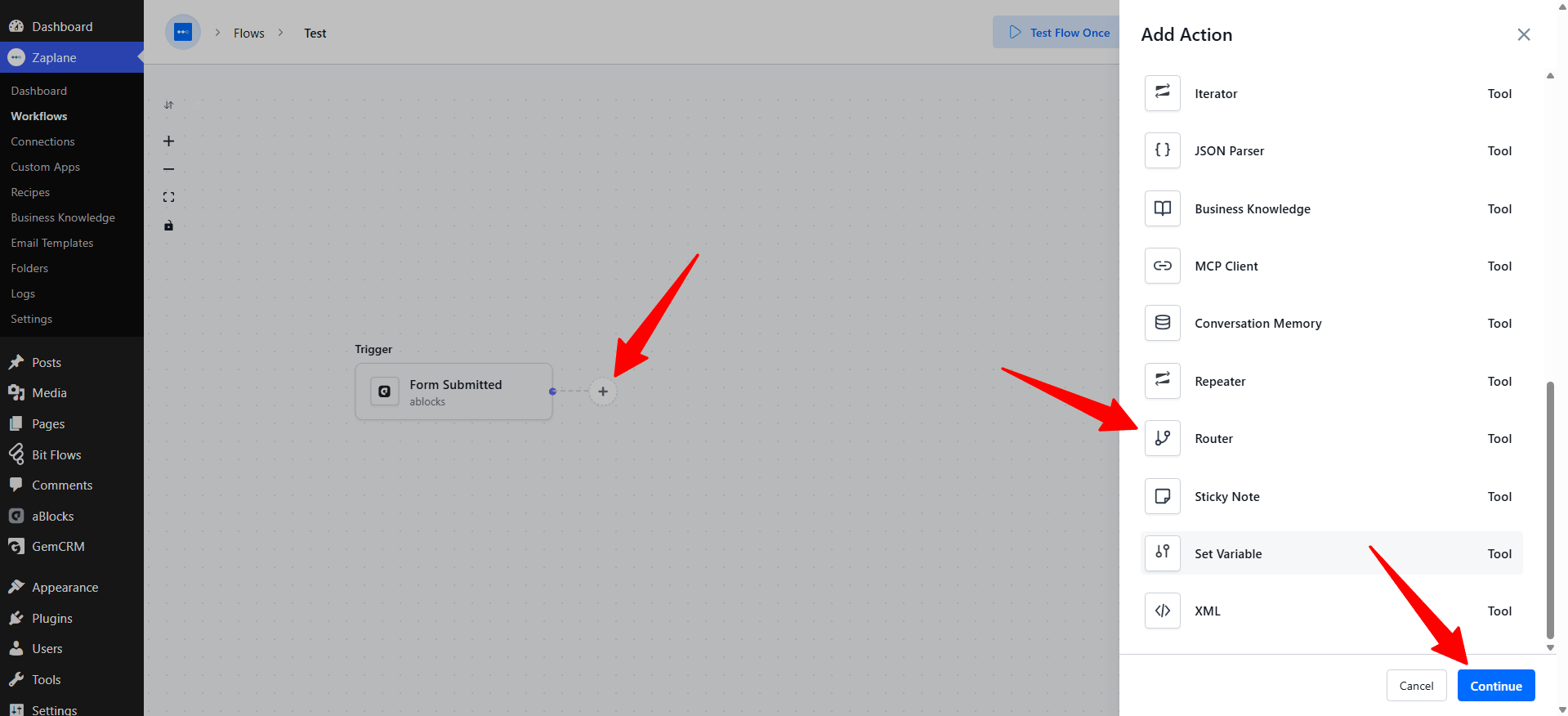
Step 3: Choose the Action Type
On the Select tab, open the Action Type dropdown and choose Route By Value, then click Continue.
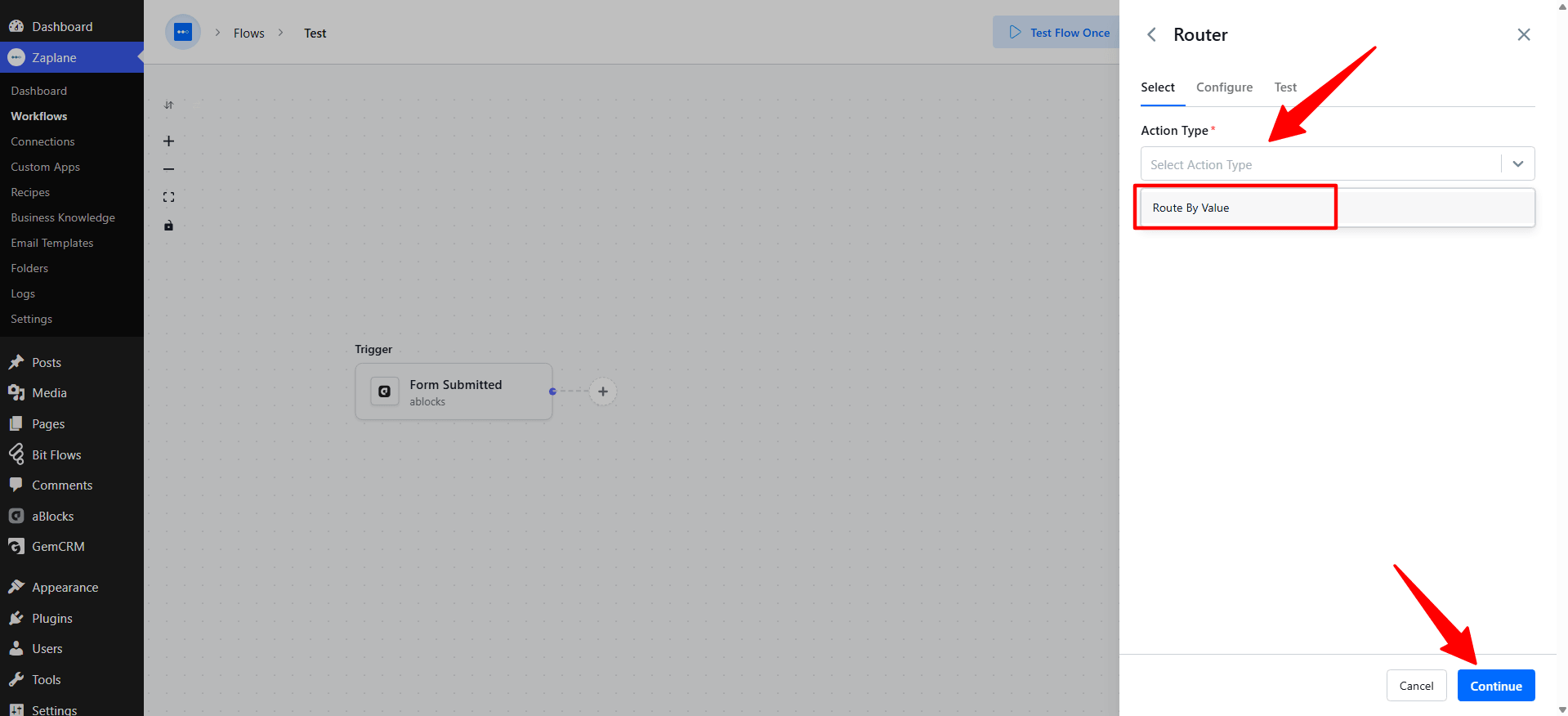
Step 4: Configure the Action
On the Configure tab, enter the Value to route on. Under Routes, set the Operator (for example, Equals) and the value to compare against for your first path, and click Add Row if you need more paths. Click Continue when done.
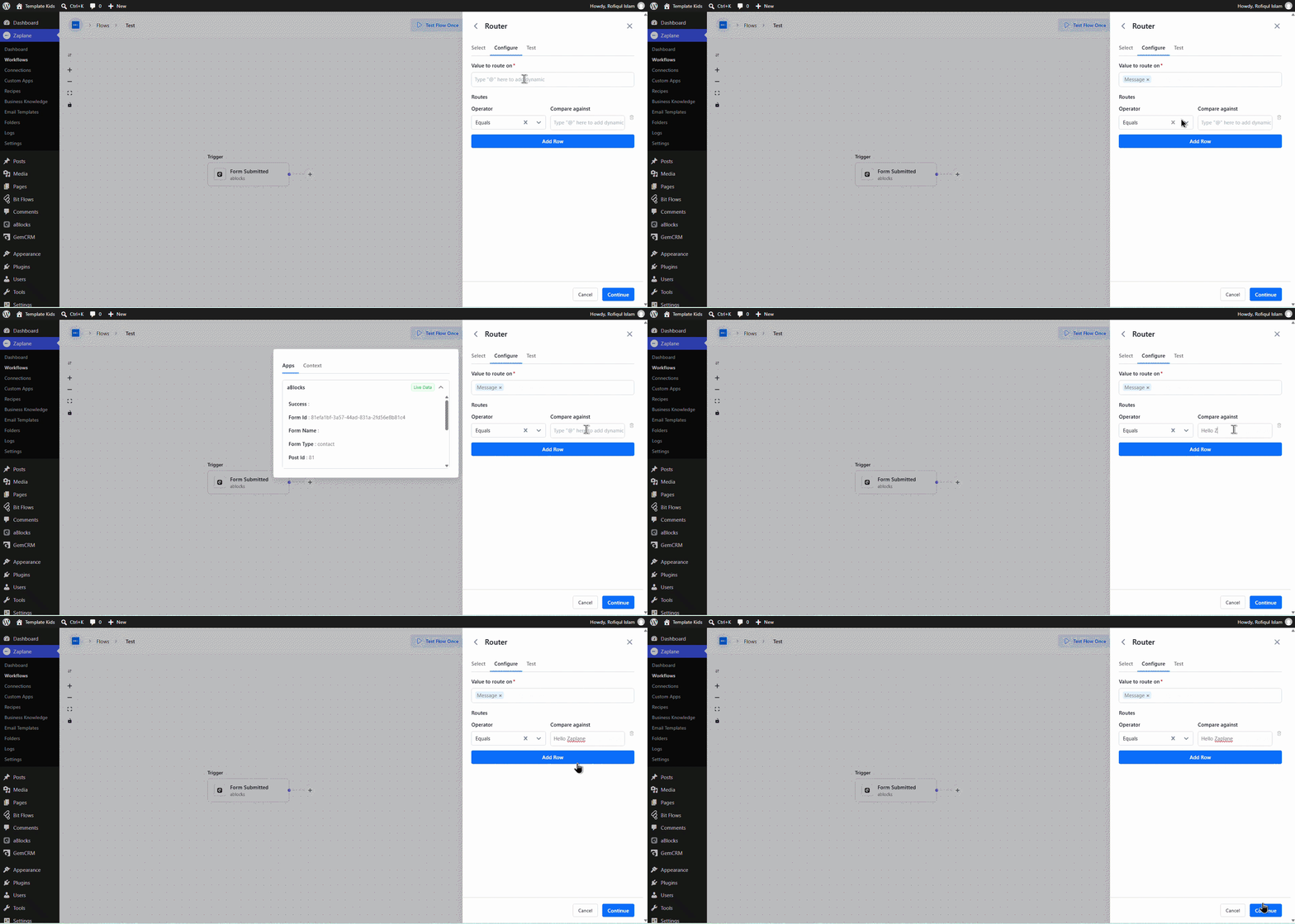
Step 5: Test and Save the Action
On the Test tab, click Test Action to confirm the value routes down the correct path, then click Save.
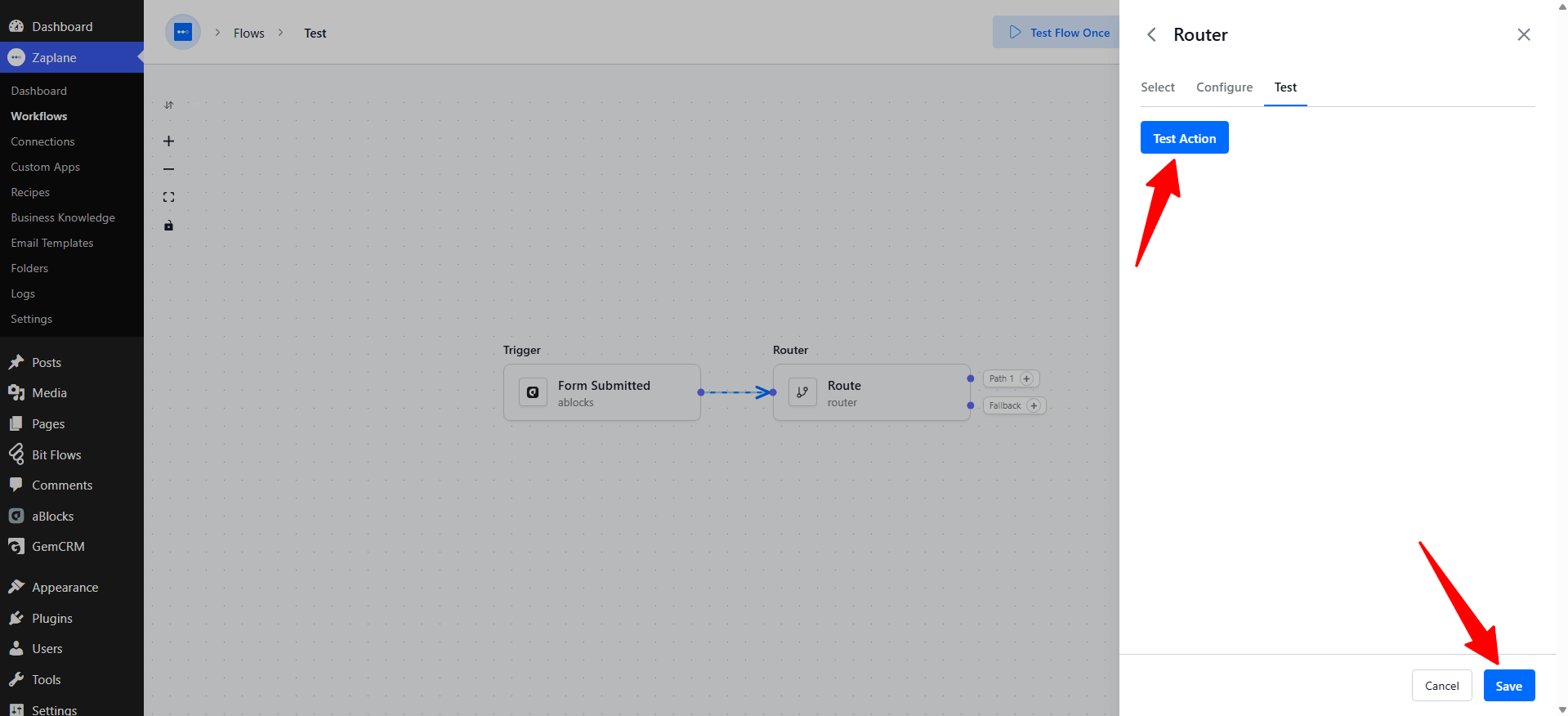
Step 6: Add an Action for Each Path
The Router tool creates a branch for each route you configured (for example, Path 1), plus a Fallback branch for anything that doesn’t match. Click the + on each branch to add the action that should run for that path.
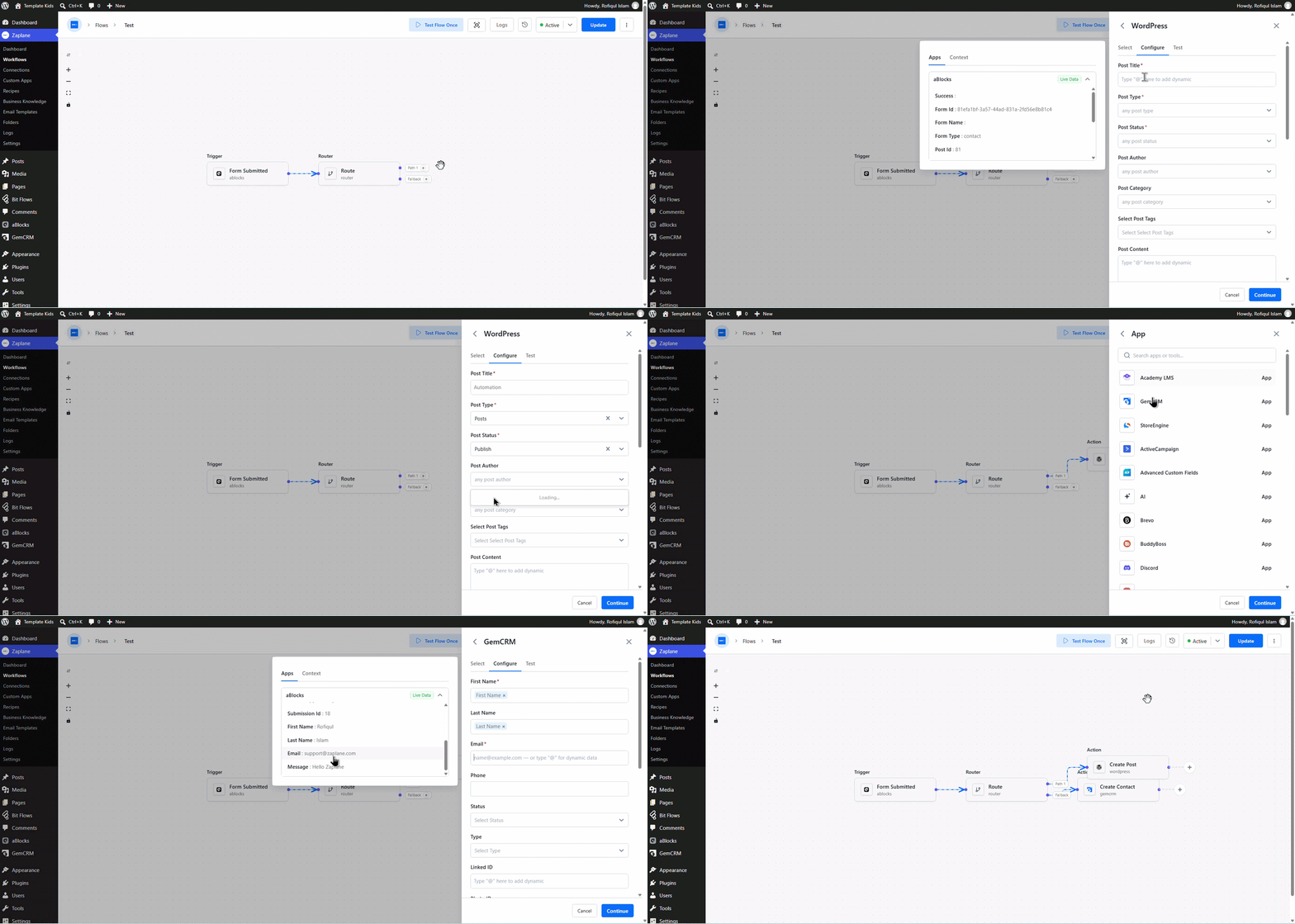
Step 7: Update and Activate the Workflow
Back on the workflow canvas, click Update to save your changes and keep the workflow Active.
Your Zaplane workflow now checks the value and sends it down the matching path every time it runs, falling back to the Fallback branch when nothing matches.
Done!
The Router tool is now live in your workflow and will route every run down the correct path.