

This guide walks you through adding a FunnelKit trigger to a Zaplane workflow, so the workflow runs automatically whenever something happens in your funnels — for example, when a funnel is updated. Let’s go through the process step by step.
Step 1: Create a Workflow
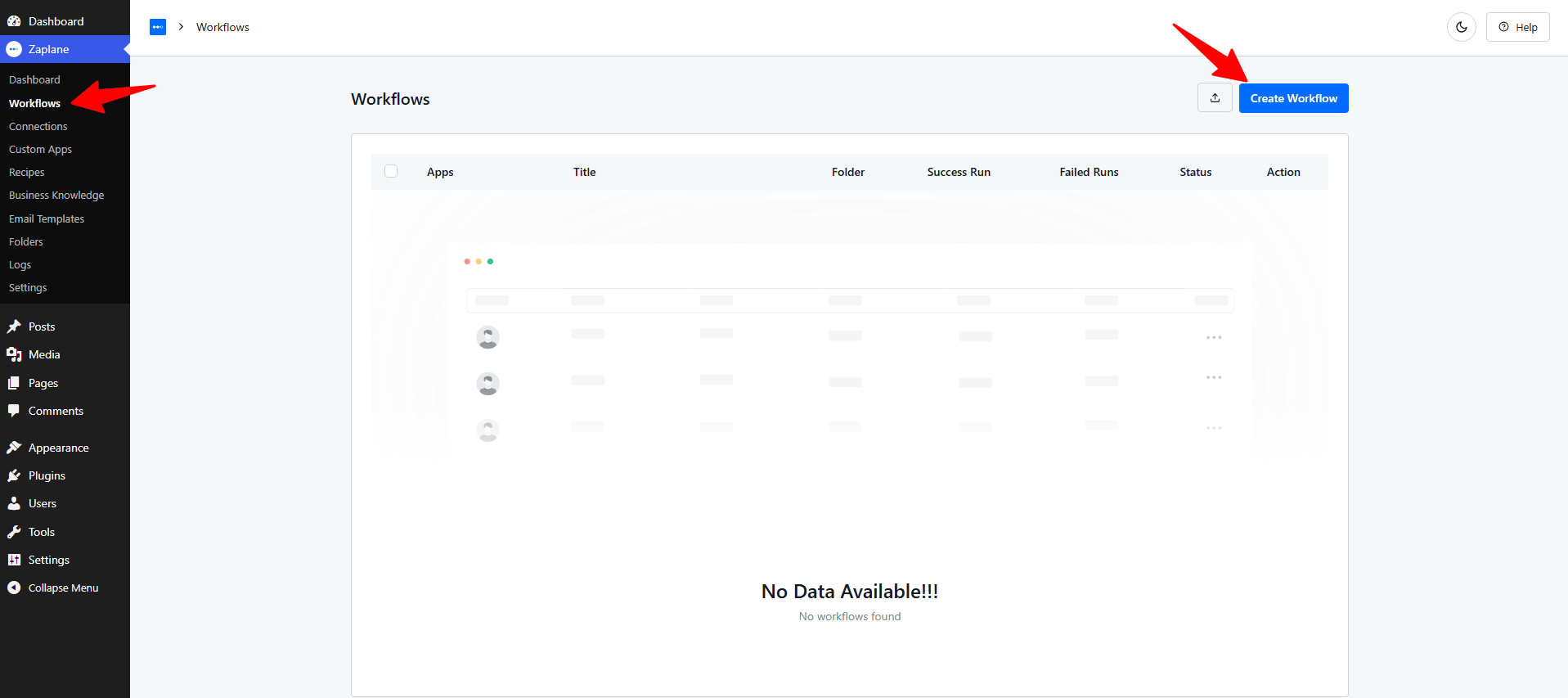
- Go to Zaplane > Workflows, then click Create Workflow.
Step 2: Add the FunnelKit Trigger
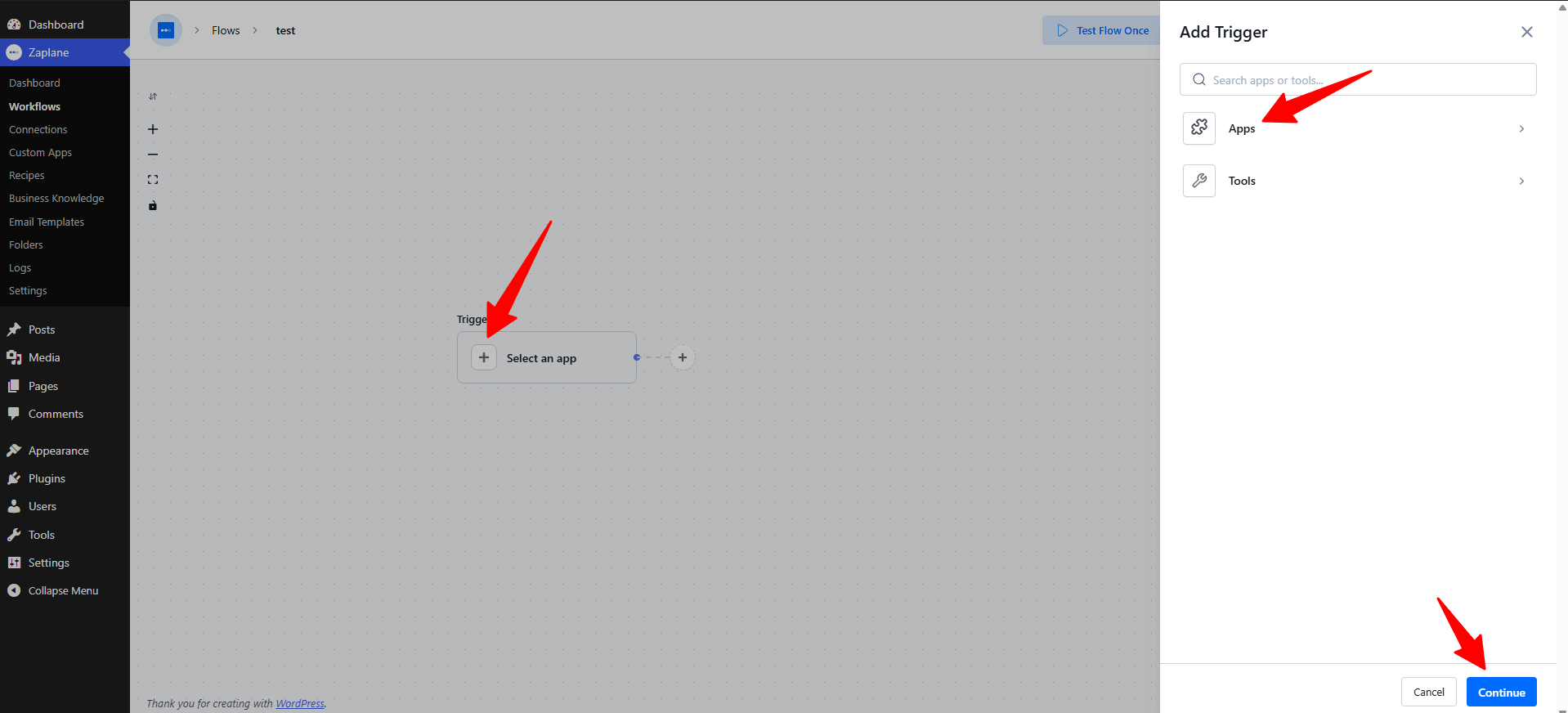
- Inside the workflow editor, click Select an app under the Trigger box, then choose Apps.
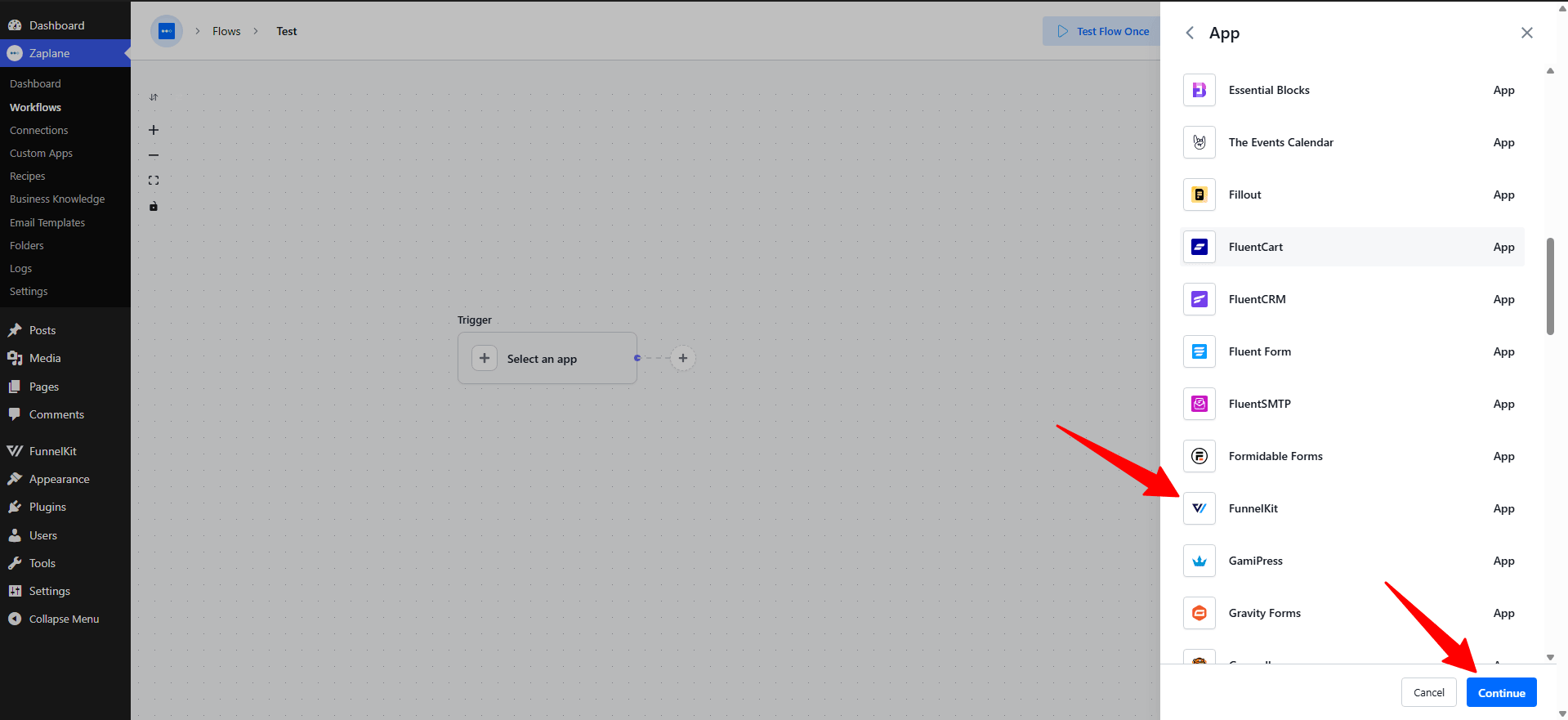
- Search for and select FunnelKit, then click Continue.
Step 3: Choose the Trigger Type
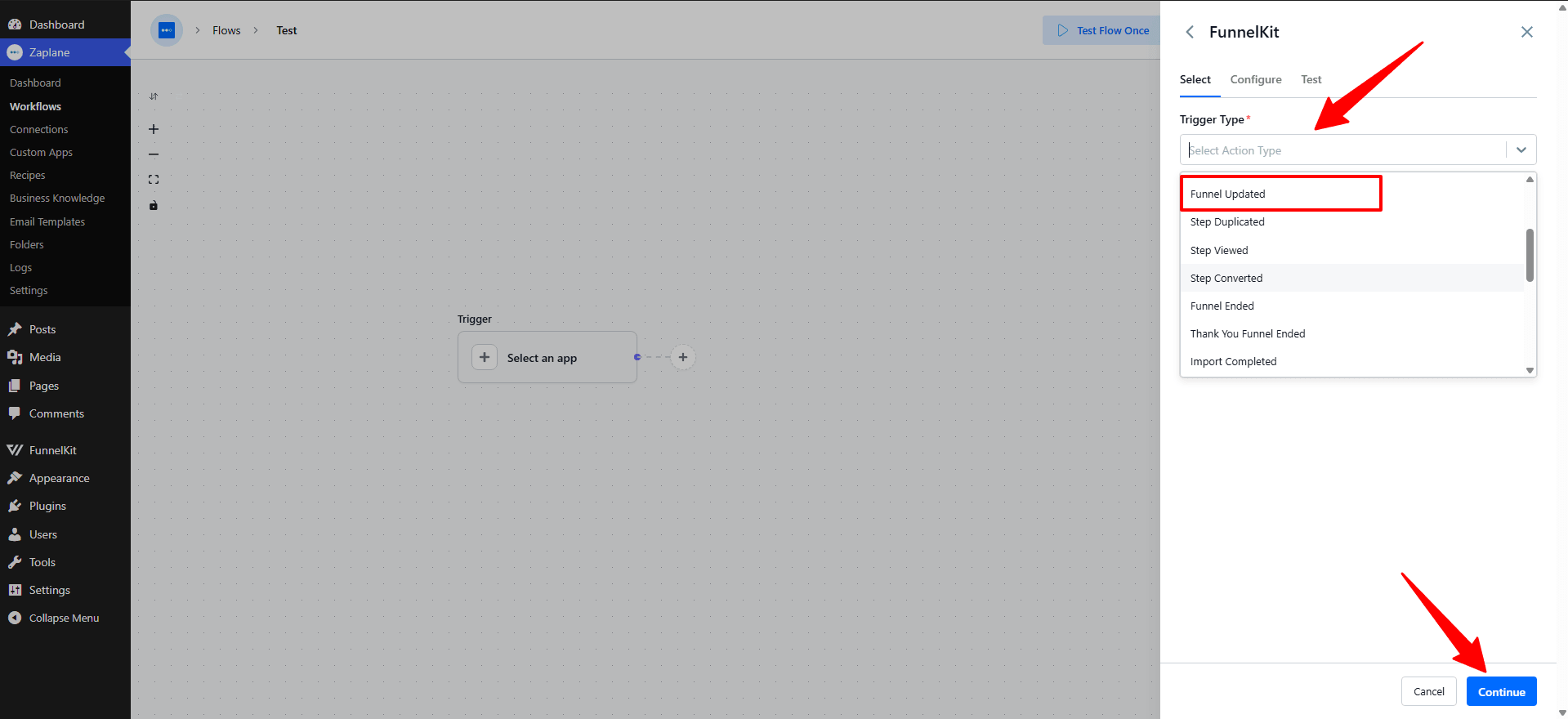
- On the Select tab, open the Trigger Type dropdown. Several trigger types are available — for this guide, choose Funnel Updated — then click Continue.
Step 4: Configure the Trigger
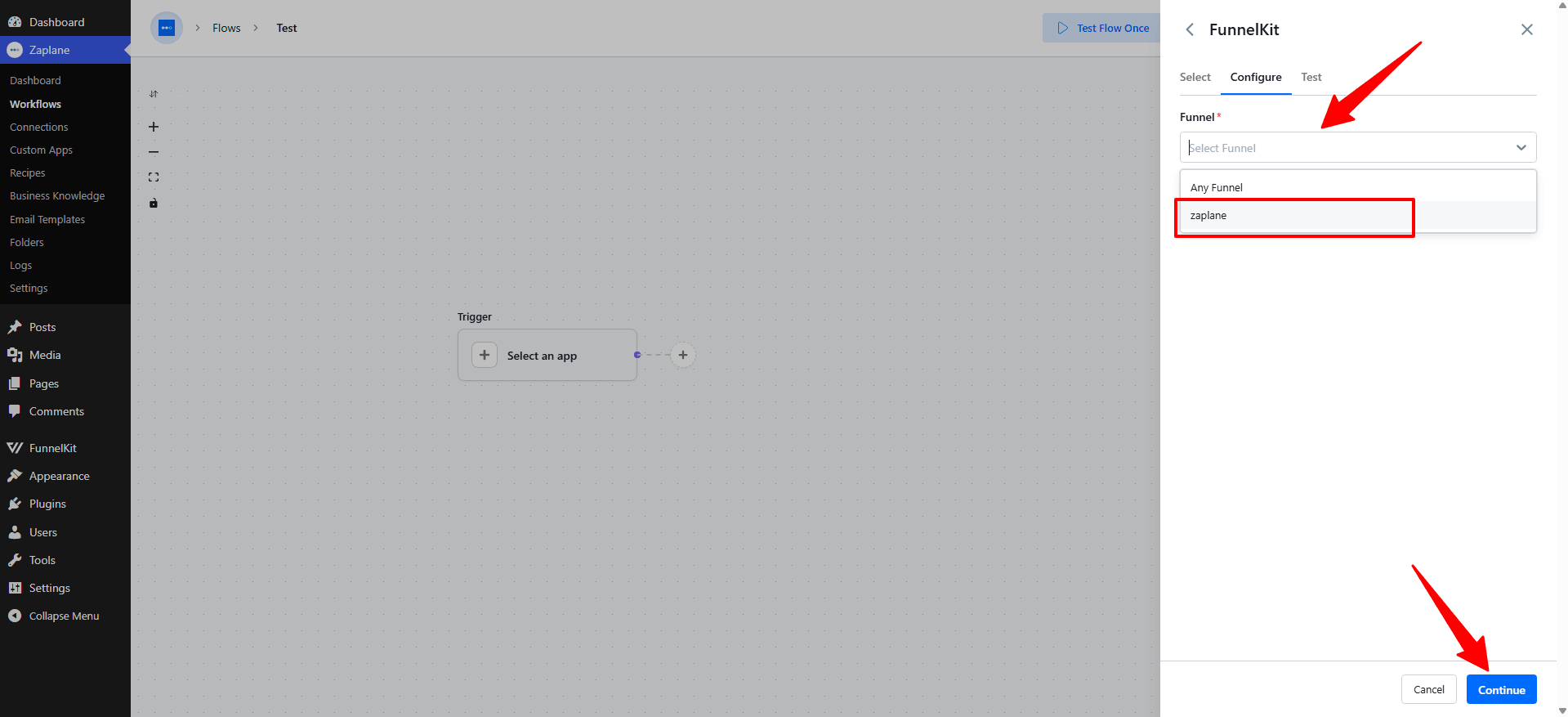
- On the Configure tab, open the Funnel dropdown and choose the specific funnel you want to watch, or select Any Funnel to trigger on all funnels. Click Continue.
Step 5: Test and Activate the Workflow
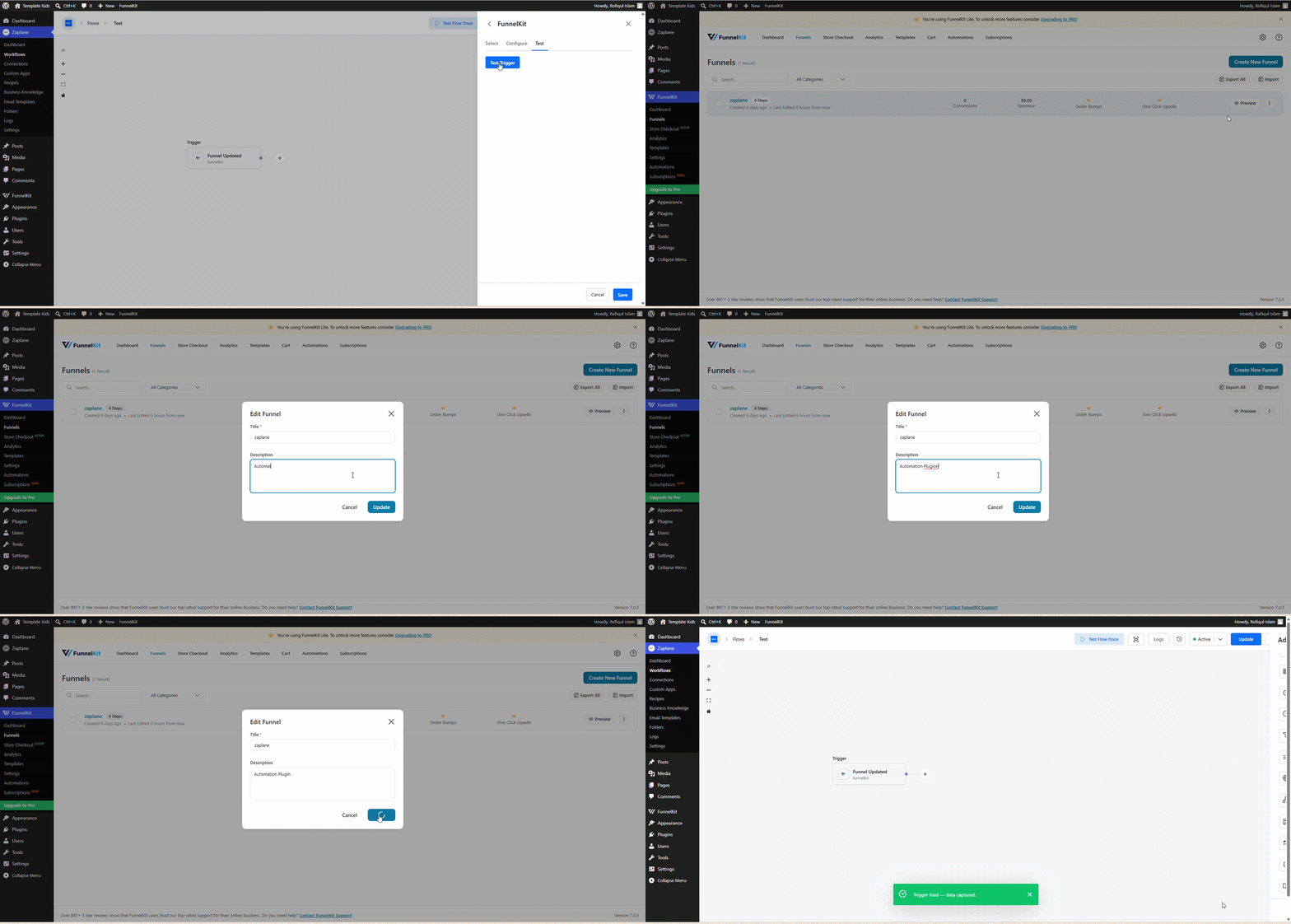
- On the Test tab, click Test Trigger to confirm the trigger works, then click Save.
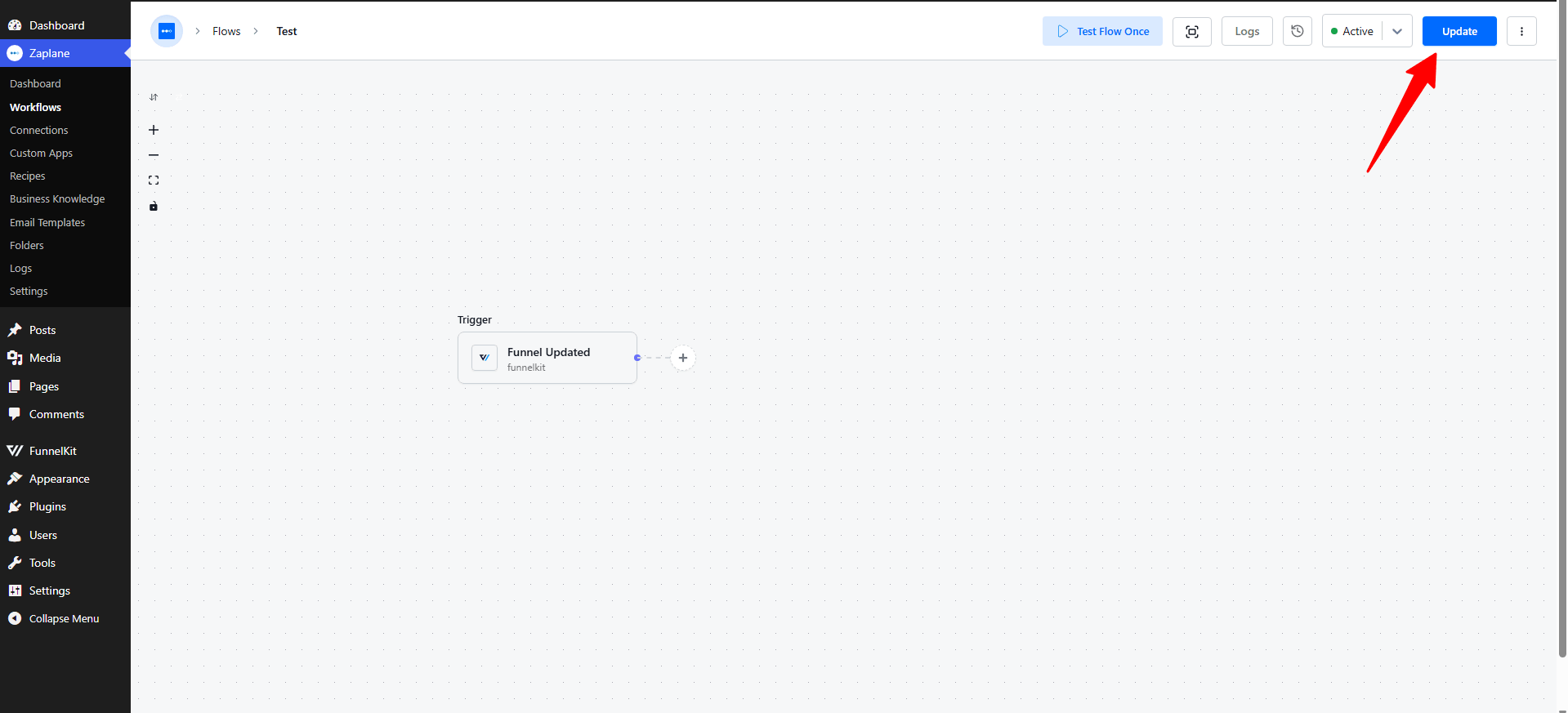
- Finally, toggle the workflow to Active and click Update to publish it.
You’re all set
FunnelKit is now connected to your Zaplane workflow. It will run automatically whenever the trigger event you configured happens in FunnelKit.