

This guide walks you through adding a SureCart trigger to a Zaplane workflow, so your workflow runs automatically whenever a new purchase is made through SureCart. Before you start, make sure your SureCart connection is set up under Zaplane > Connections. Let’s go through the process step by step.
Step 1: Create a Workflow
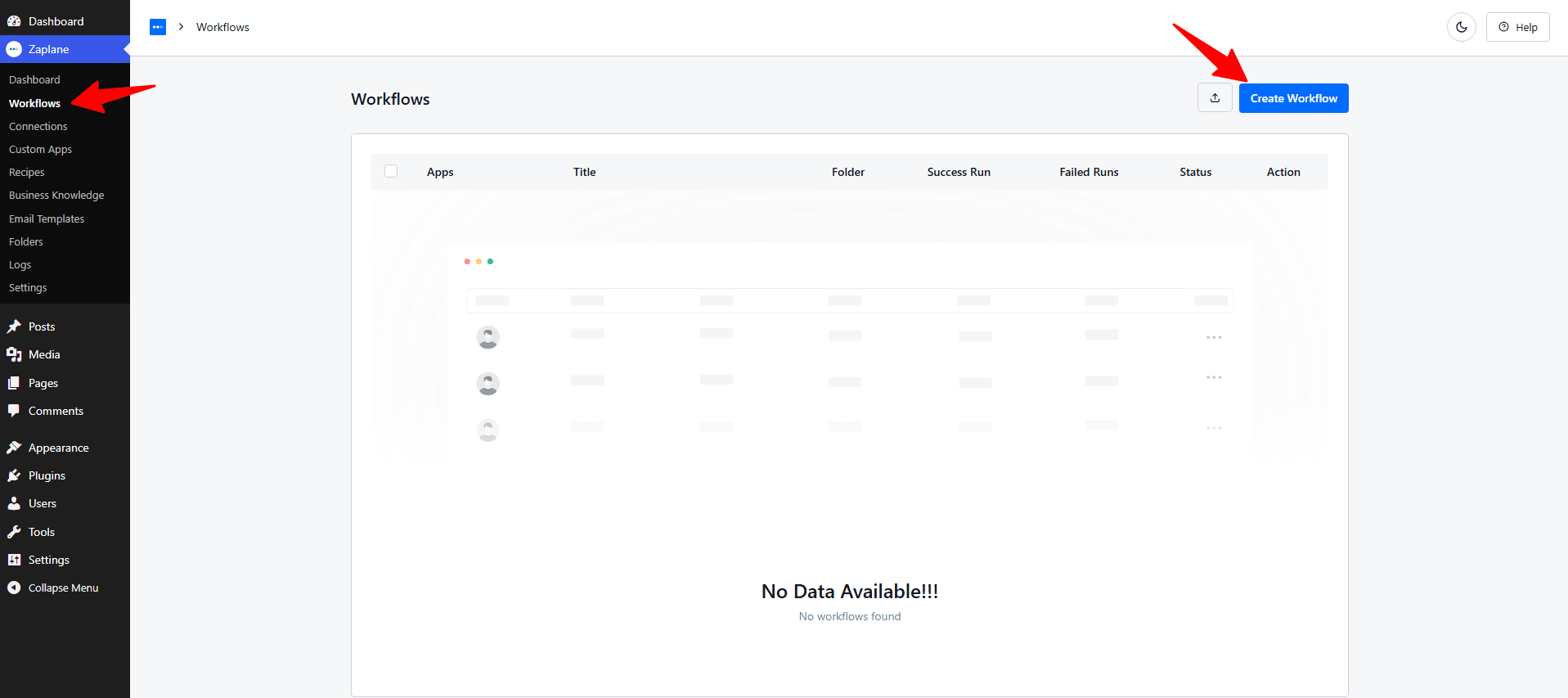
- Go to Zaplane > Workflows, then click Create Workflow.
Step 2: Add a SureCart Trigger
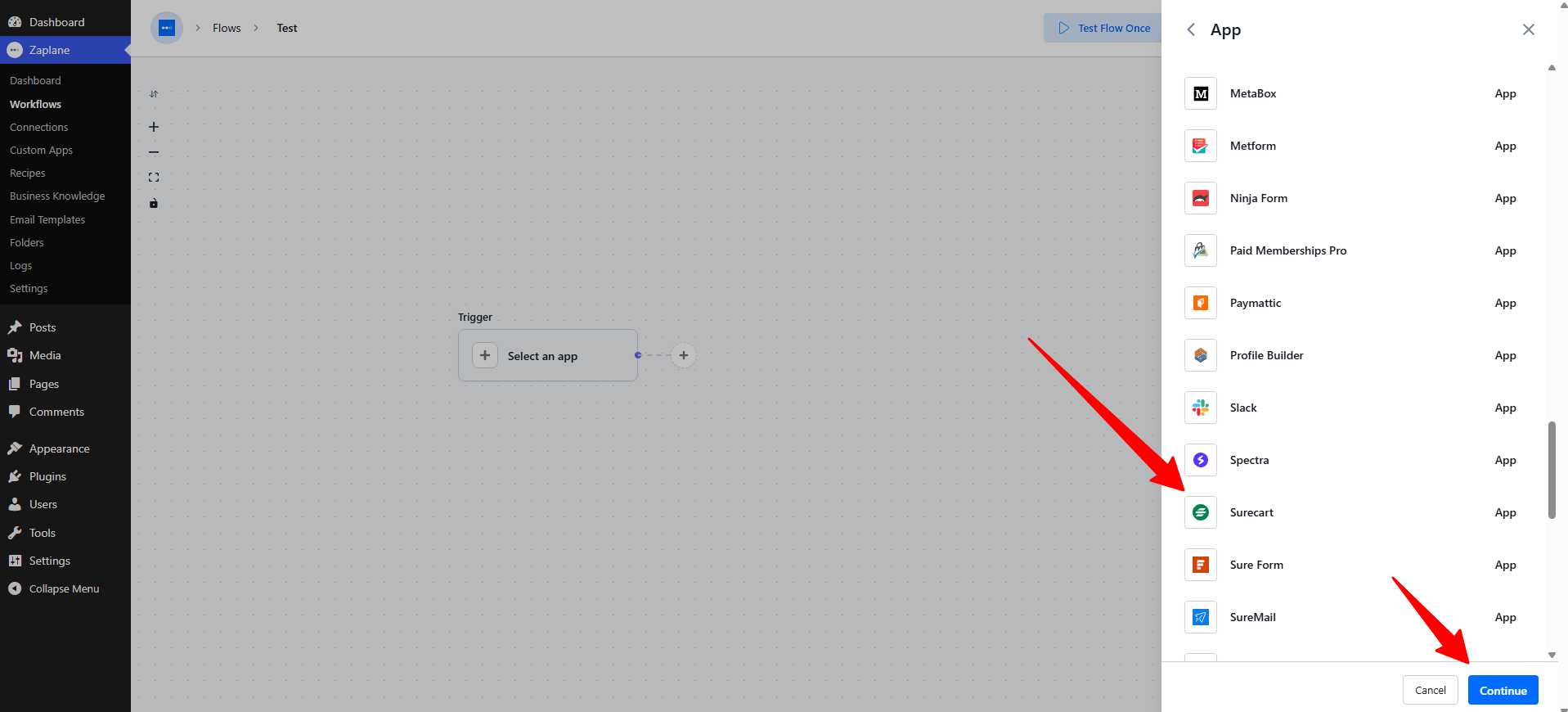
- Inside the workflow editor, click Select an app under the Trigger box, then choose Apps.

- Search for and select SureCart, then click Continue.
Step 3: Choose the Trigger Type
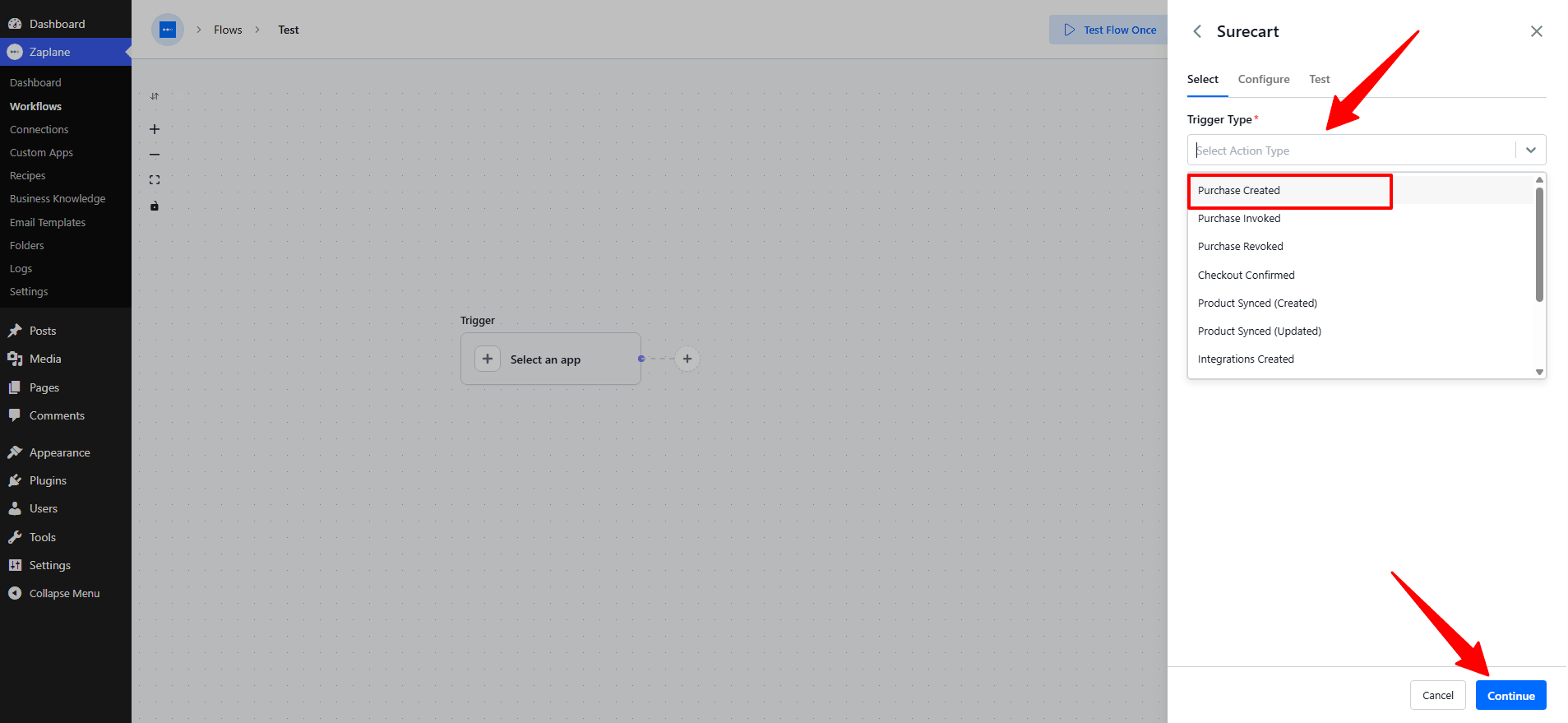
- On the Select tab, open the Trigger Type dropdown and choose Purchase Created, then click Continue.
Step 4: Configure the Trigger
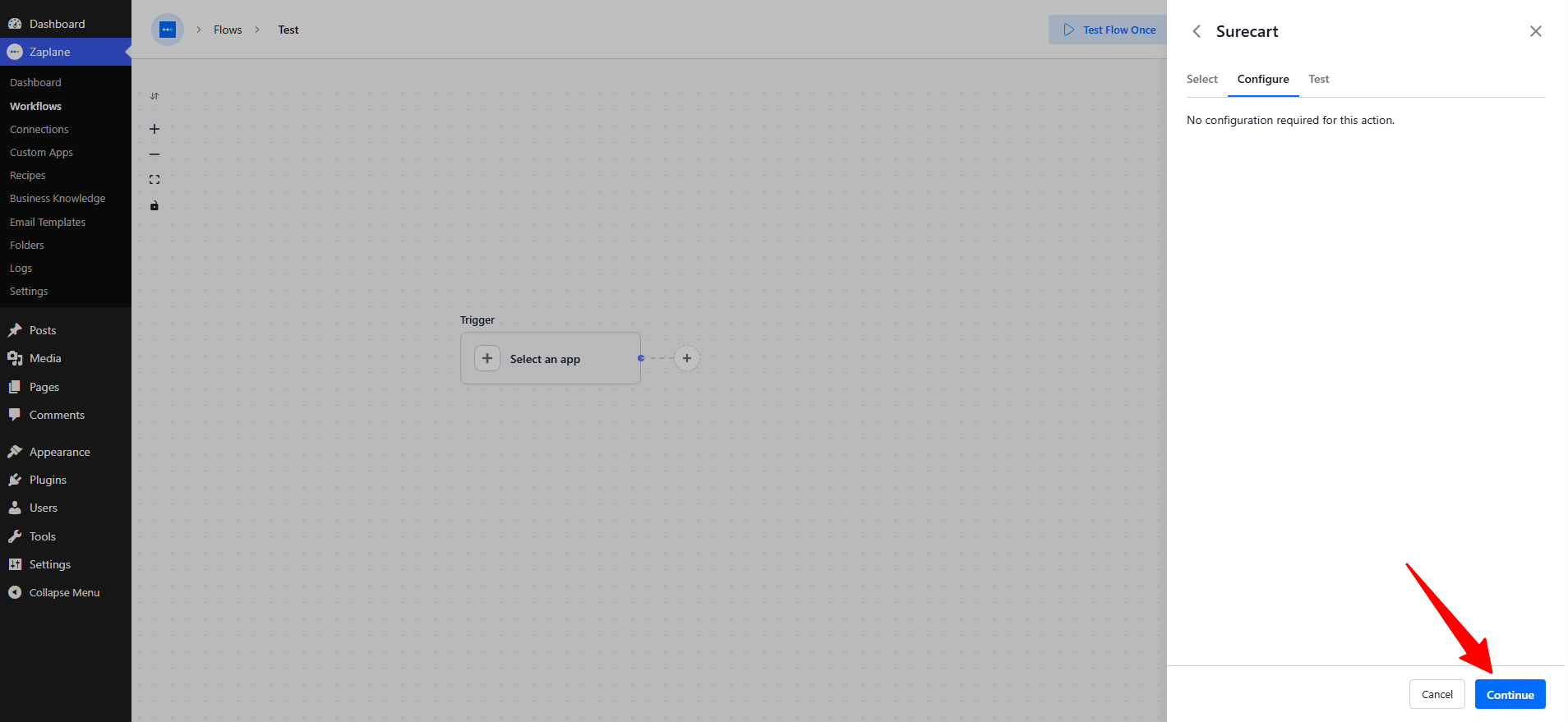
- On the Configure tab, there’s no configuration required for this trigger — just click Continue.
Step 5: Test and Activate the Workflow
- On the Test tab, click Test Trigger to confirm it’s picking up the SureCart purchase correctly, then click Save.
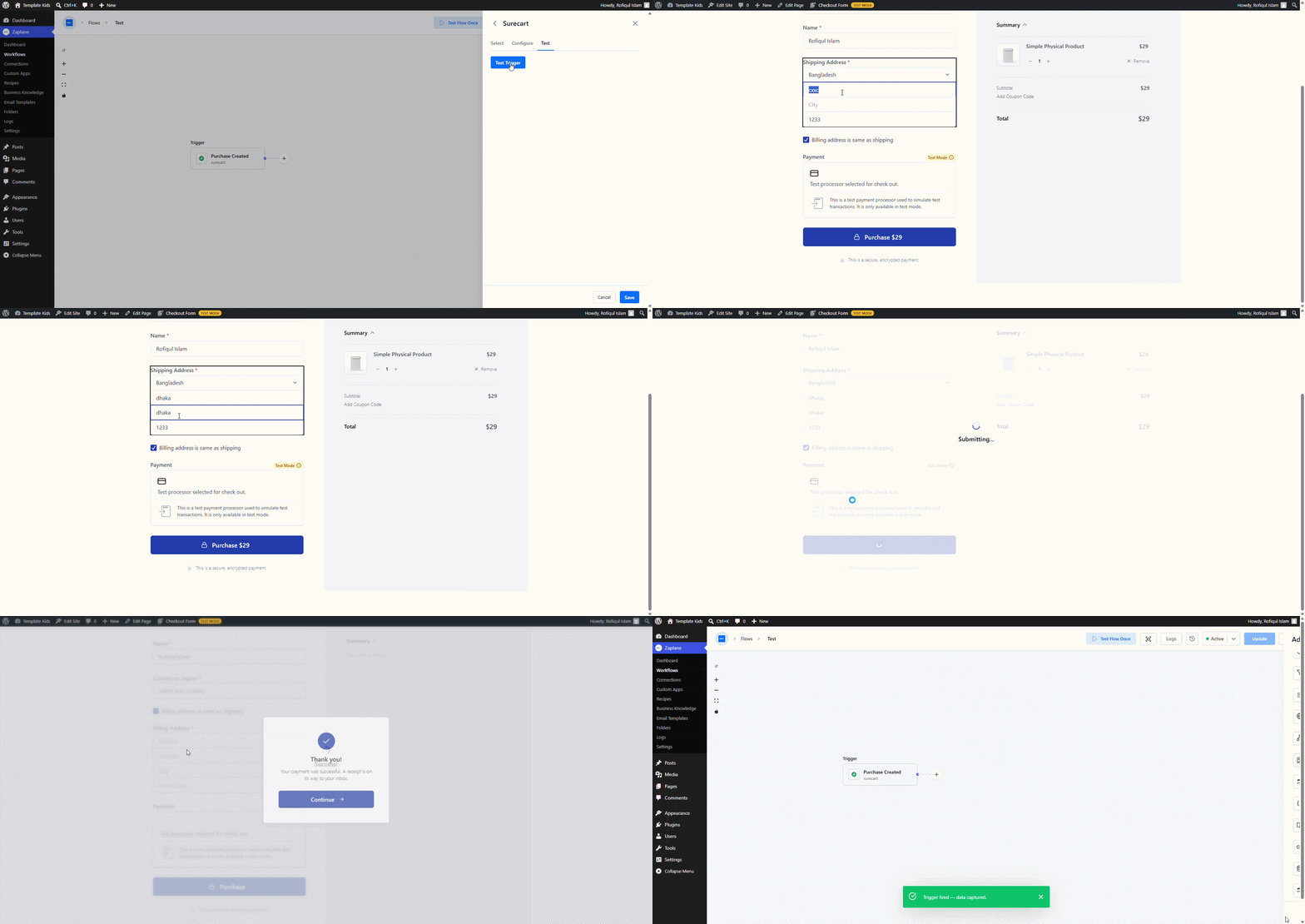
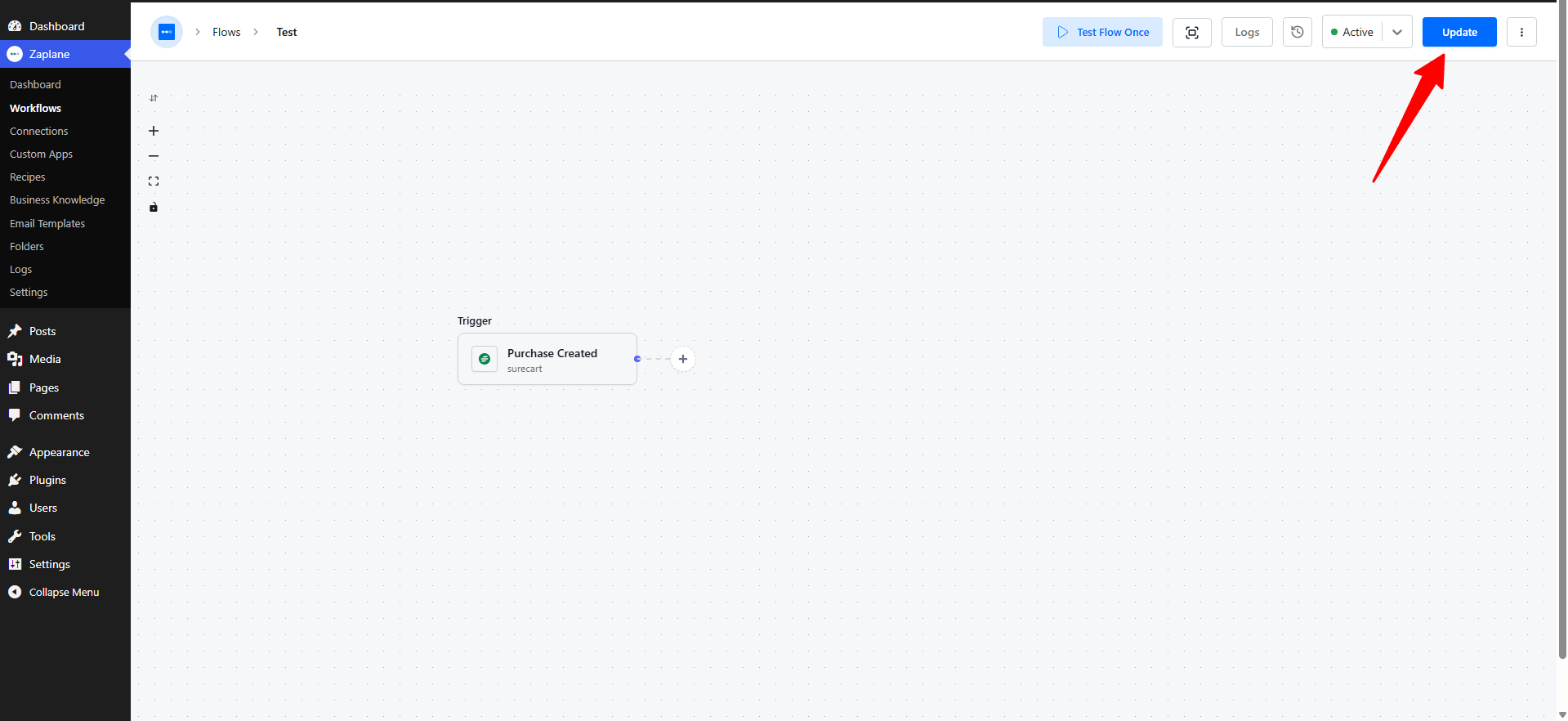
- Finally, toggle the workflow to Active and click Update to publish it.
You’re all set
SureCart is now connected to Zaplane. Your workflow will run automatically every time a new purchase is made on your site.