

Zaplane’s Settings page lets you re-theme the app’s colors for light and dark mode, and turn optional modules on or off so only the features you use show up in your menu.
Customize the Appearance
- Go to Zaplane > Settings, then select Appearance from the left panel.
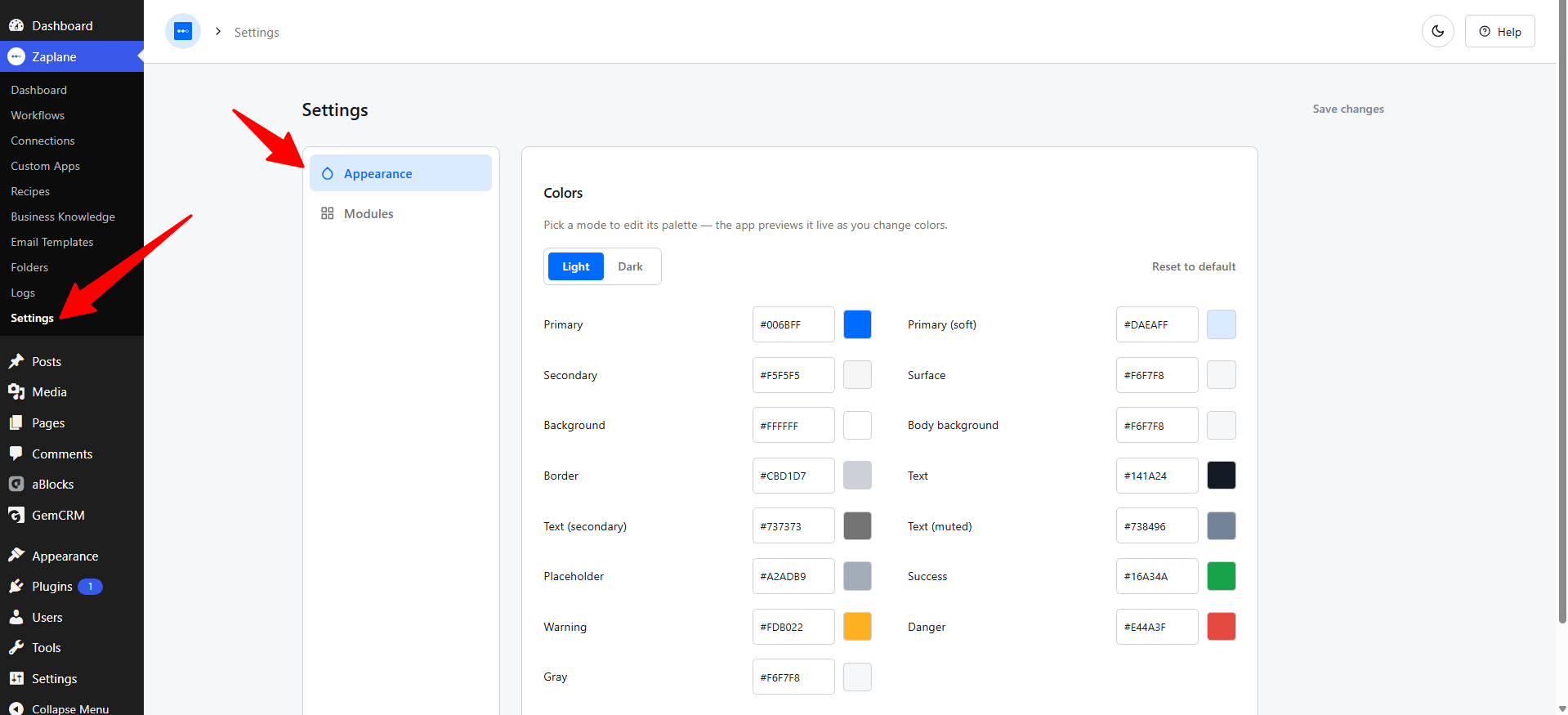
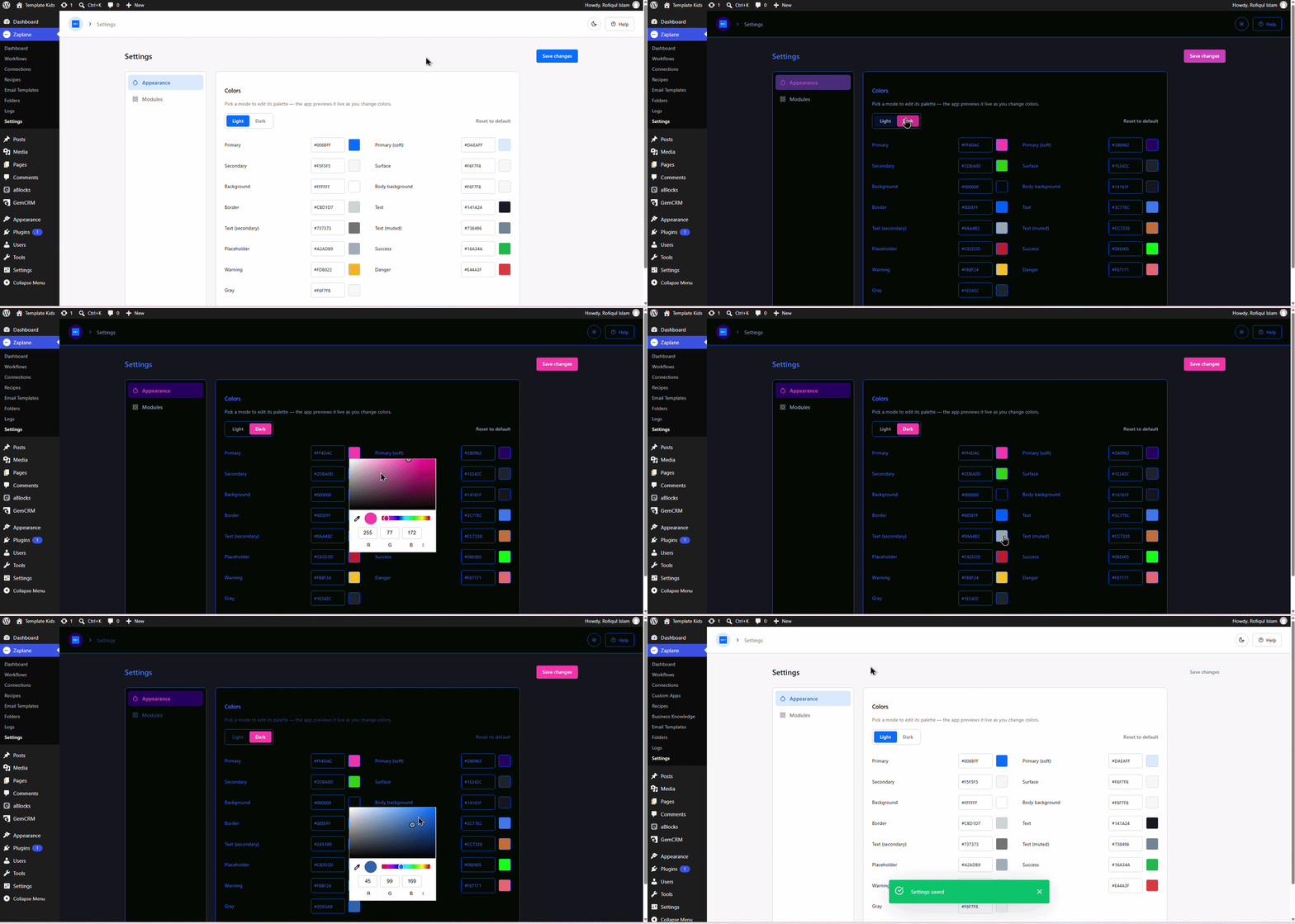
- Under Colors, pick Light or Dark to edit that mode’s palette — the app previews your changes live as you go. Adjust any of the color fields (Primary, Secondary, Background, Border, Text, Success, Warning, Danger, and more), then click Save changes in the top right. Use Reset to default if you want to start over.
Turn Modules On or Off
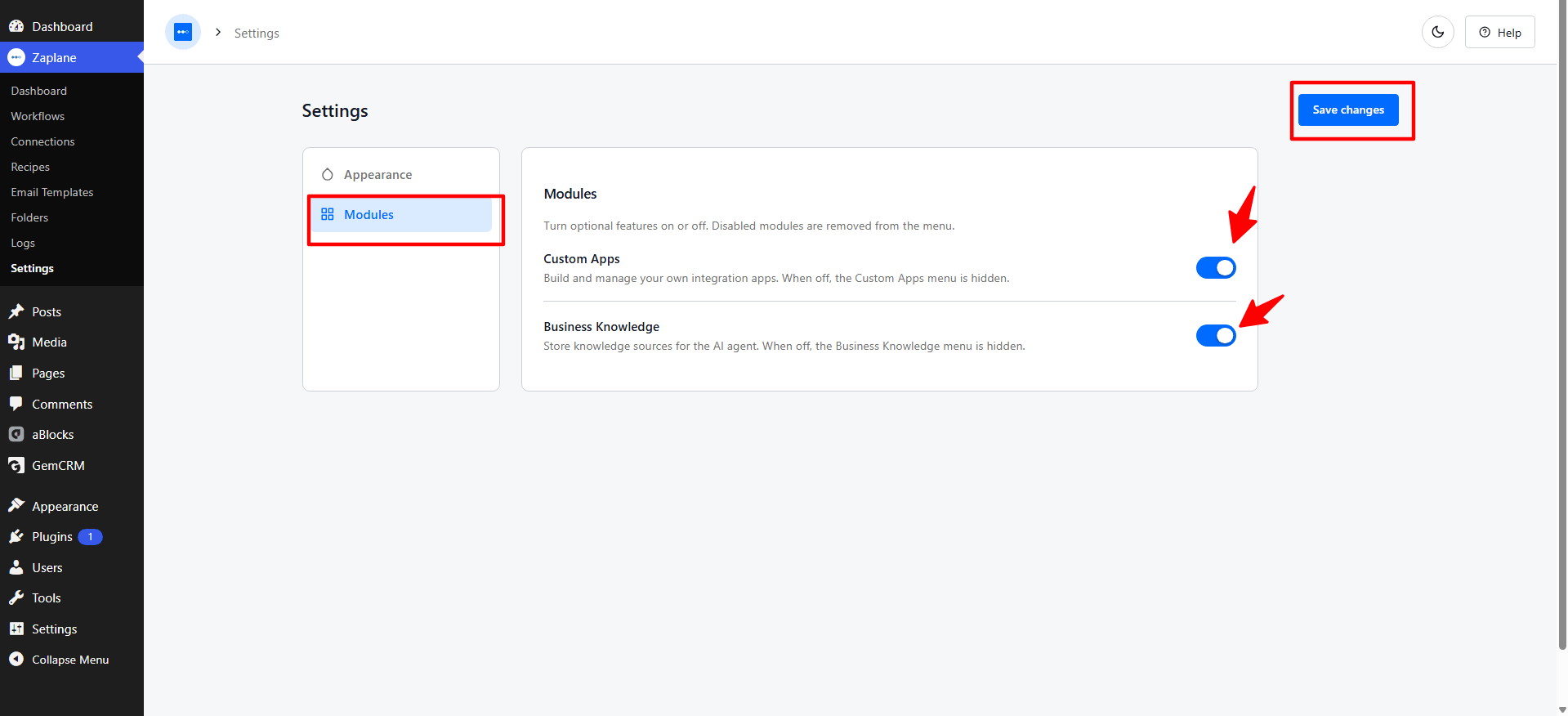
- Select Modules from the left panel. Toggle Custom Apps on to build and manage your own integration apps, or Business Knowledge on to store knowledge sources for the AI agent. Turning a module off removes its menu item from the sidebar. Click Save changes when you’re done.
Done!
Your Zaplane appearance and enabled modules are now updated, and the sidebar will reflect whichever modules you’ve turned on.