

This guide shows how to add a GameEngine action, such as Create Badge, to your Zaplane workflow so badges are created automatically when something happens on your site. Make sure the GameEngine plugin is installed and active before you begin.
Step 1: Create a Workflow
Go to Zaplane > Workflows from your WordPress dashboard, then click Create Workflow to open the workflow editor.
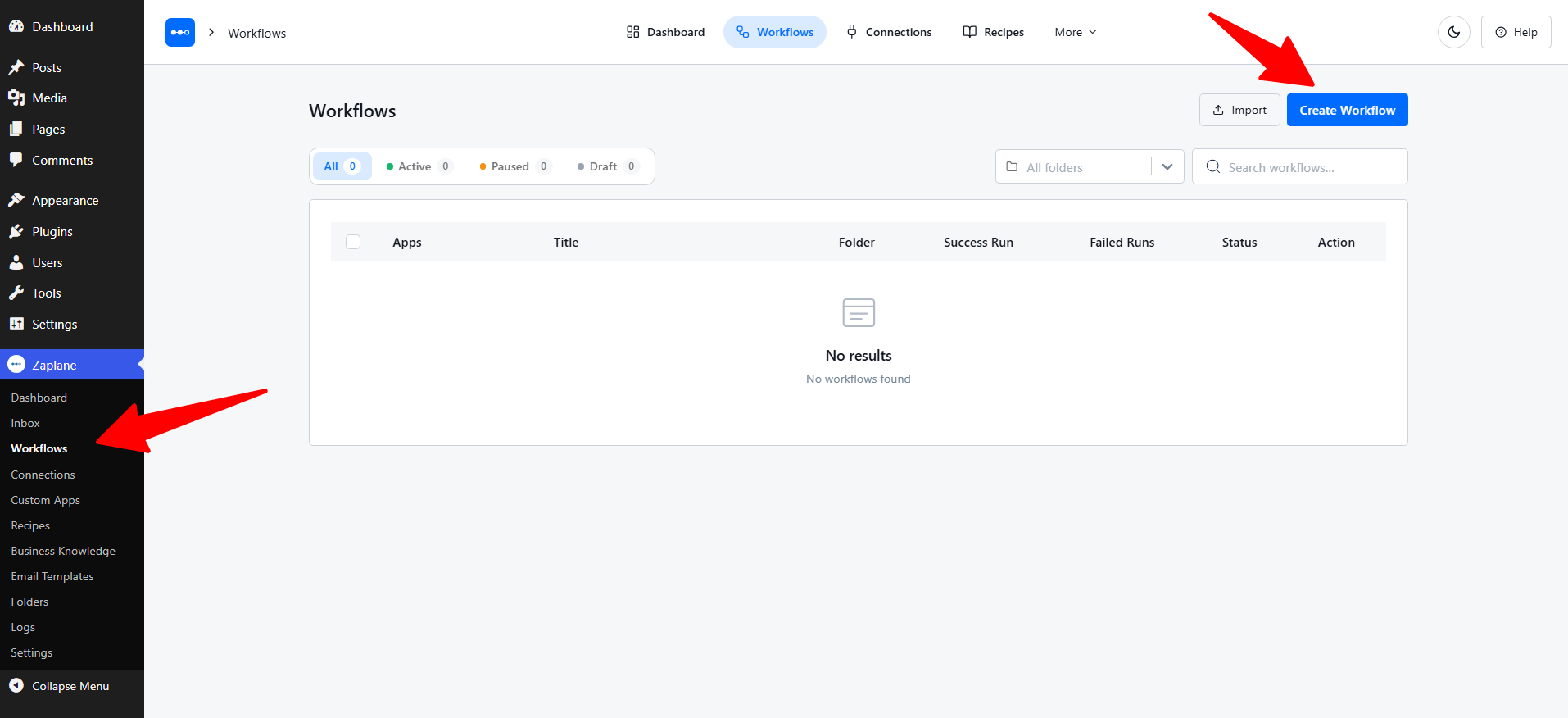
Before adding a GameEngine action, you need to set up a trigger first. Here is how to do it quickly:
Click Select an app under the Trigger box, then choose Apps.
Search for and select your trigger app — in this example, we are using aBlocks Contact Form.
Choose the Trigger Type that matches the event you want to watch for, then click Continue.
On the Configure tab, set up any required options, then click Continue.
On the Test tab, click Test Trigger to confirm it is working correctly, then click Save.
Once your trigger is saved, proceed to the next step to add the GameEngine action.
Step 2: Add an Action
Click the + button next to your trigger node. In the Add Action panel, choose Apps.
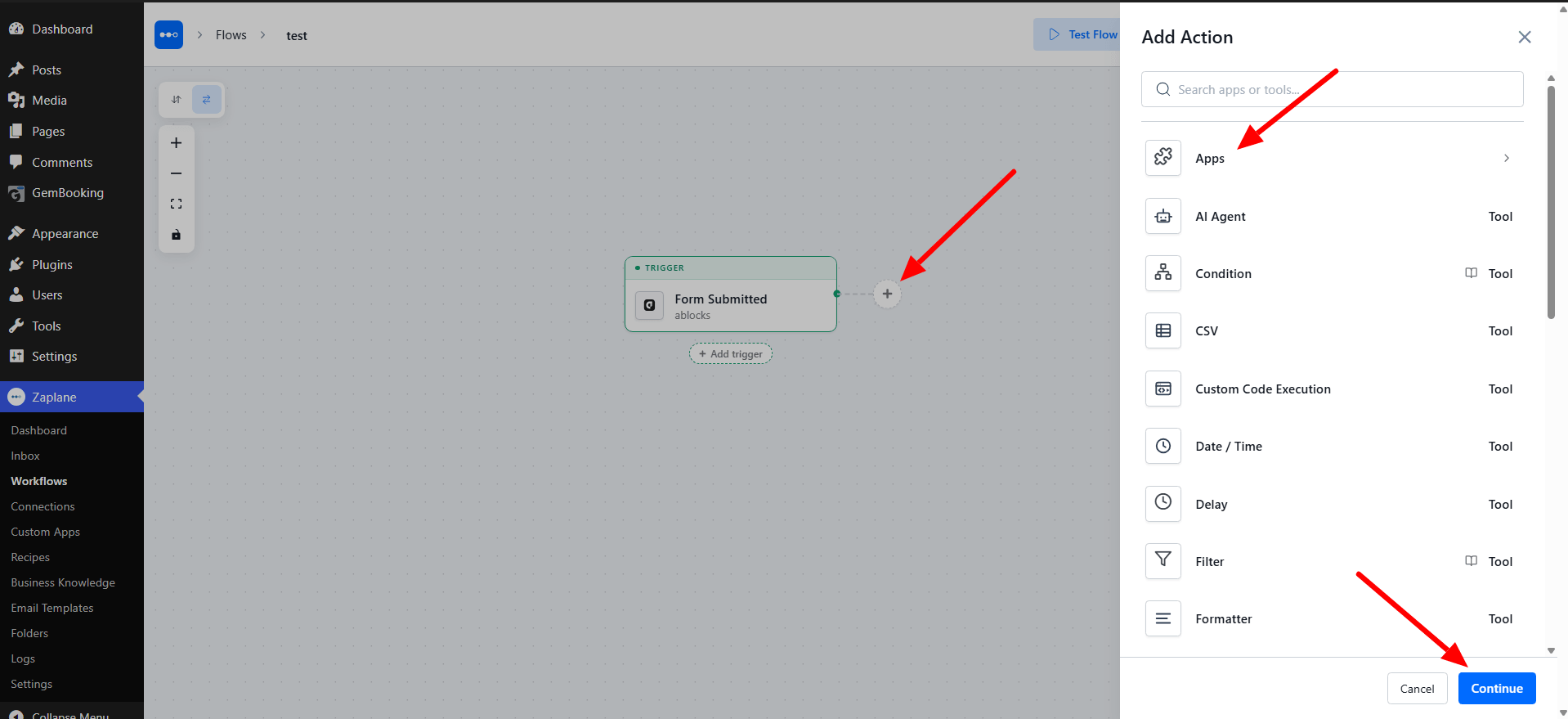
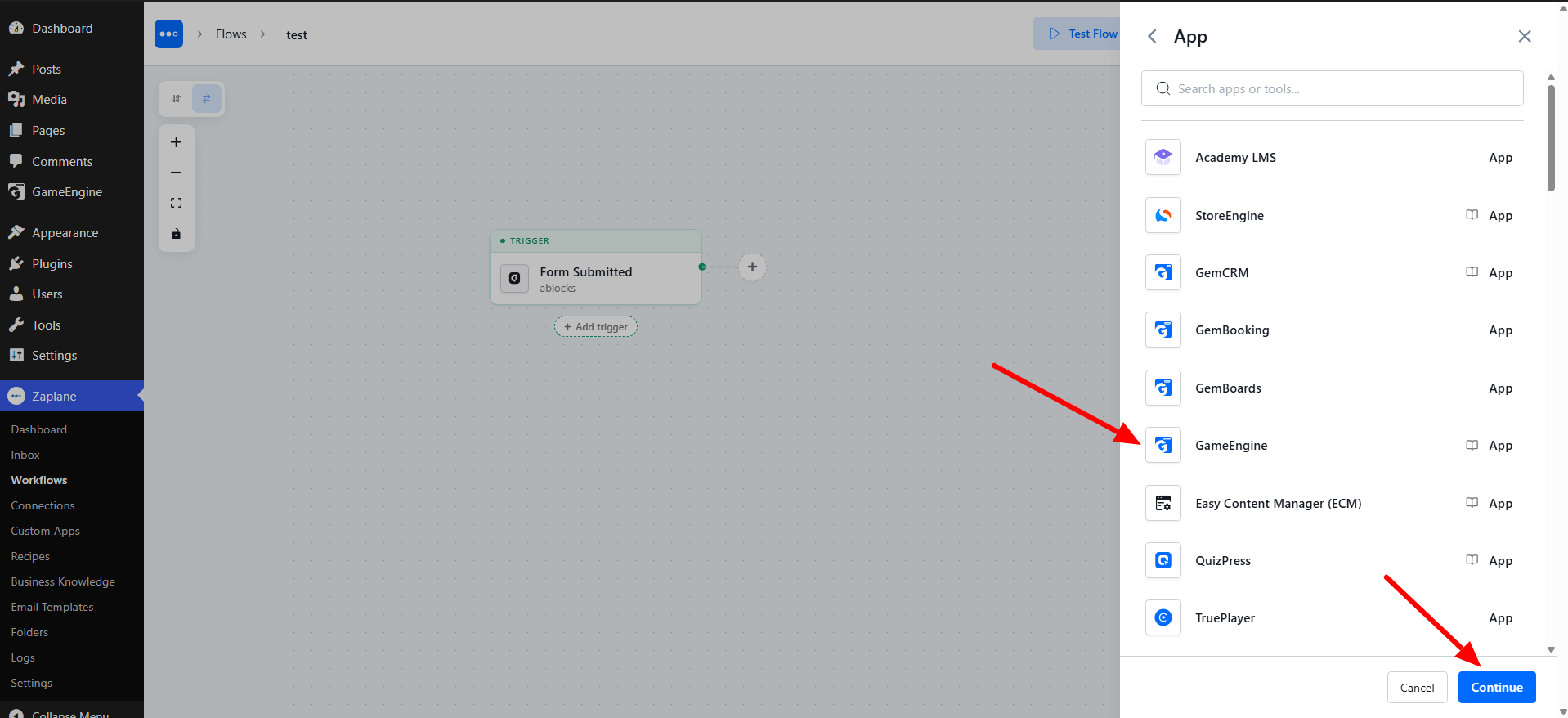
Step 3: Select the GameEngine App
Select GameEngine from the app list and click Continue.
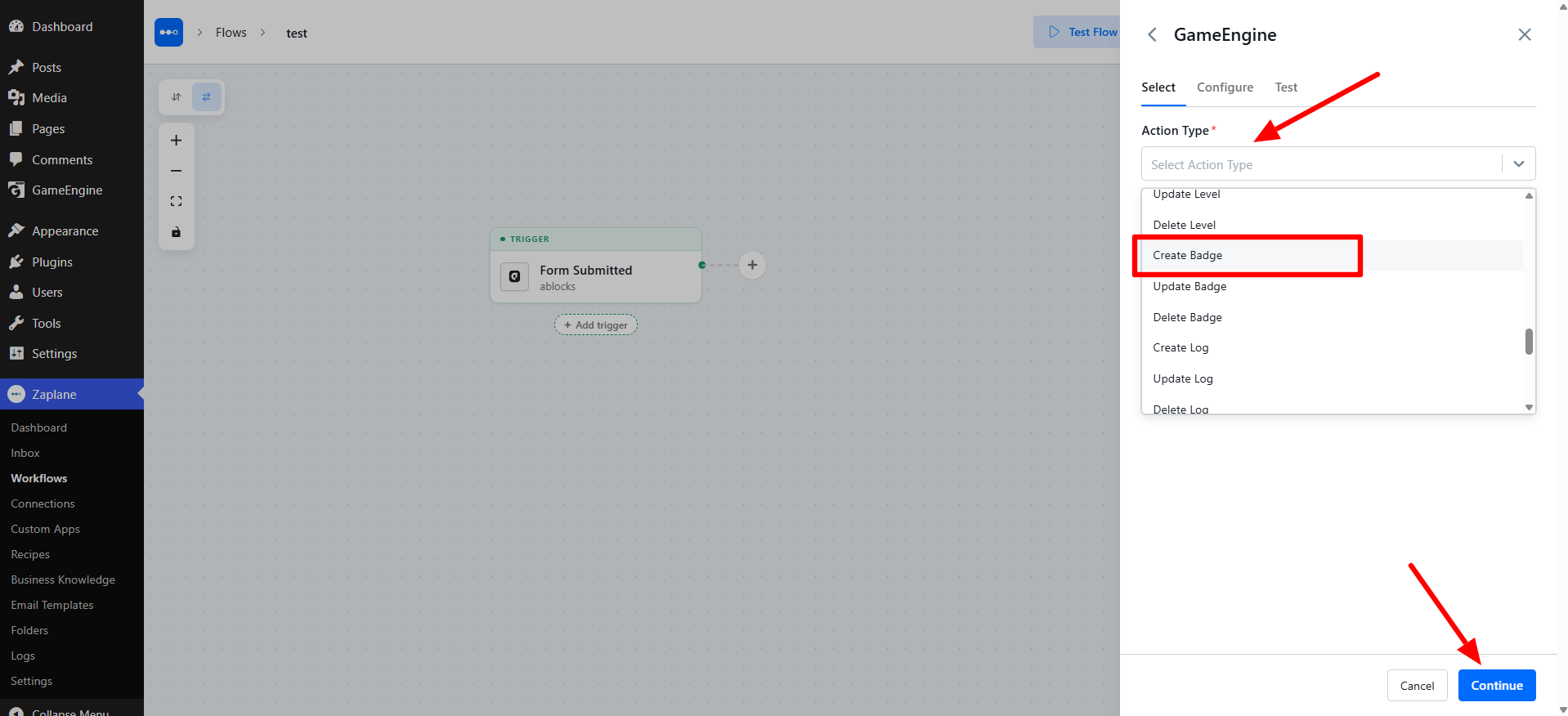
Step 4: Choose the Action Type
Open the Action Type dropdown and pick what GameEngine should do. GameEngine offers several actions, such as creating, updating or deleting a level, badge or log. Here we use Create Badge. Click Continue.
Step 5: Configure the Action
On the Configure tab, enter the Title (required). You can also fill in the Icon, Icon Type, Shape, Color, Border Color and Text Color to style your badge. Type @ in a field to insert dynamic data from your trigger. Click Continue.
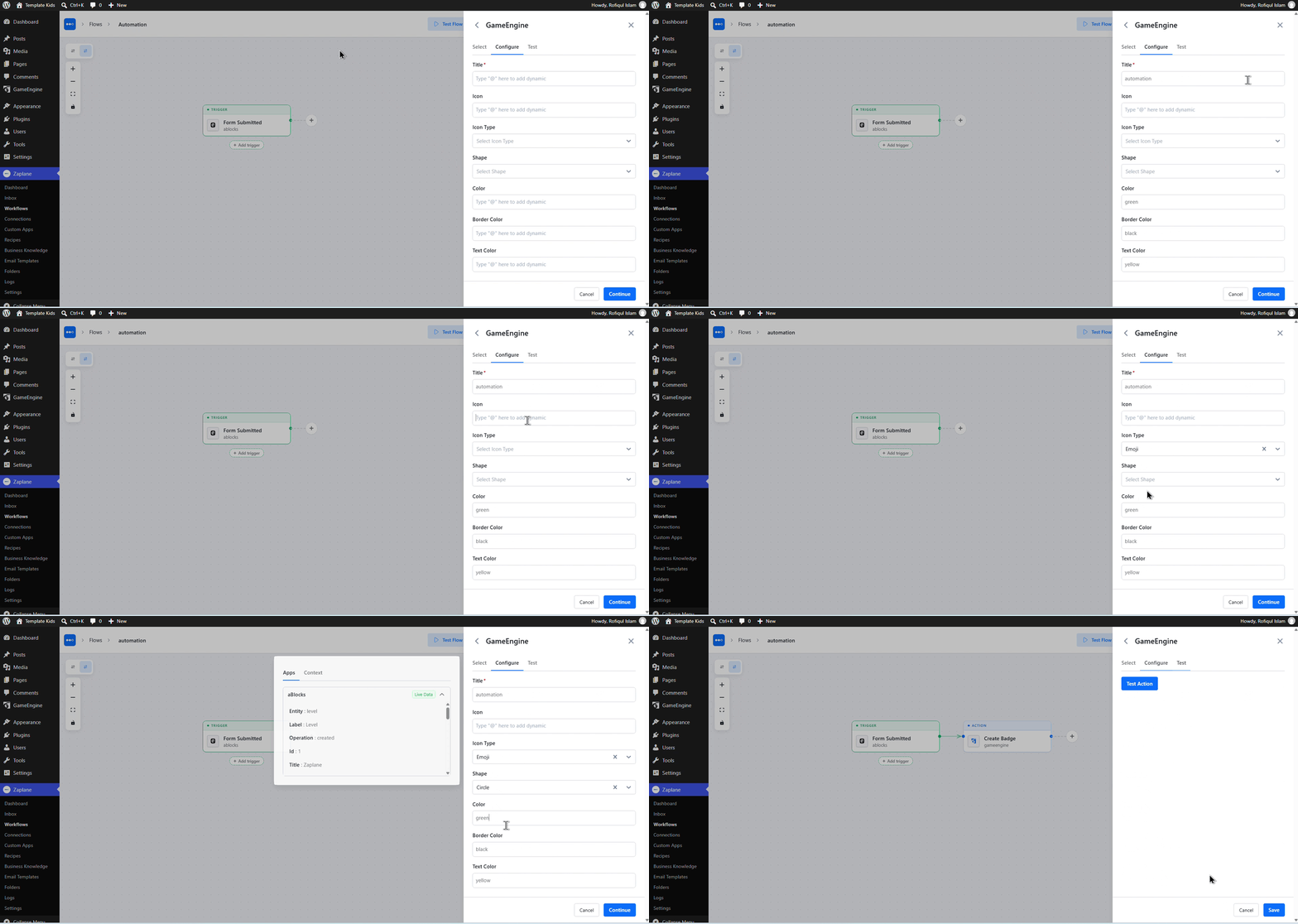
Step 6: Test the Action
On the Test tab, click Test Action to check that the action works, then click Save.
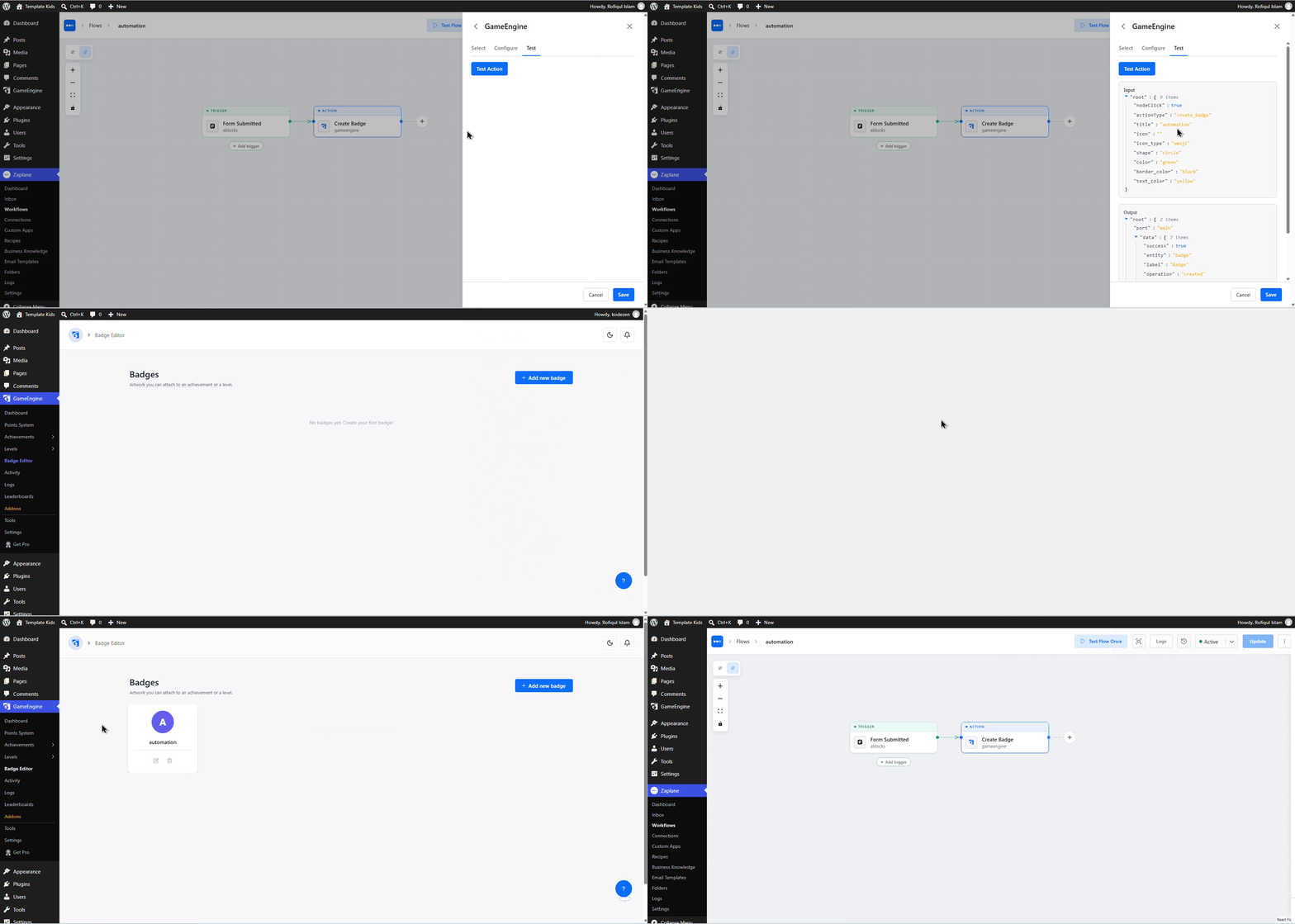
Step 7: Update and Activate the Workflow
Your workflow now shows the trigger followed by the Create Badge action. Make sure the status is Active, then click Update in the top-right corner to save and activate the workflow.
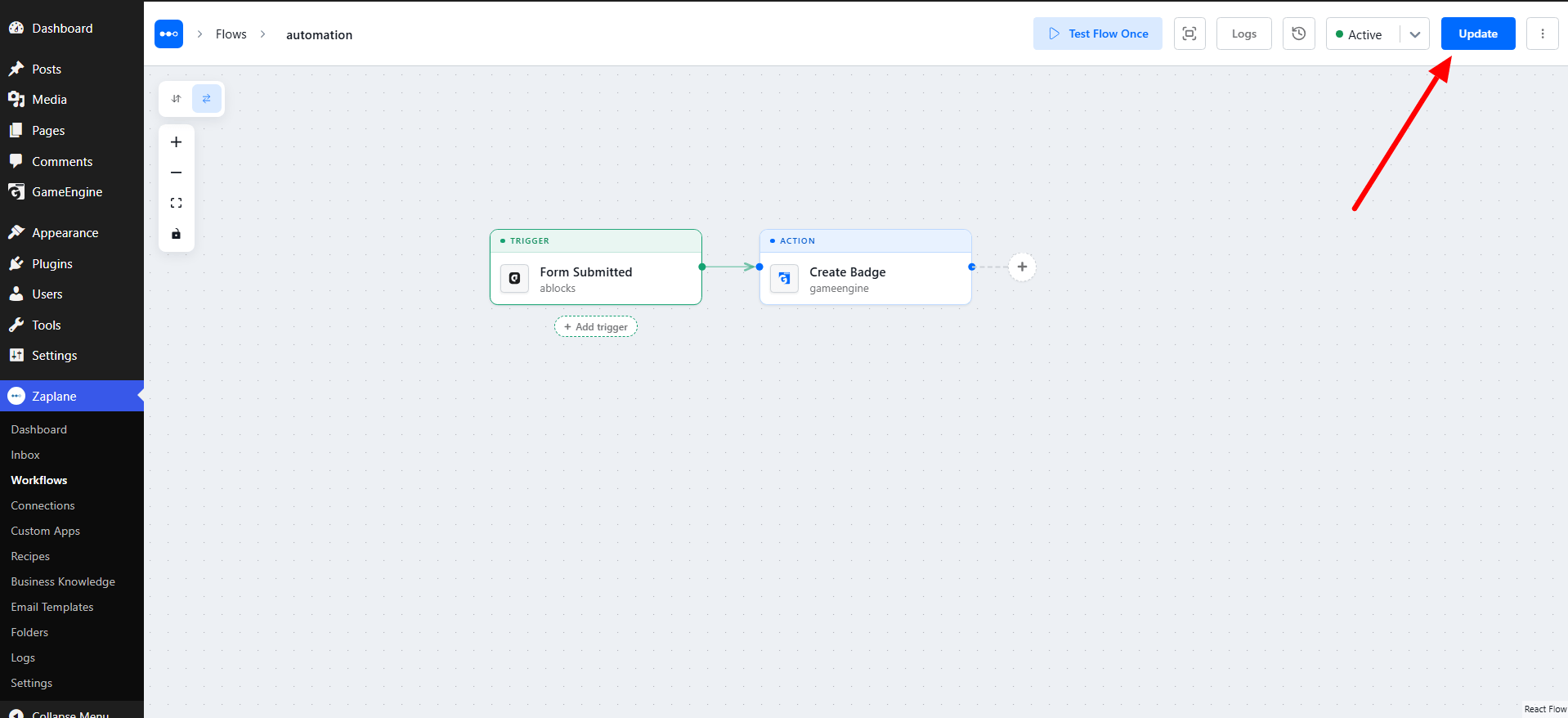
Every time your trigger fires, Zaplane now creates a badge in GameEngine automatically.
Done!
GameEngine is now connected to your Zaplane workflow as an action.