

This guide walks you through creating a Zoom app, connecting it inside Zaplane, and building a workflow that runs
automatically when a Zoom event happens (for example, when a meeting starts). Let’s go through the process step
by step.
Step 1: Create a Zoom App
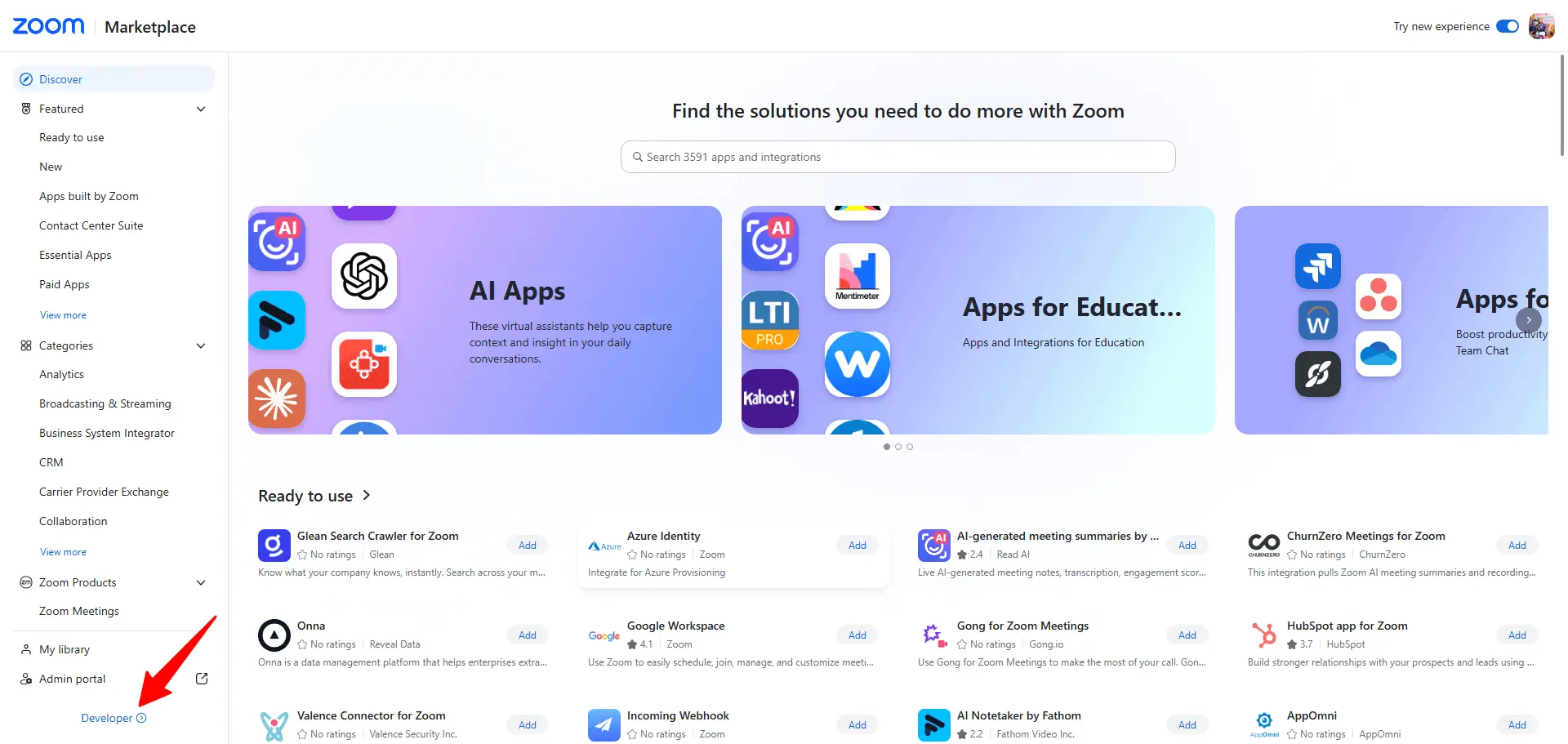
- Log in to the Zoom Marketplace and click the Developer link at the bottom of the left-hand menu.
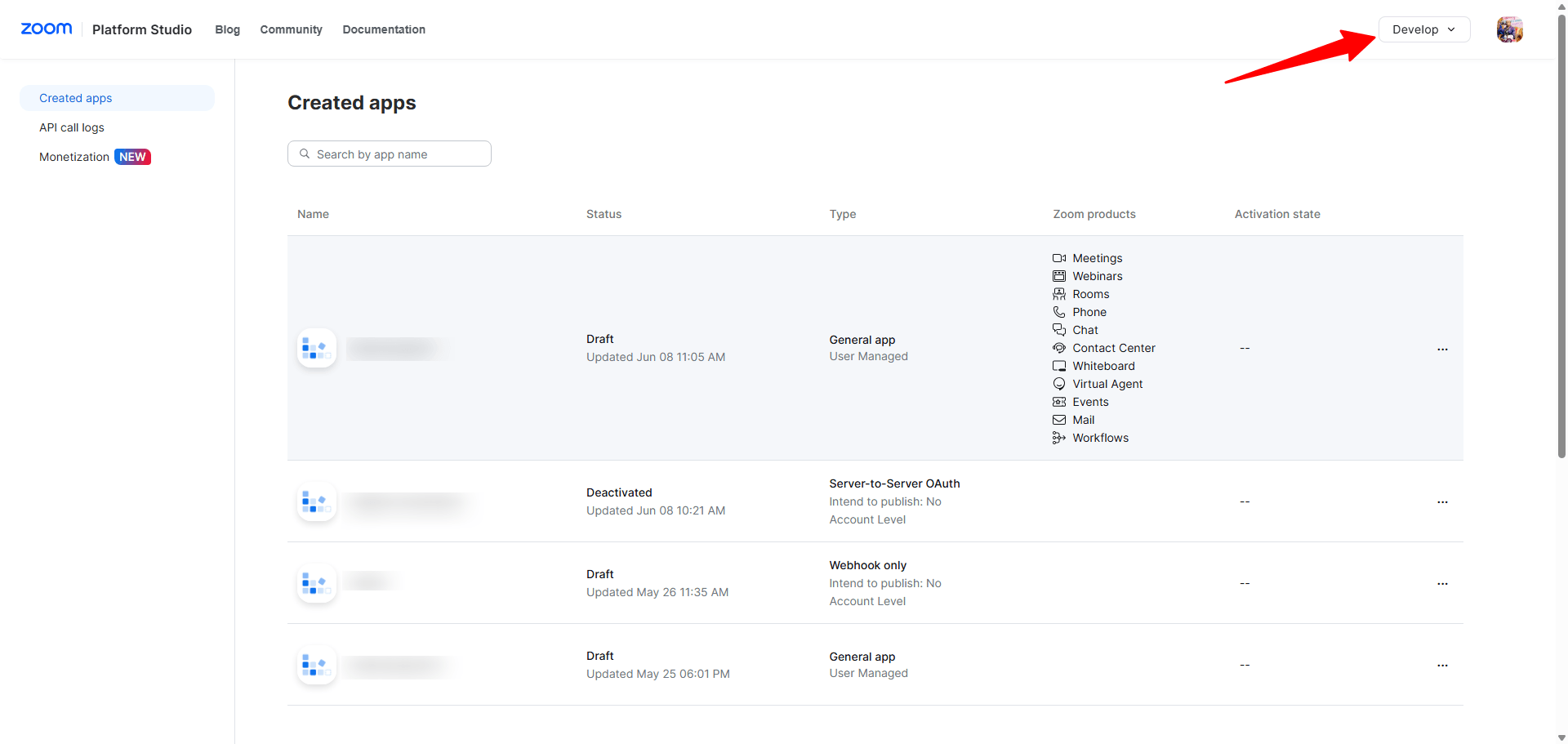
- From the top-right Develop dropdown, choose to build a new app.
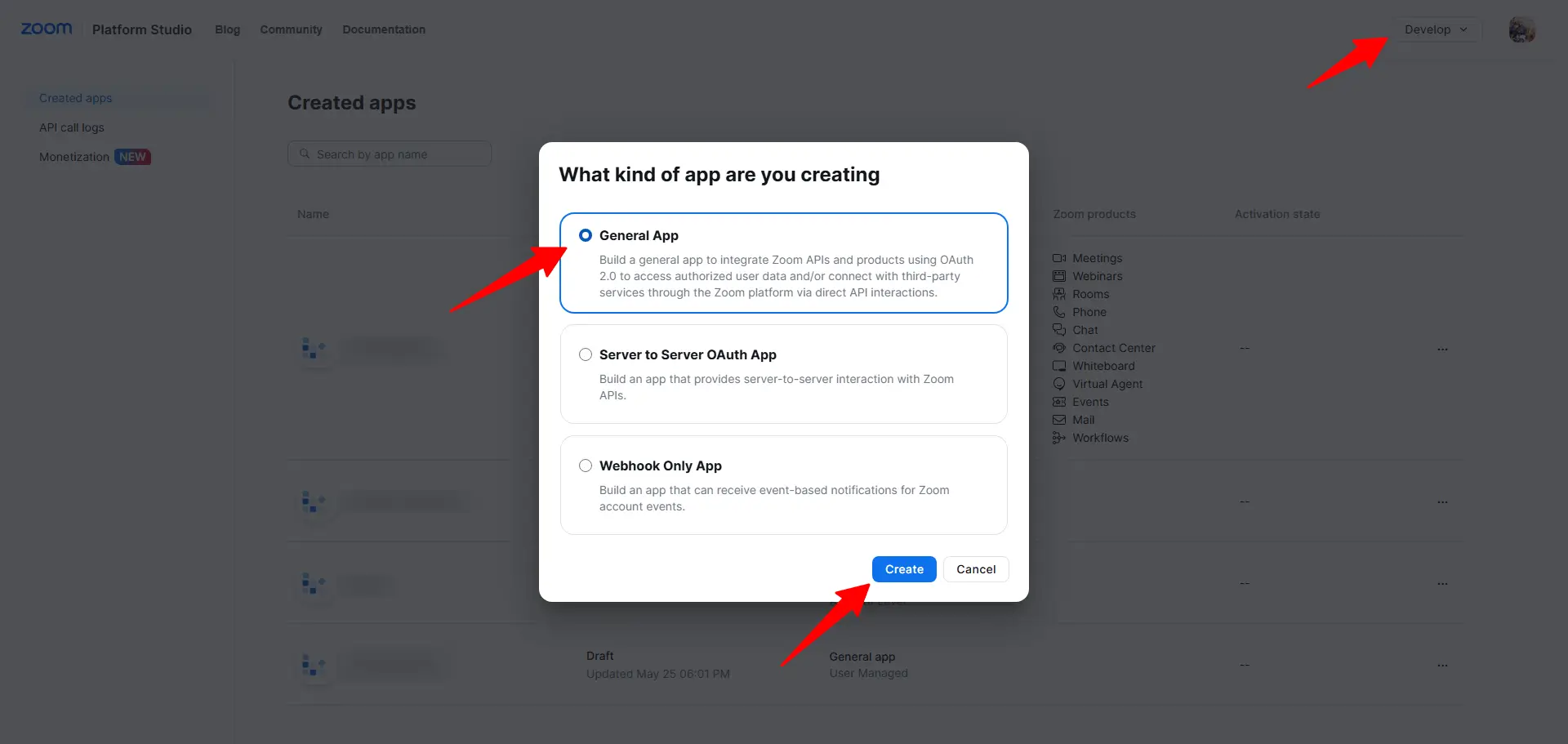
- . In the “What kind of app are you creating” popup, select General App, then click Create.
- On the app’s Basic Information page, copy the Client ID and Client Secret.
- Scroll down to OAuth Information and paste your redirect URL into the OAuth Redirect URL field:
https://yourdomain.com/wp-json/zaplane/v1/connections/oauth/callback
(Replace “yourdomain.com” with your own site’s domain.)
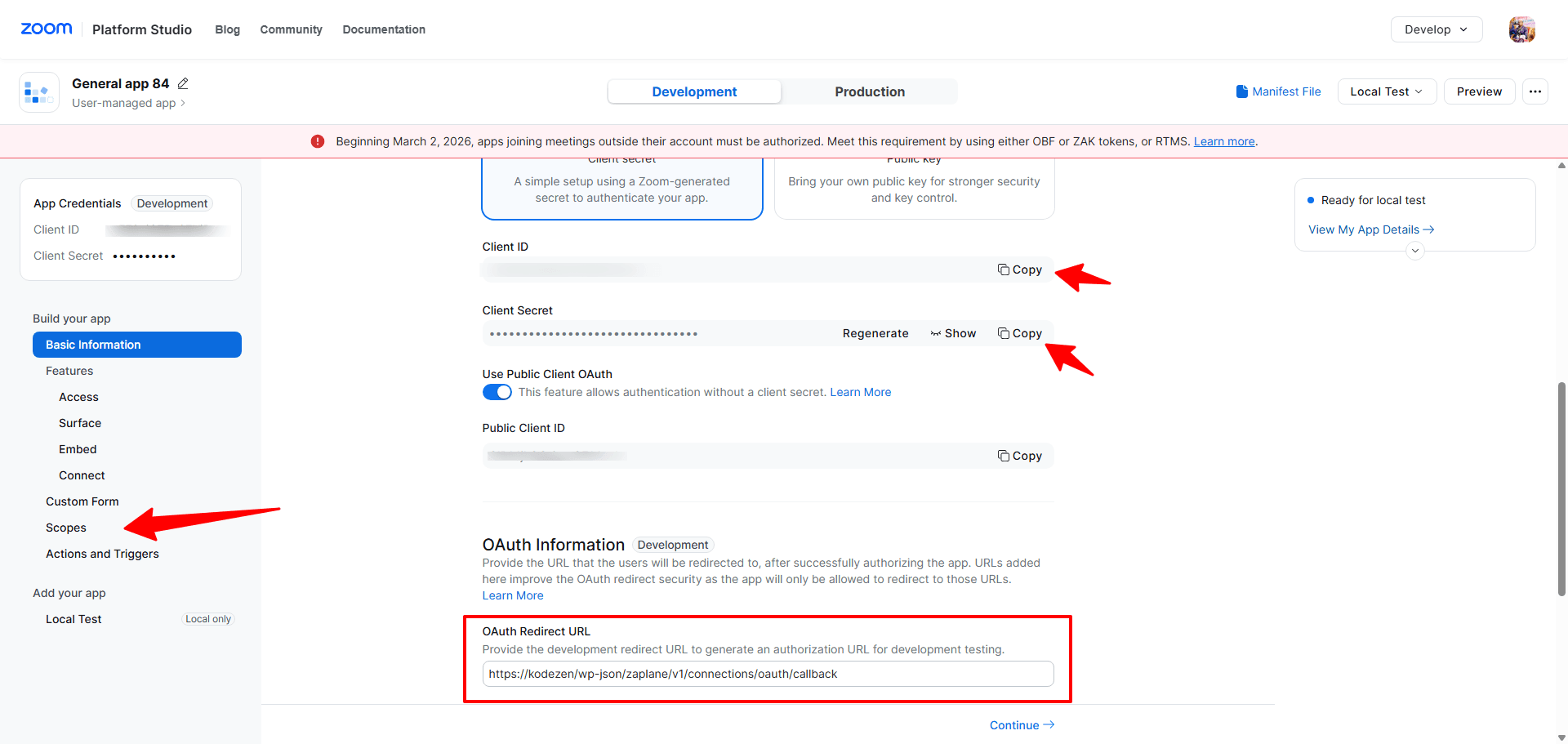
- Click Continue to save the app settings.
Step 2: Create a Connection in Zaplane
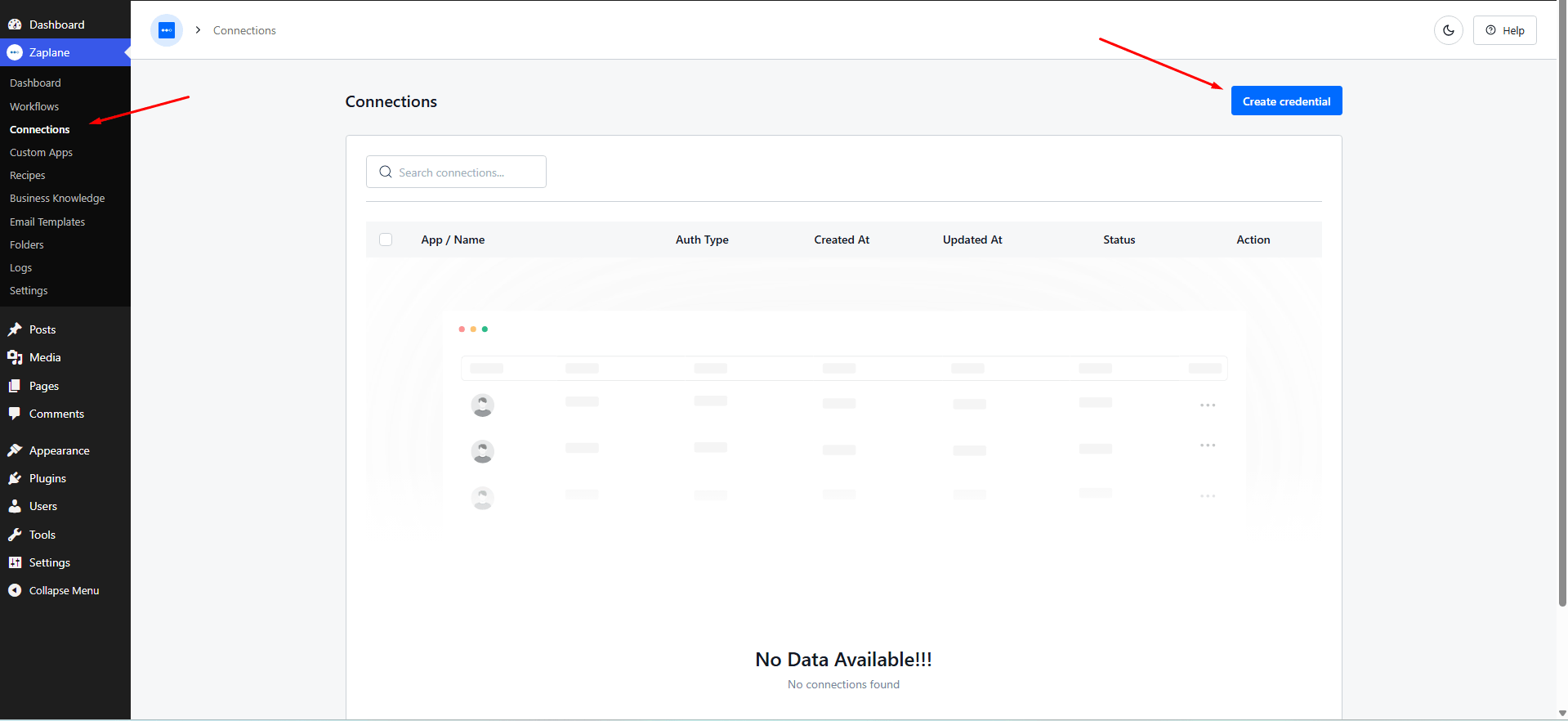
- From the left-hand menu, click Zaplane, then click Connections.
- On the Connections page, click the Create credential button in the top-right corner.
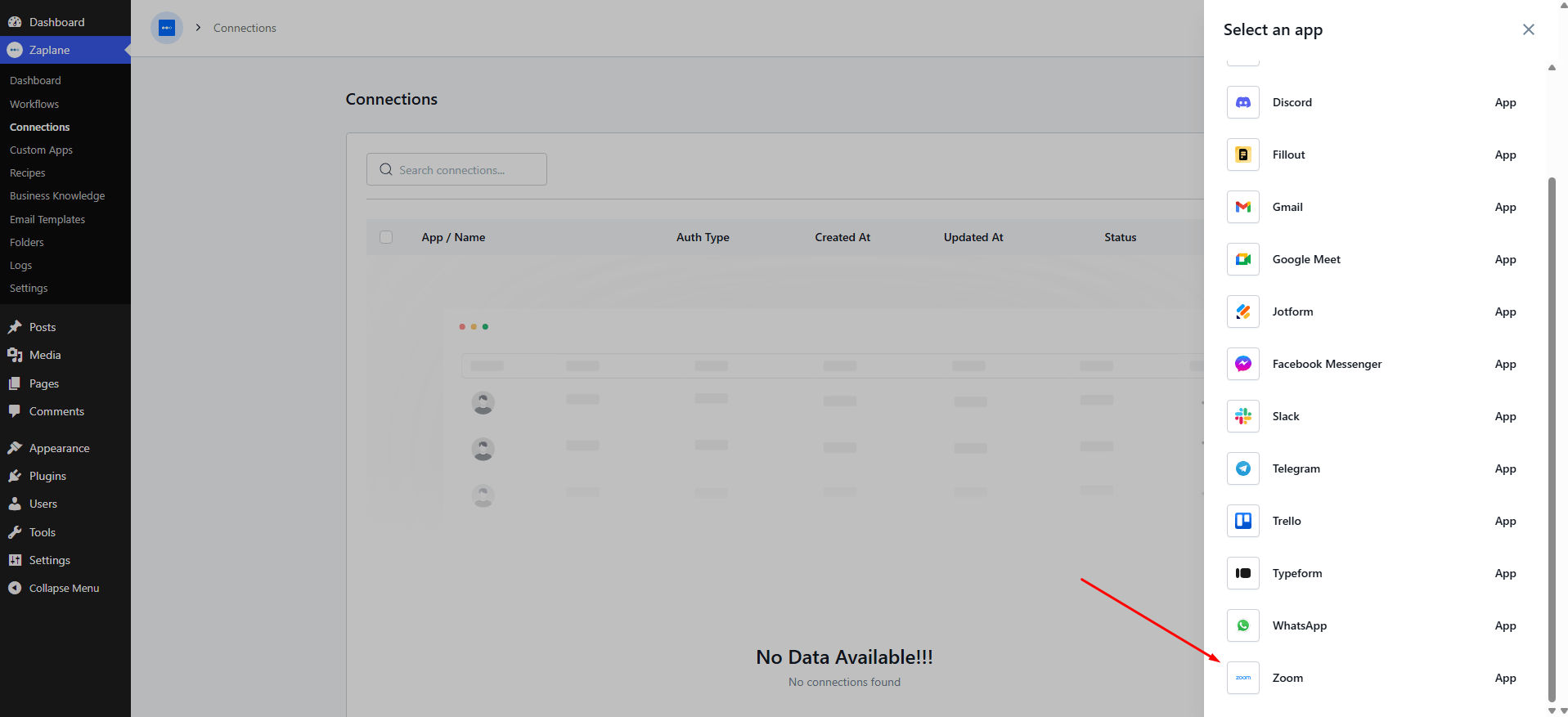
- From the Select an app panel, search for and click Zoom.
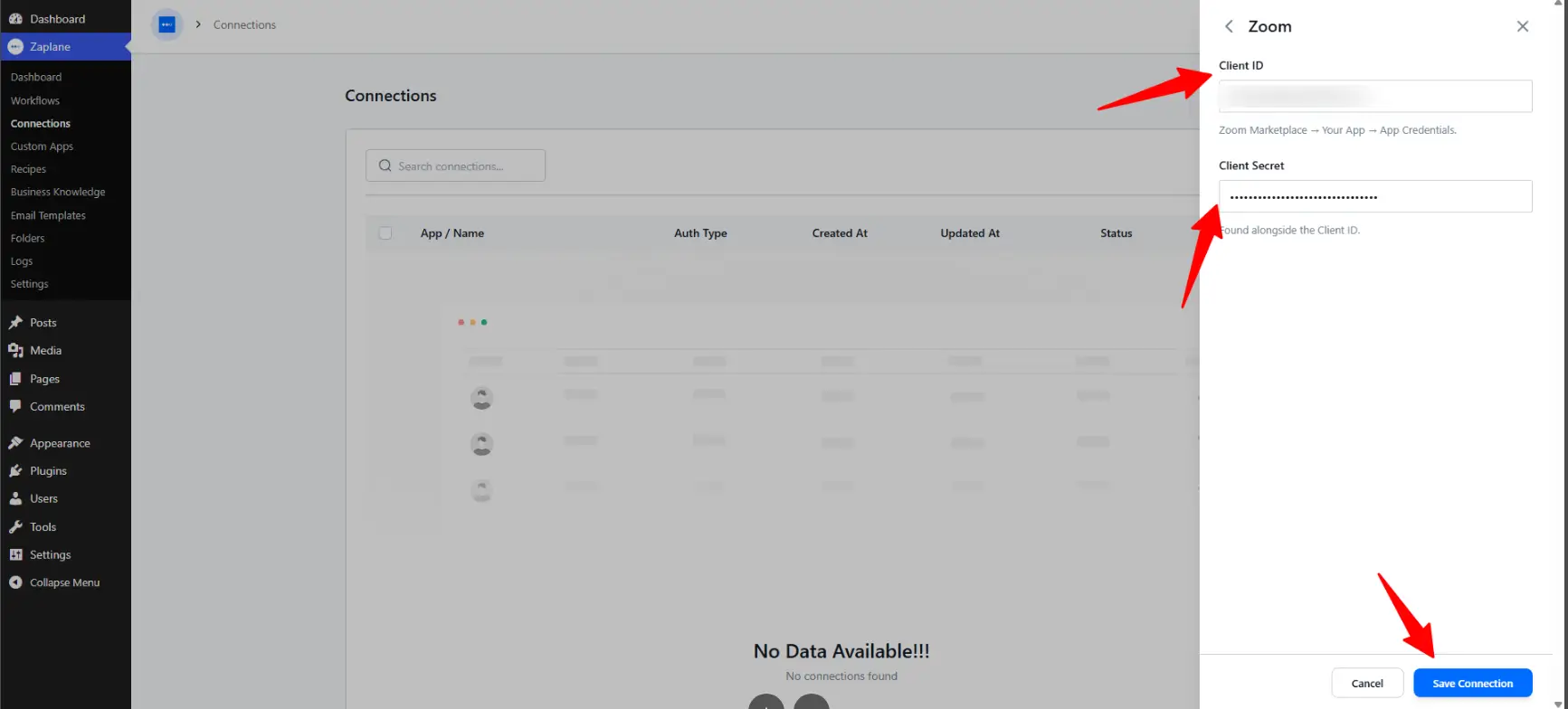
- Paste the Client ID and Client Secret you copied in Step 1, then click Save Connection.
- Once saved, the Zoom connection appears in your Connections list, ready to be used inside any workflow.
Step 3: Add a Zoom Trigger to a Workflow
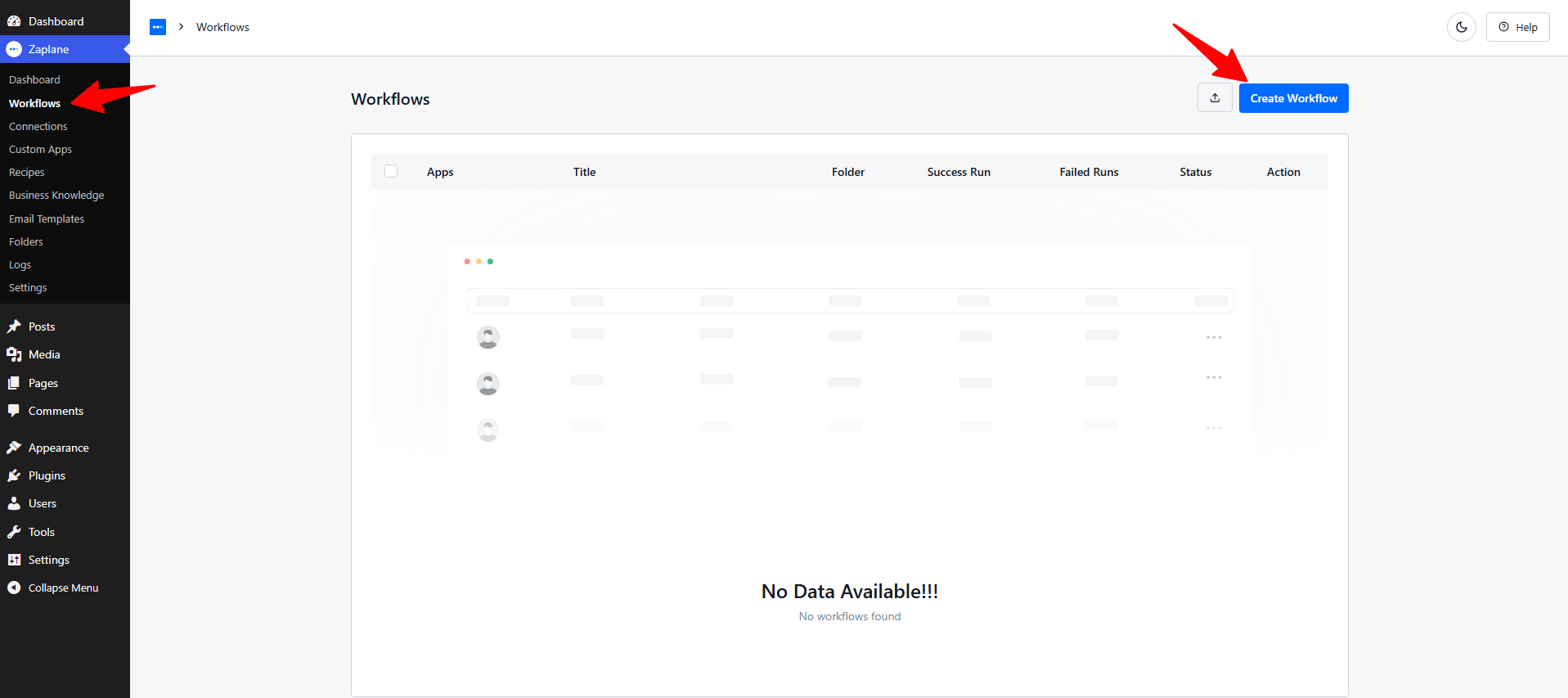
- Go to Zaplane > Workflows, then click Create Workflow.
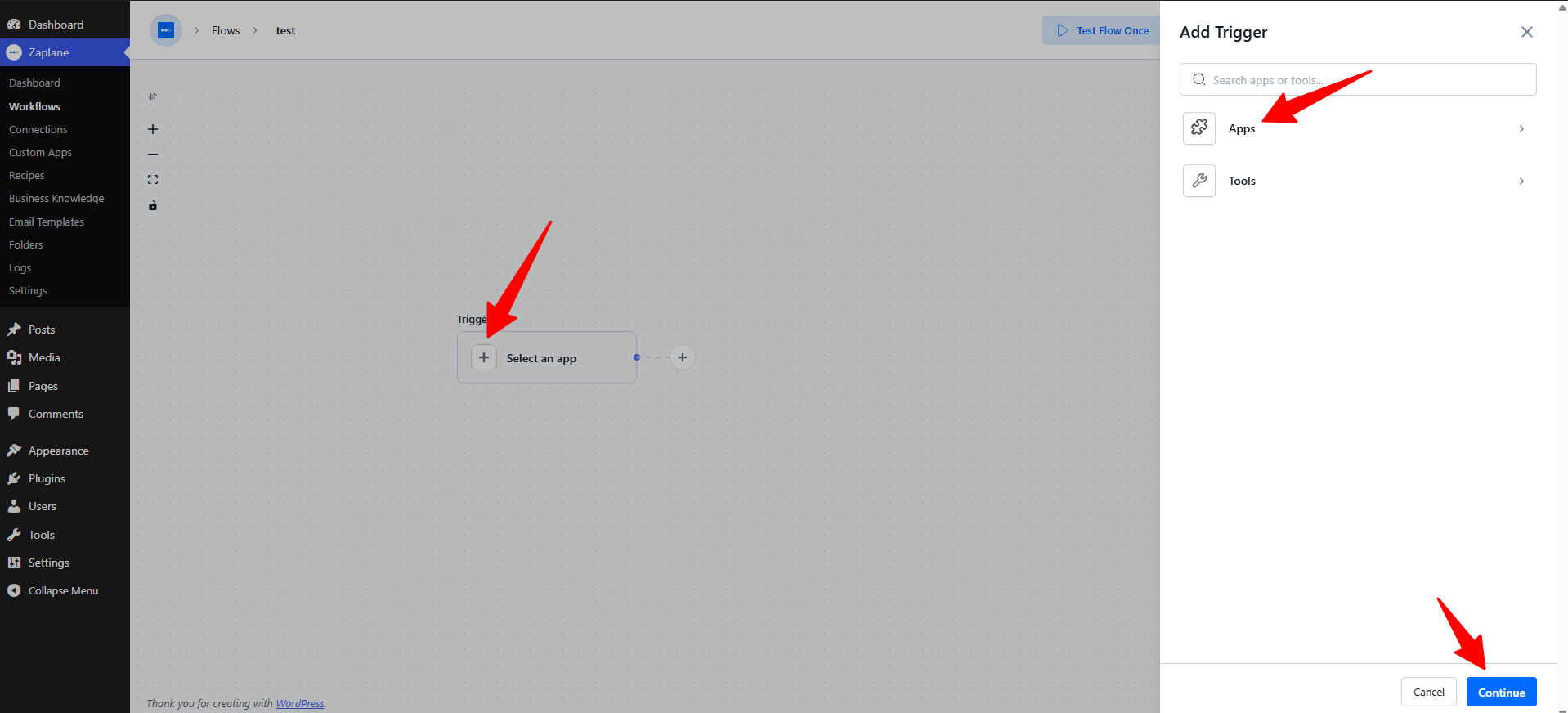
- Inside the workflow editor, click Select an app under the Trigger box, then choose Apps.
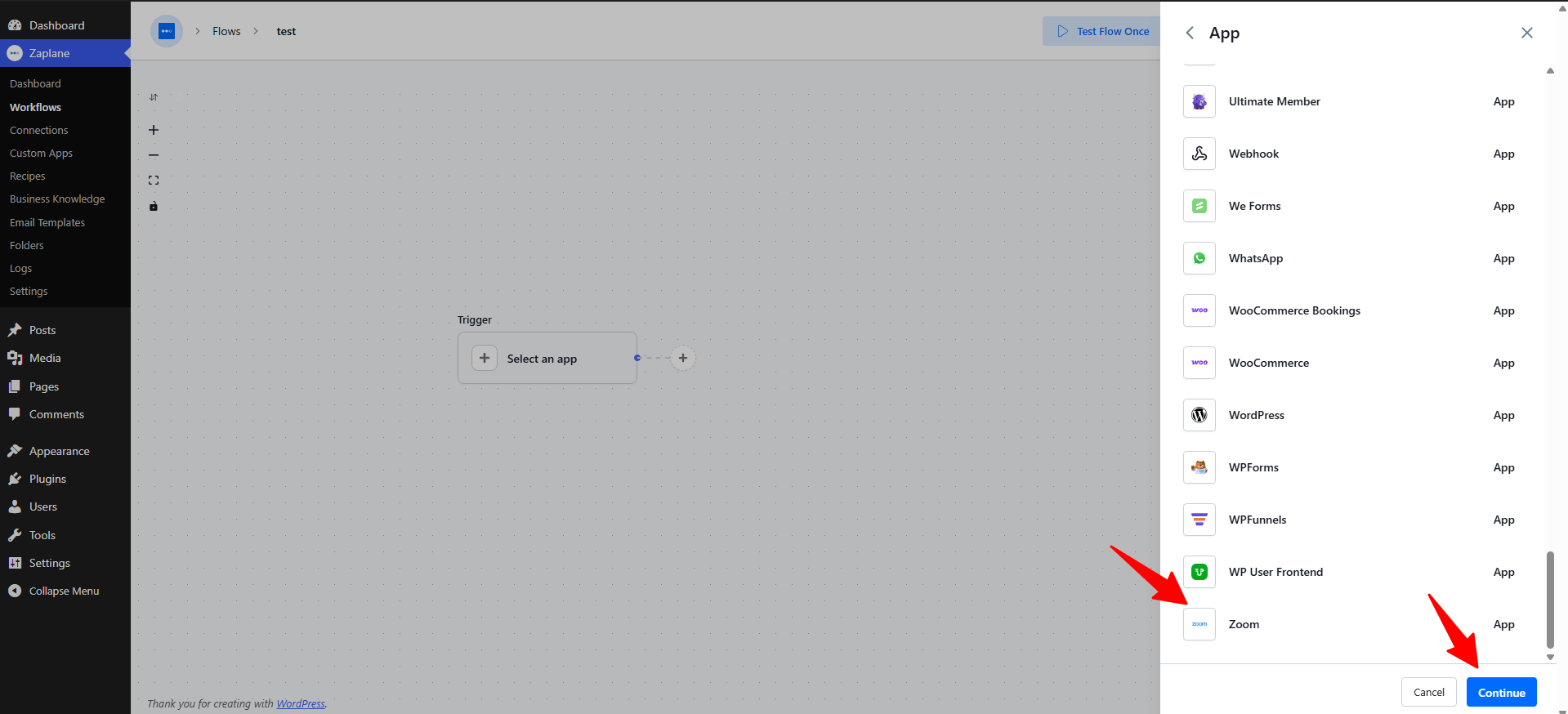
- Search for and select Zoom, then click Continue.
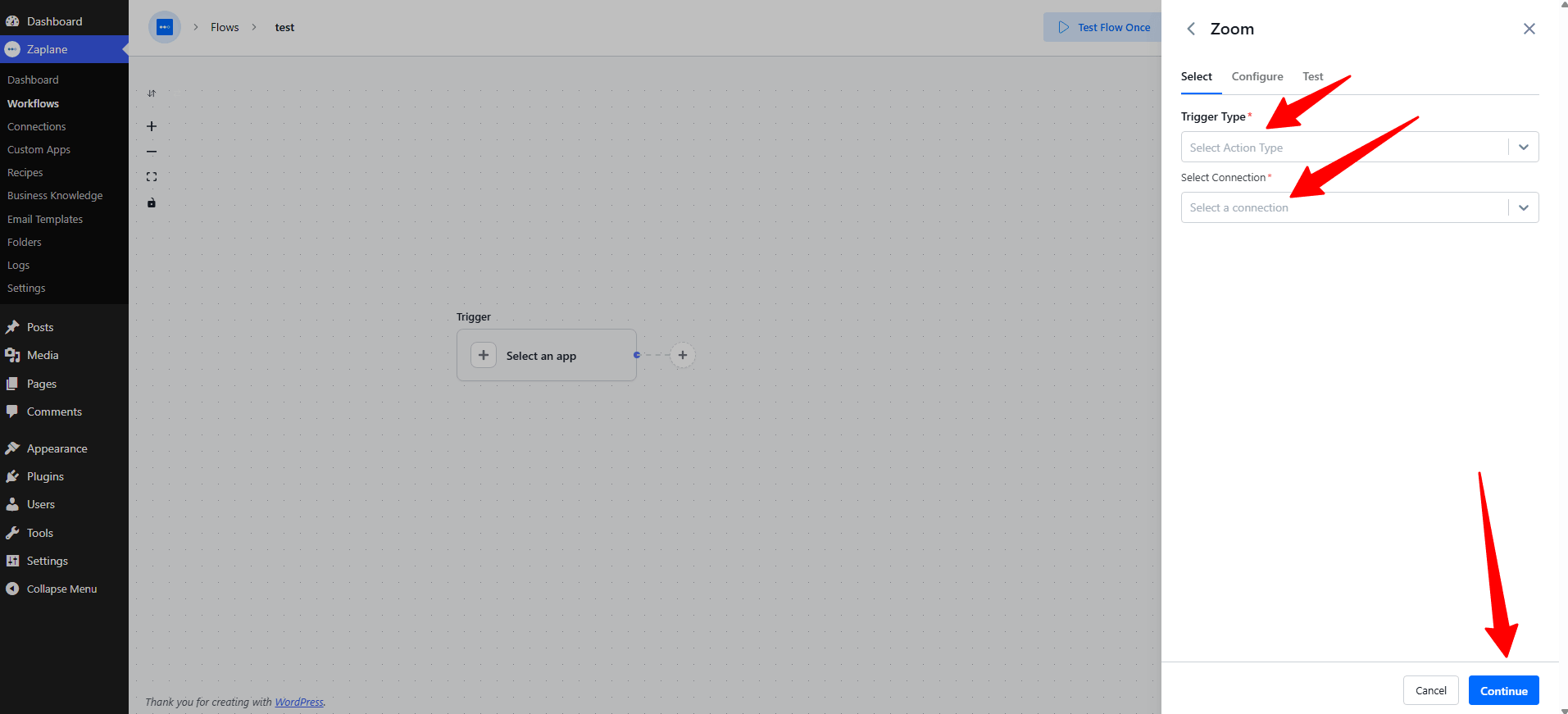
- Choose a Trigger Type (for example, “Meeting Started”) and select the connection you created in Step 2.
- Review the Configure tab, then go to the Test tab and click Test Trigger, followed by Save.
- Finally, toggle the workflow to Active and click Update to publish it.
You’re all set
Zoom is now connected to Zaplane. Your workflow will run automatically whenever the selected Zoom trigger
event occurs.