

A step-by-step guide to triggering Zaplane workflows from WPForms submissions.
This guide walks you through adding a WPForms trigger to a Zaplane workflow, so your workflow runs automatically whenever a form is submitted on your site. Since WPForms runs on your own WordPress site, there’s no separate app or connection to set up — you can go straight to building the workflow. Let’s go through the process step by step.
Step 1: Create a Workflow
- Go to Zaplane > Workflows, then click Create Workflow.

Step 2: Add a WPForms Trigger
- Inside the workflow editor, click Select an app under the Trigger box, then choose Apps.

- Search for and select WPForms, then click Continue.
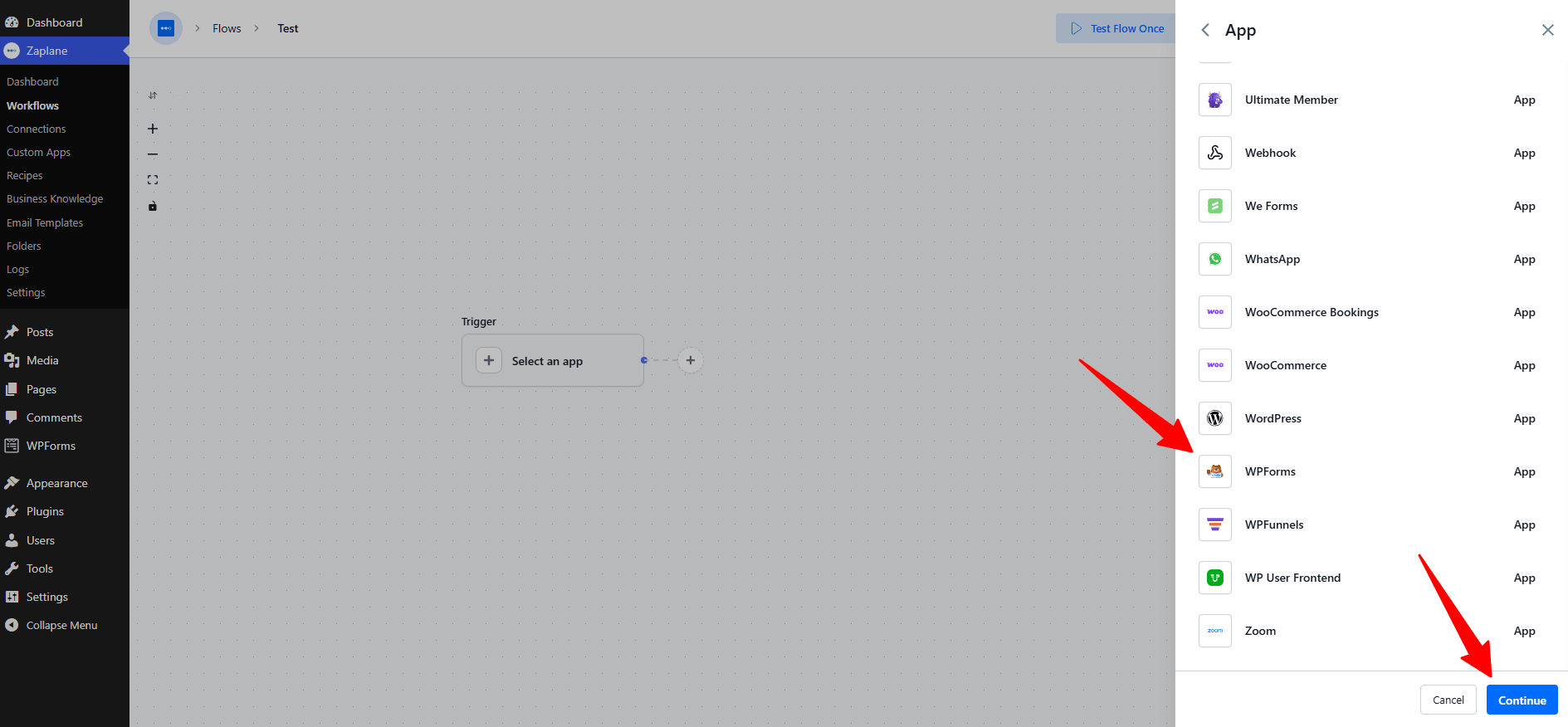
Step 3: Choose a Trigger Type
- On the Select tab, open the Trigger Type dropdown and choose Form Submitted, then click Continue.
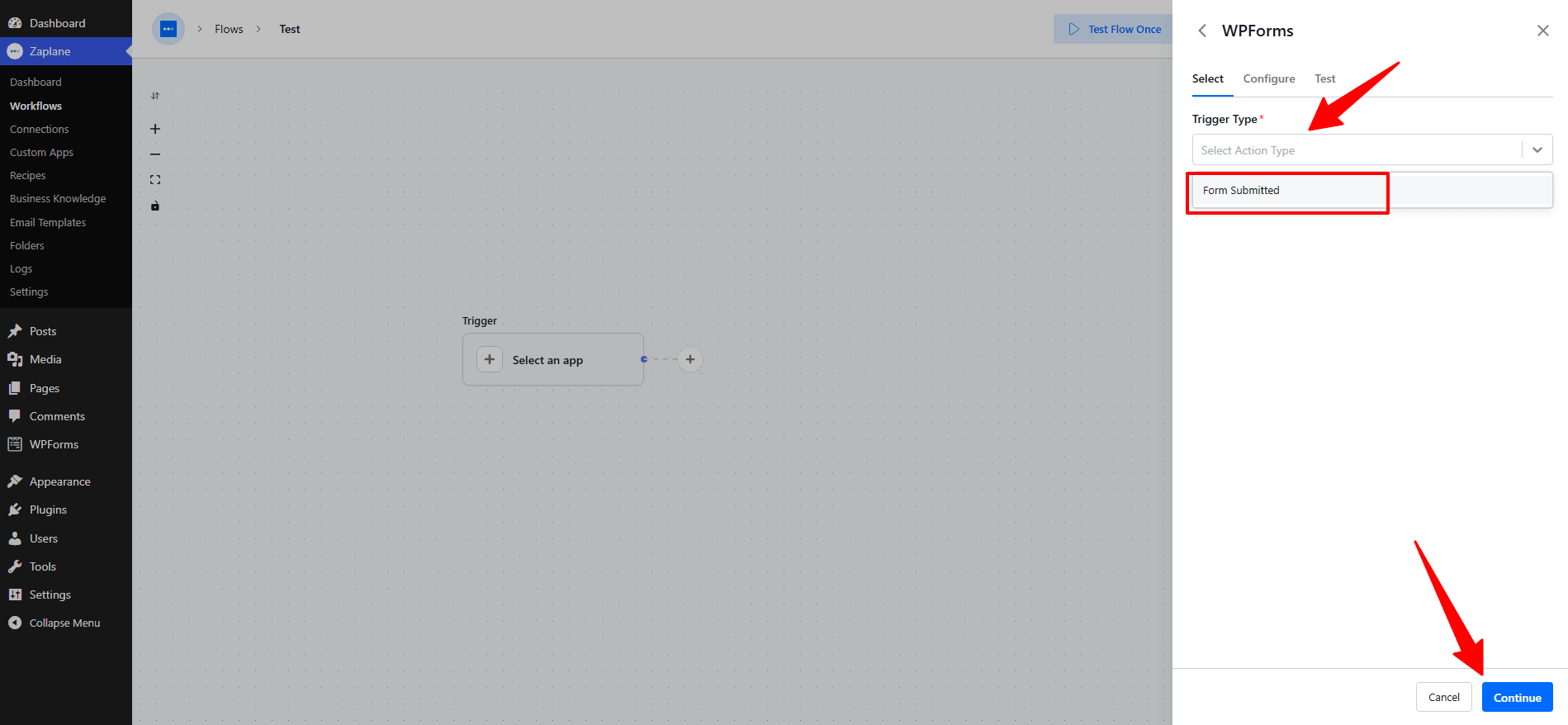
Step 4: Configure the Trigger
- On the Configure tab, open the Forms dropdown and select the specific form you want this workflow to listen to (or choose “Any Form” to watch all forms), then click Continue.
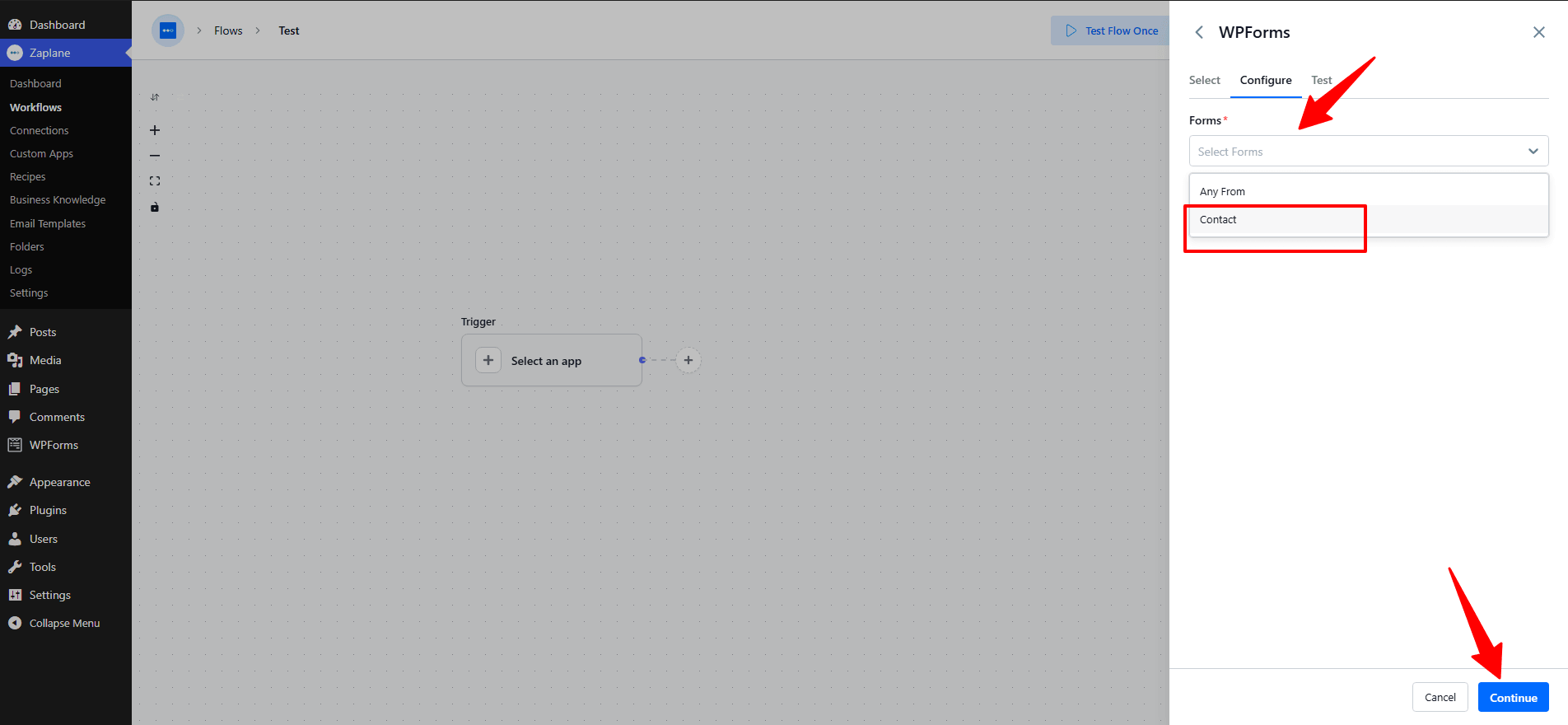
Step 5: Test and Activate the Workflow
- On the Test tab, click Test Trigger to confirm it’s picking up form submissions correctly, then click Save.
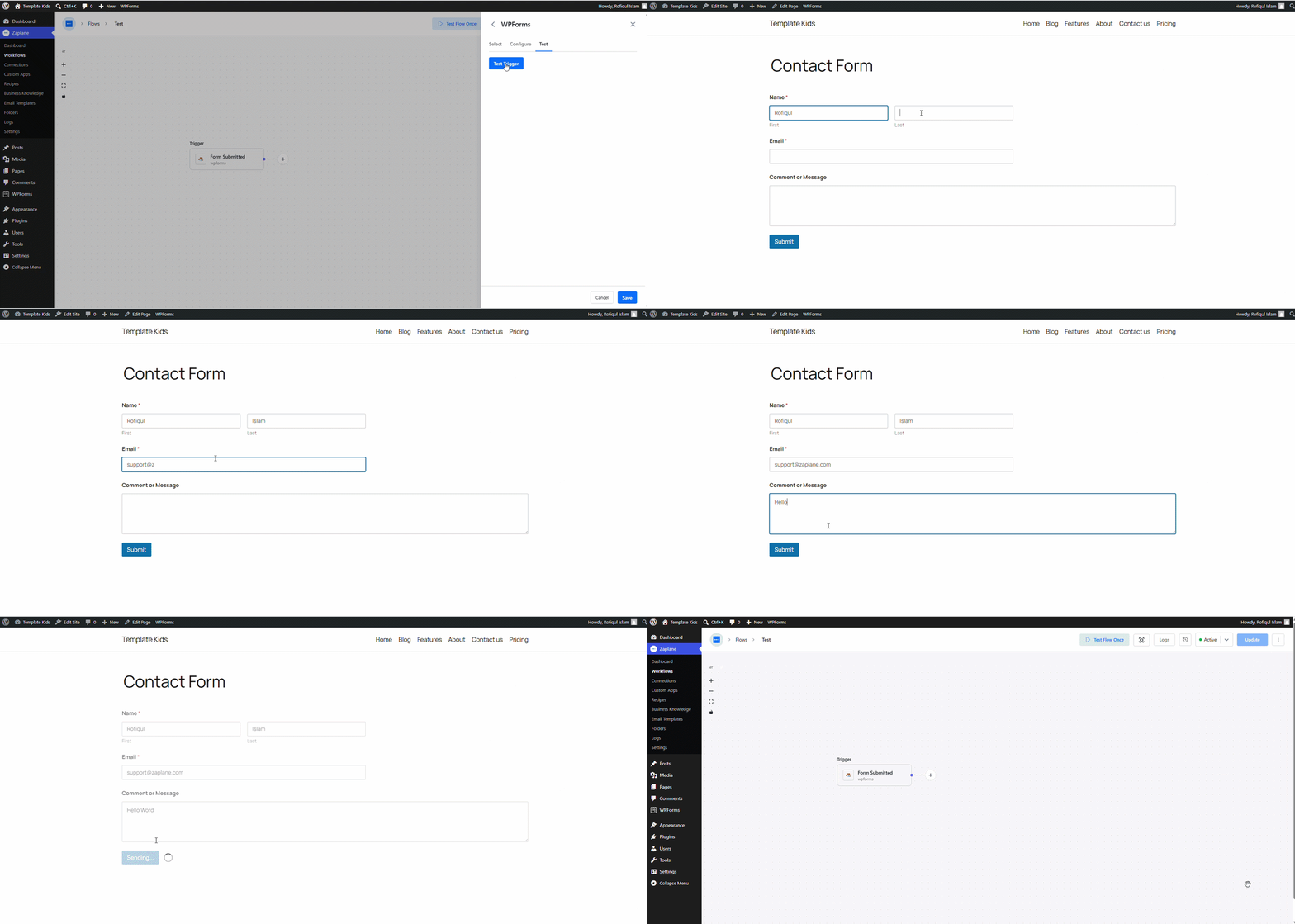
- Finally, toggle the workflow to Active and click Update to publish it.
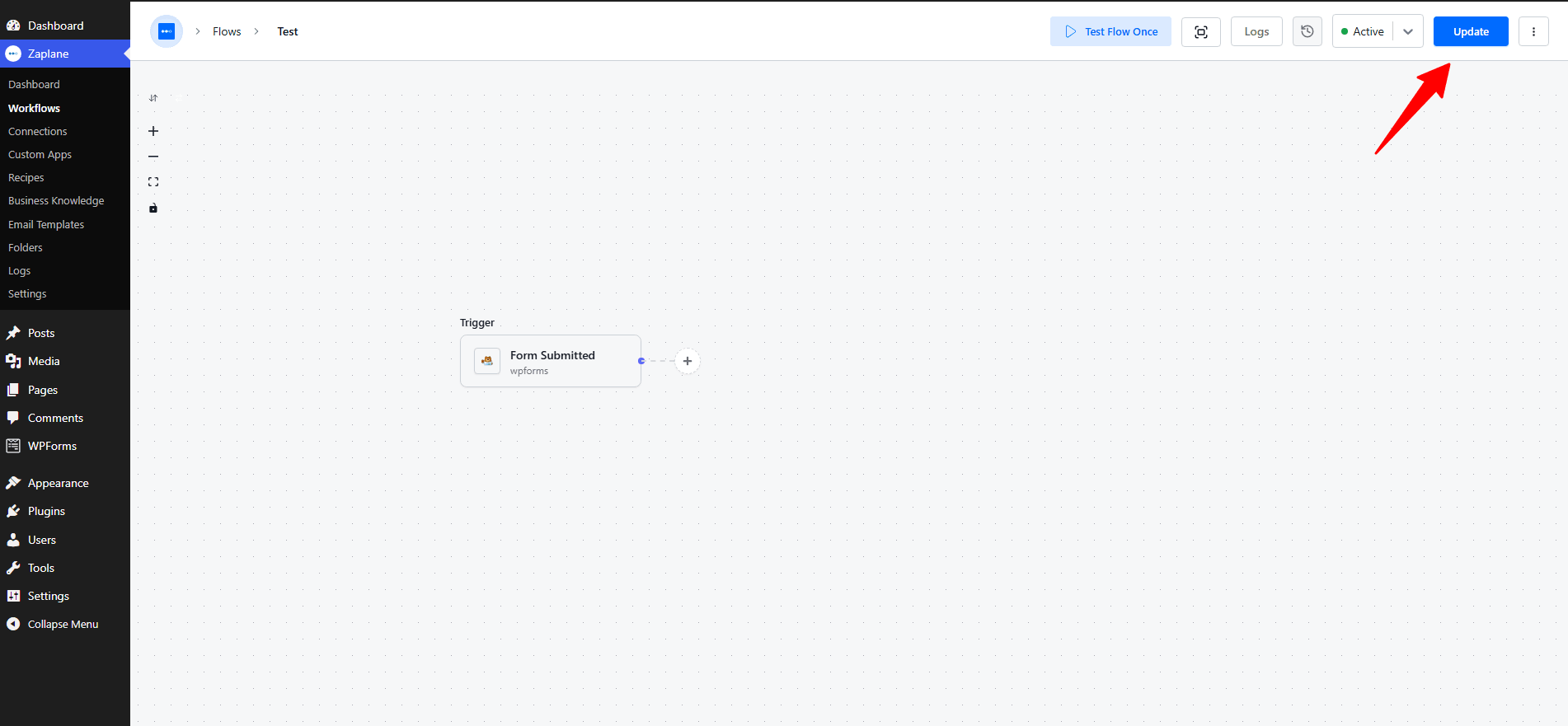
You’re all set
WPForms is now connected to Zaplane. Your workflow will run automatically every time the selected form is submitted on your site.