

This guide walks you through adding a Formatter action to a Zaplane workflow, so that whenever your trigger runs, Zaplane can automatically reformat text — for example, converting it to uppercase.
Step 1: Create a Workflow
Go to Zaplane > Workflows from your WordPress dashboard, then click Create Workflow to open the workflow editor.
Before adding a Formatter tool, you need to set up a trigger first. Here is how to do it quickly:
- Click Select an app under the Trigger box, then choose Apps.
- Search for and select your trigger app — in this example, we are using aBlocks Contact Form.
- Choose the Trigger Type that matches the event you want to watch for, then click Continue.
- On the Configure tab, set up any required options, then click Continue.
- On the Test tab, click Test Trigger to confirm it is working correctly, then click Save.
Once your trigger is saved, proceed to the next step to add the Formatter action.
Step 2: Add the Formatter
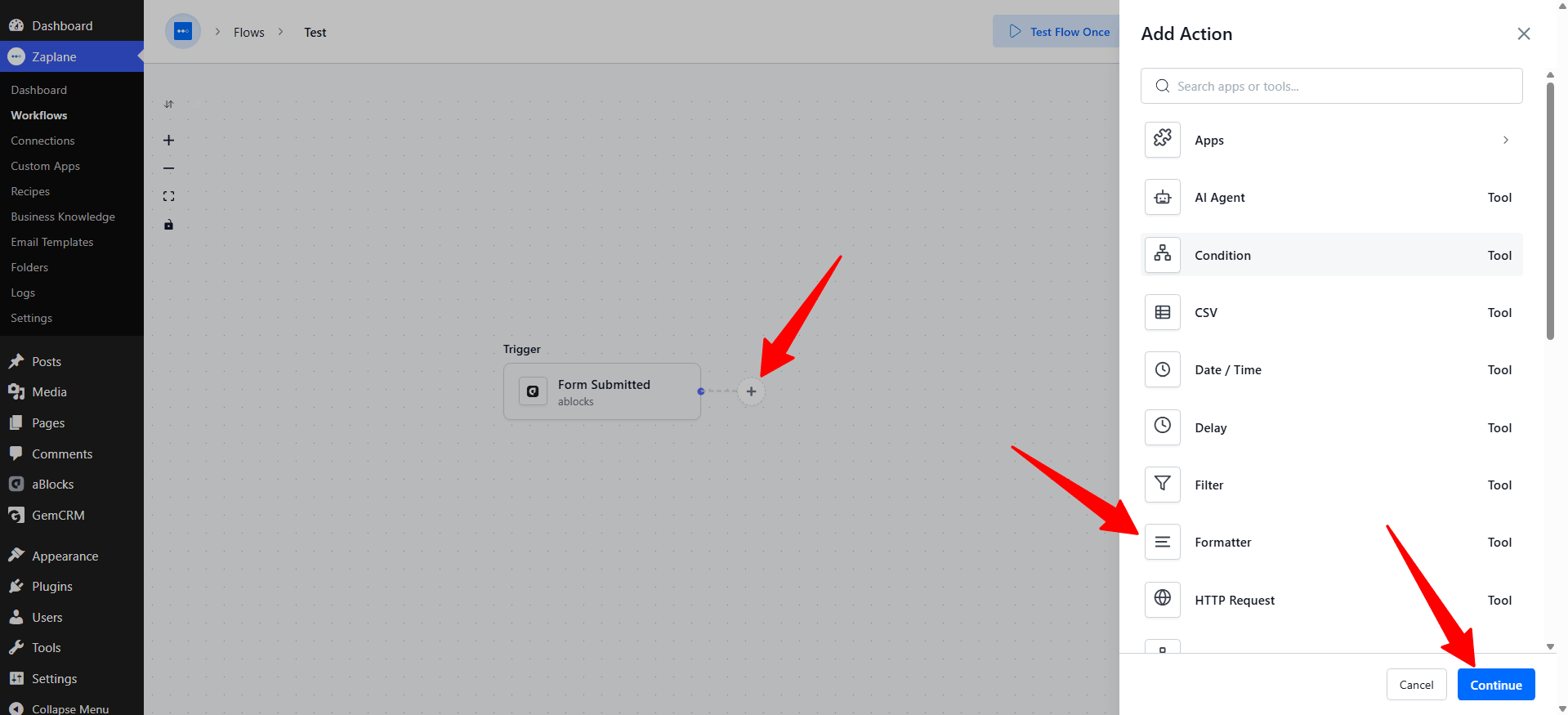
On your workflow canvas, click the + icon next to your trigger to open the Add Action panel, then select Formatter from the list of tools.
Step 3: Choose the Action Type
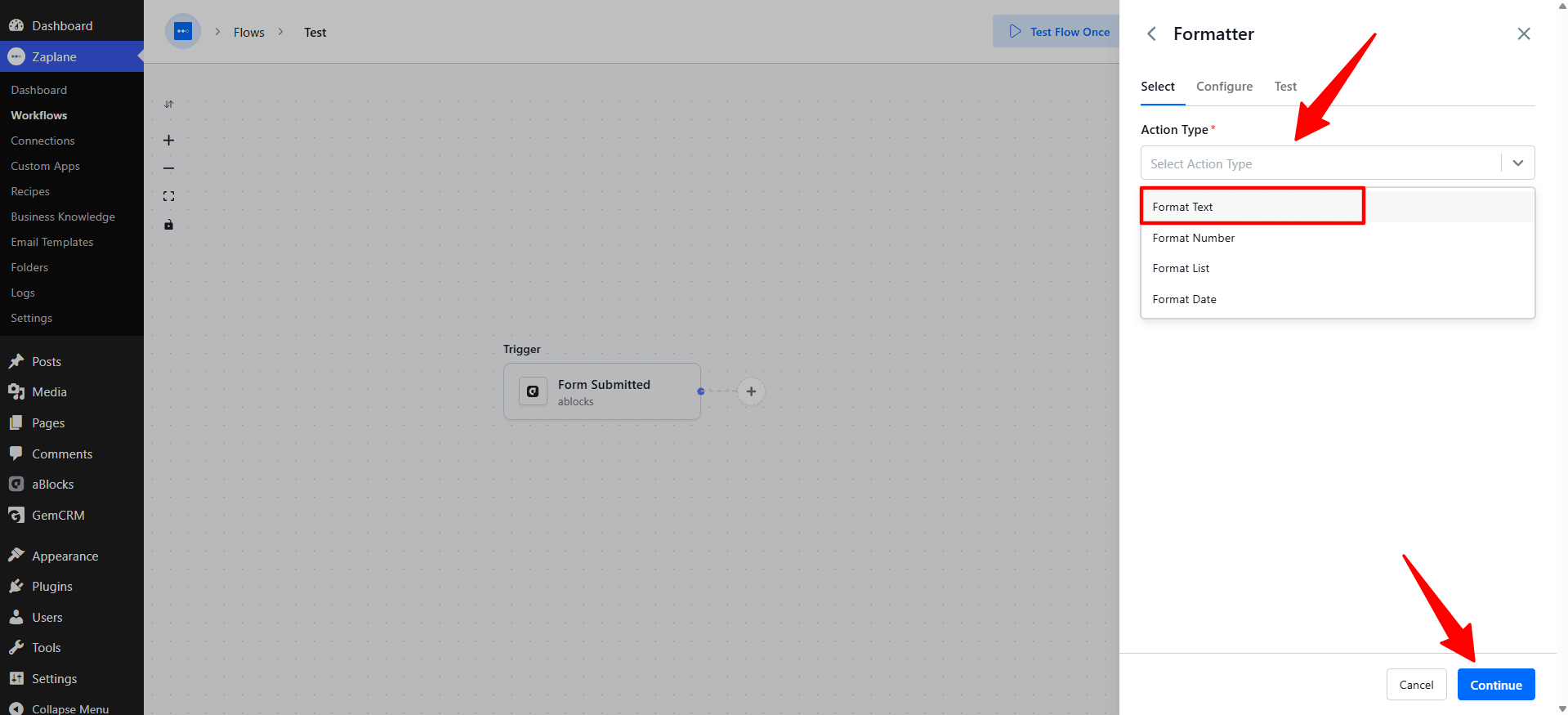
Several action types are available for Formatter. For this guide, select Format Text, then click Continue.
Step 4: Configure the Action
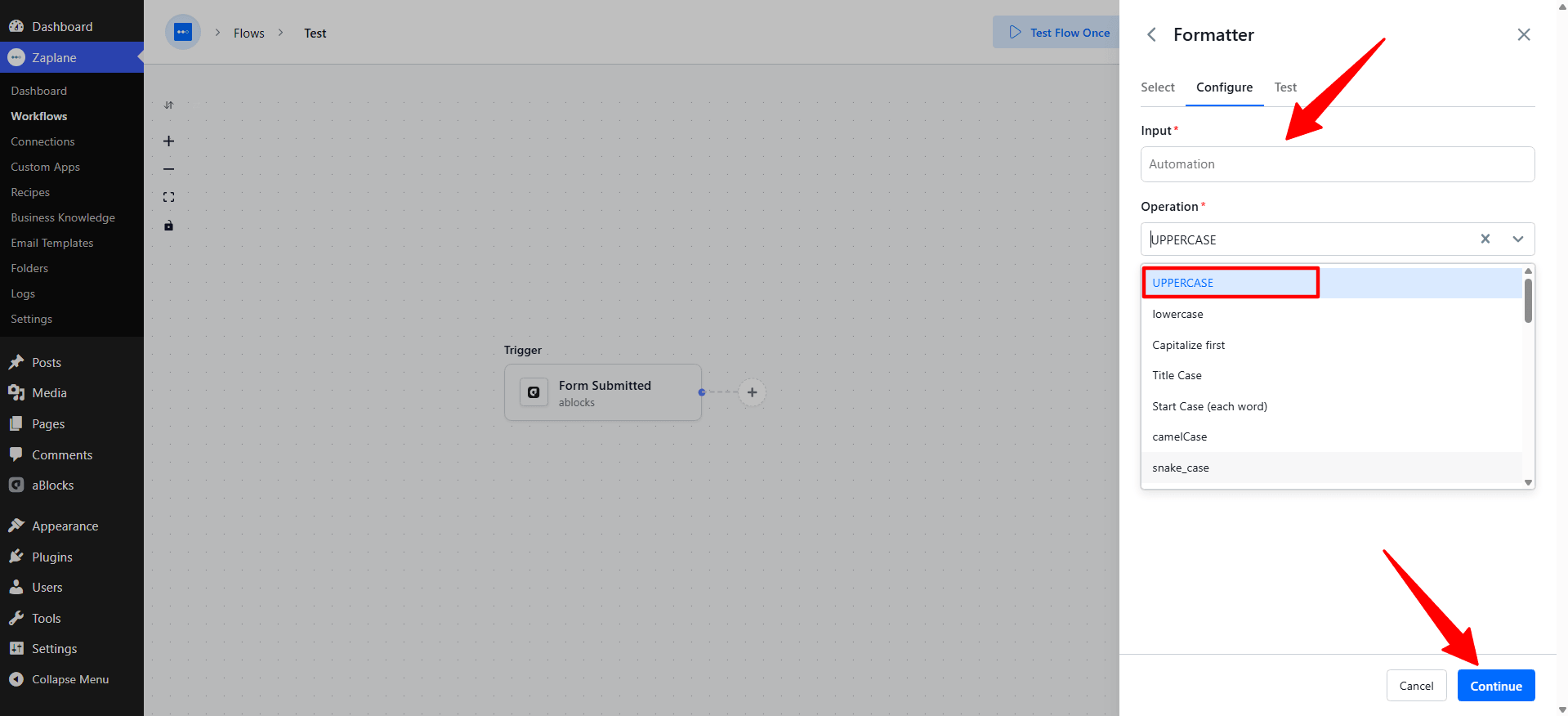
On the Configure tab, enter the Input text and choose the Operation to apply (for example, UPPERCASE, lowercase, Title Case, or camelCase). Click Continue when done.
Step 5: Test the Action
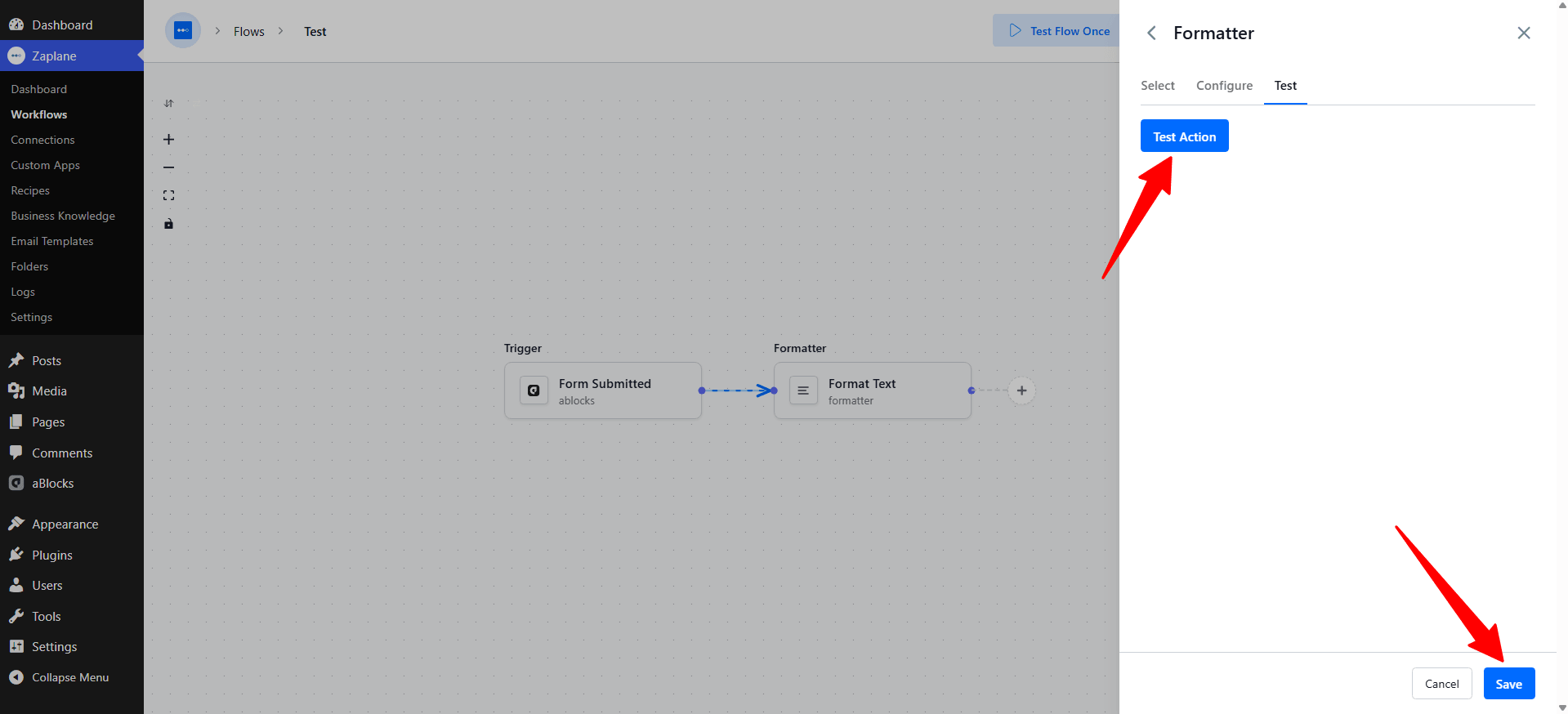
On the Test tab, click Test Action to run the action with sample data and confirm it works as expected. Once the test succeeds, click Save.
Step 6: Update and Activate the Workflow
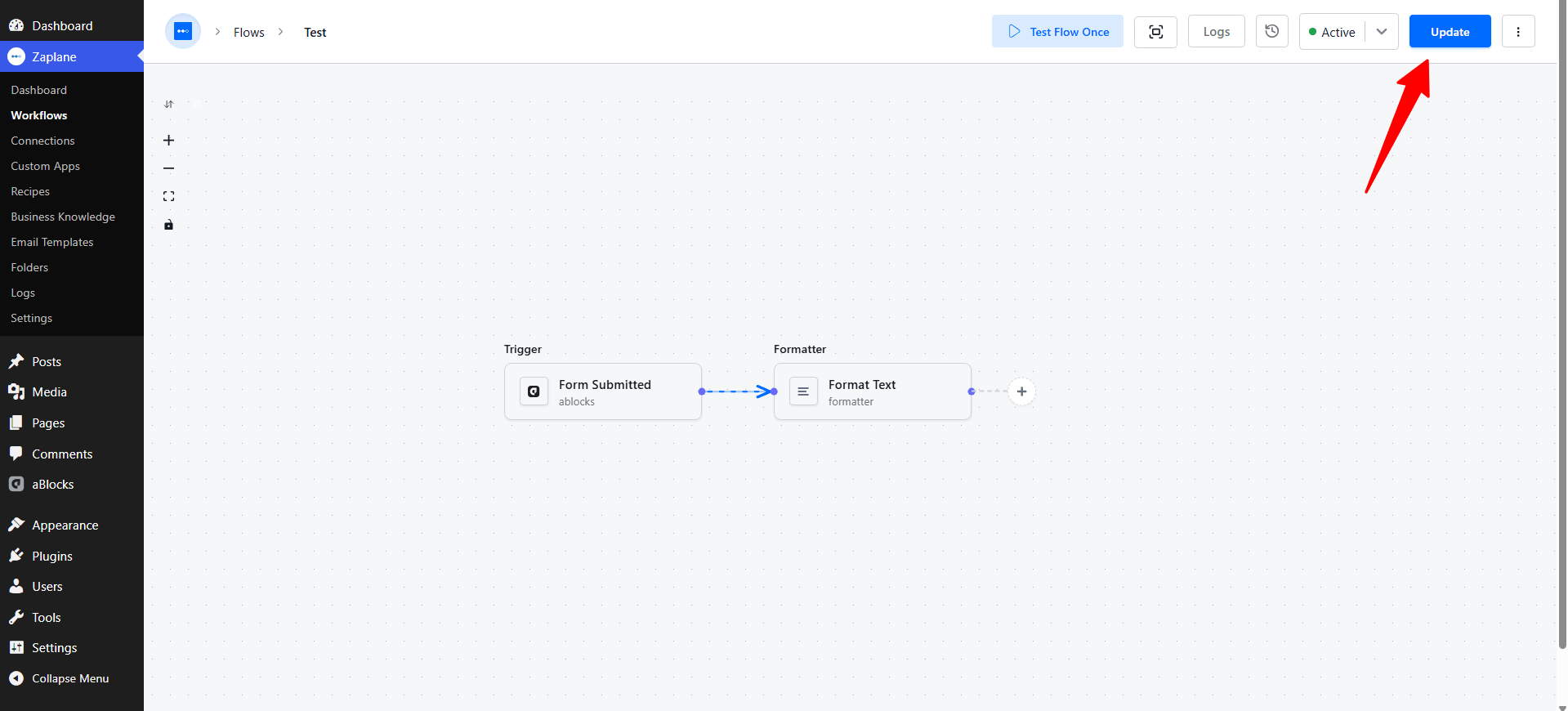
Back on the workflow canvas, click Update to save your changes and activate the workflow.
Step 7: Verify the Result
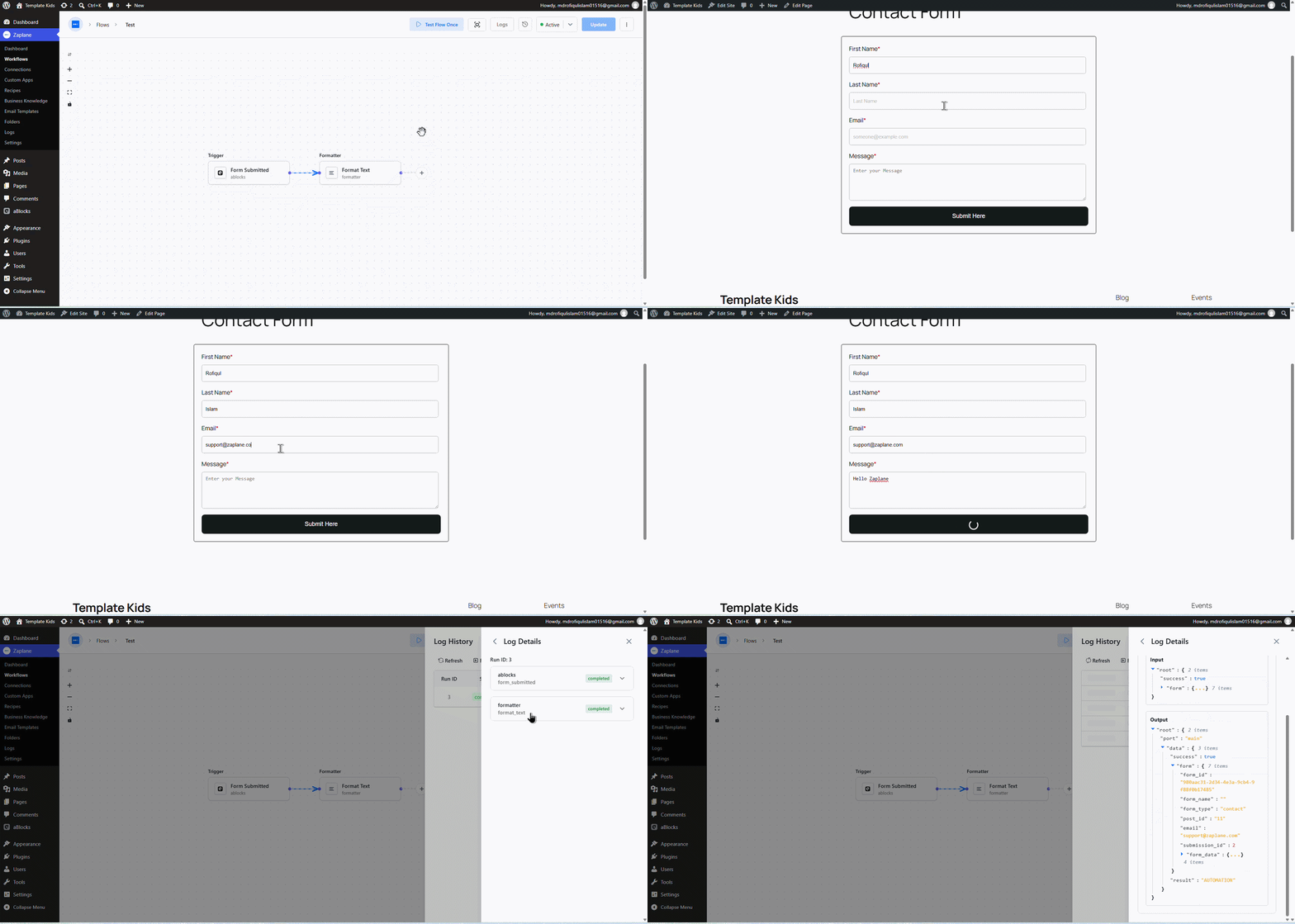
Submit the form on your live site to trigger the workflow, then go to Logs in Zaplane and open the run’s Log Details. You’ll see the Formatter step’s Input (the original text) and Output — confirming the text was correctly transformed (for example, “Automation” became “AUTOMATION”).
Done!
Your Zaplane workflow now formats text automatically. Every time the trigger runs, the text will be transformed using the operation you chose.