

Connect bbPress with Zaplane
This guide shows you how to connect bbPress with Zaplane. You will create a workflow that uses bbPress as its trigger, so the workflow runs automatically whenever a forum event happens on your site.
Before you start
Step 1: Create a workflow
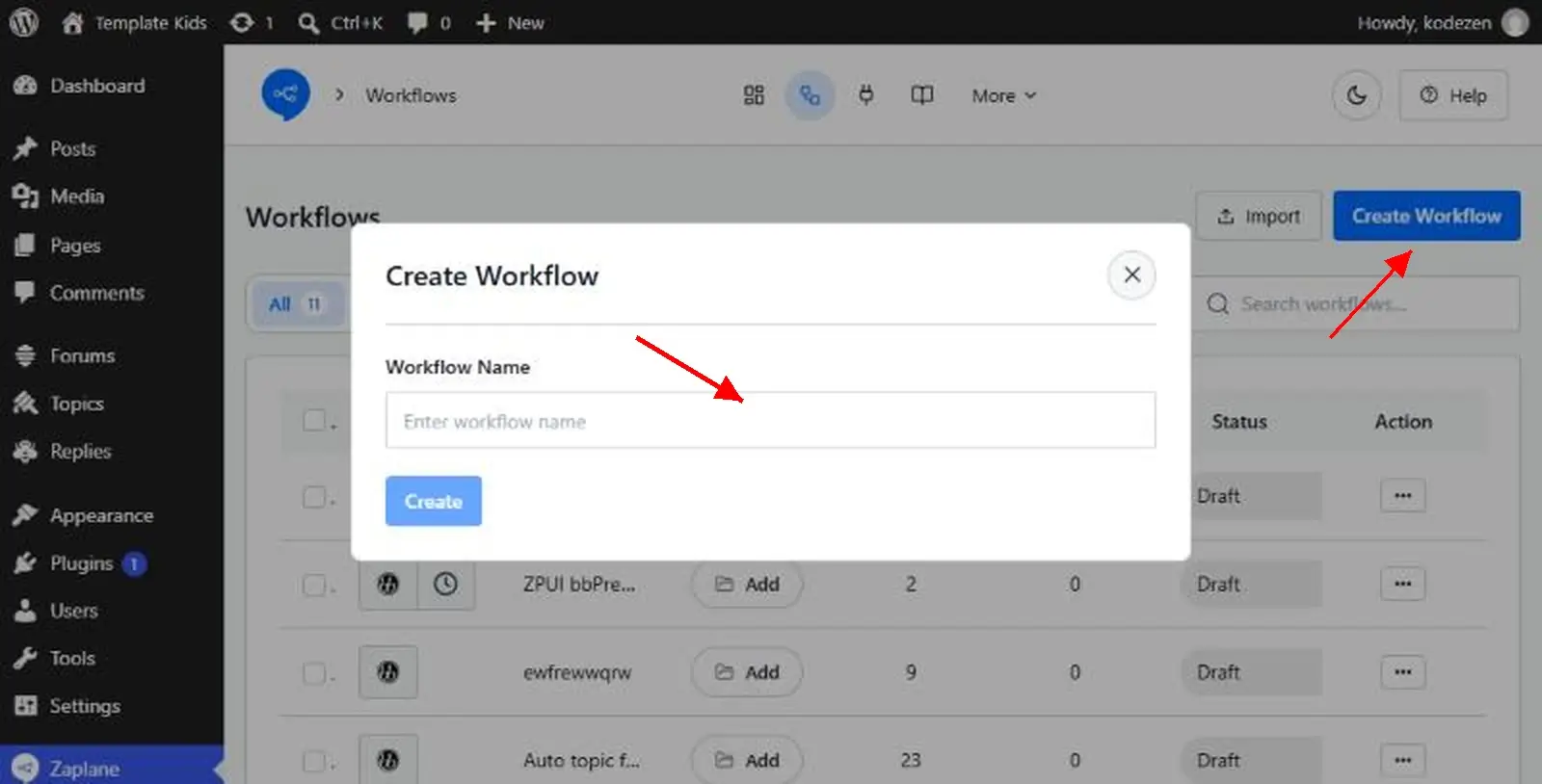
Step 2: Add the trigger
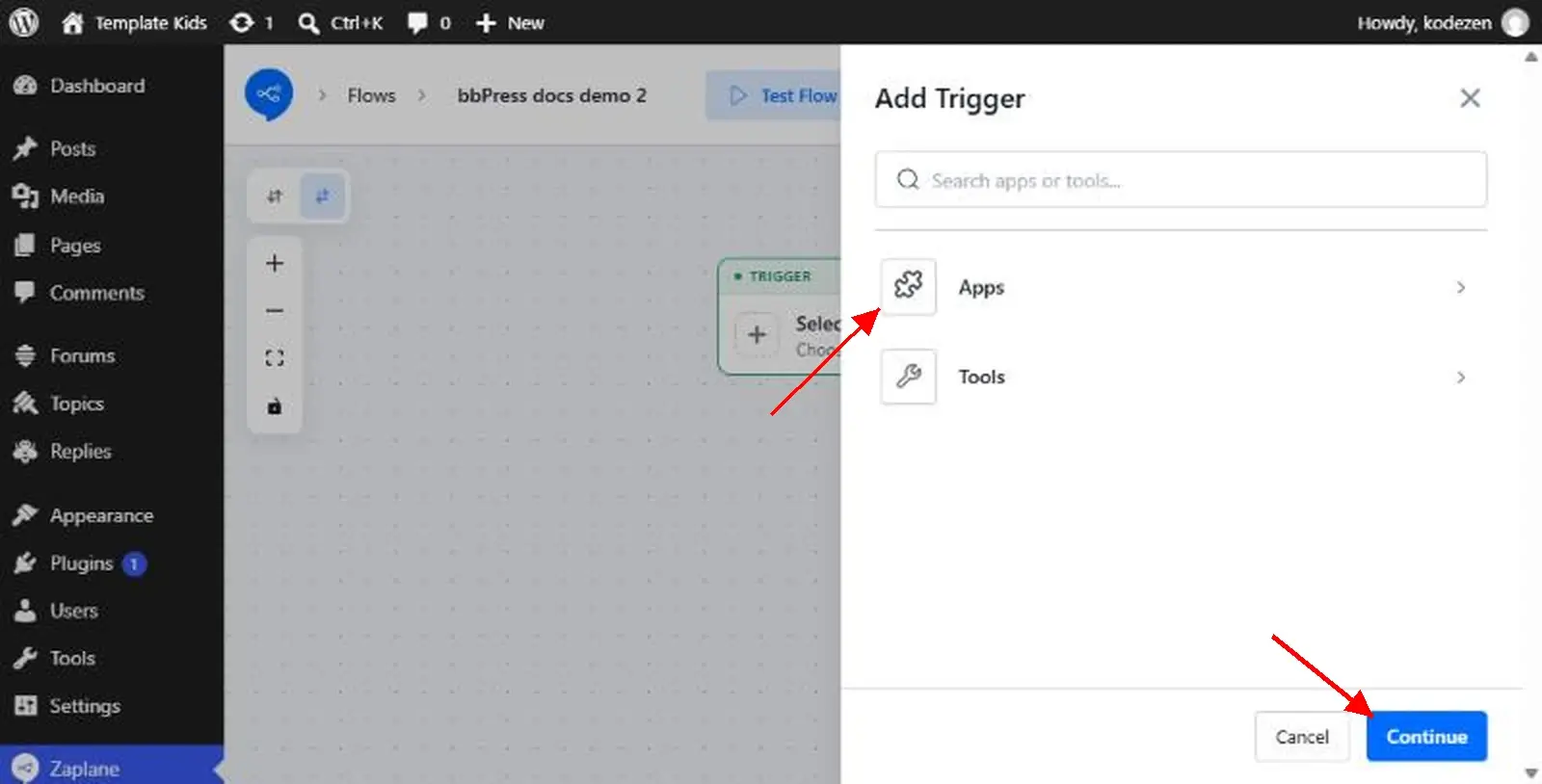
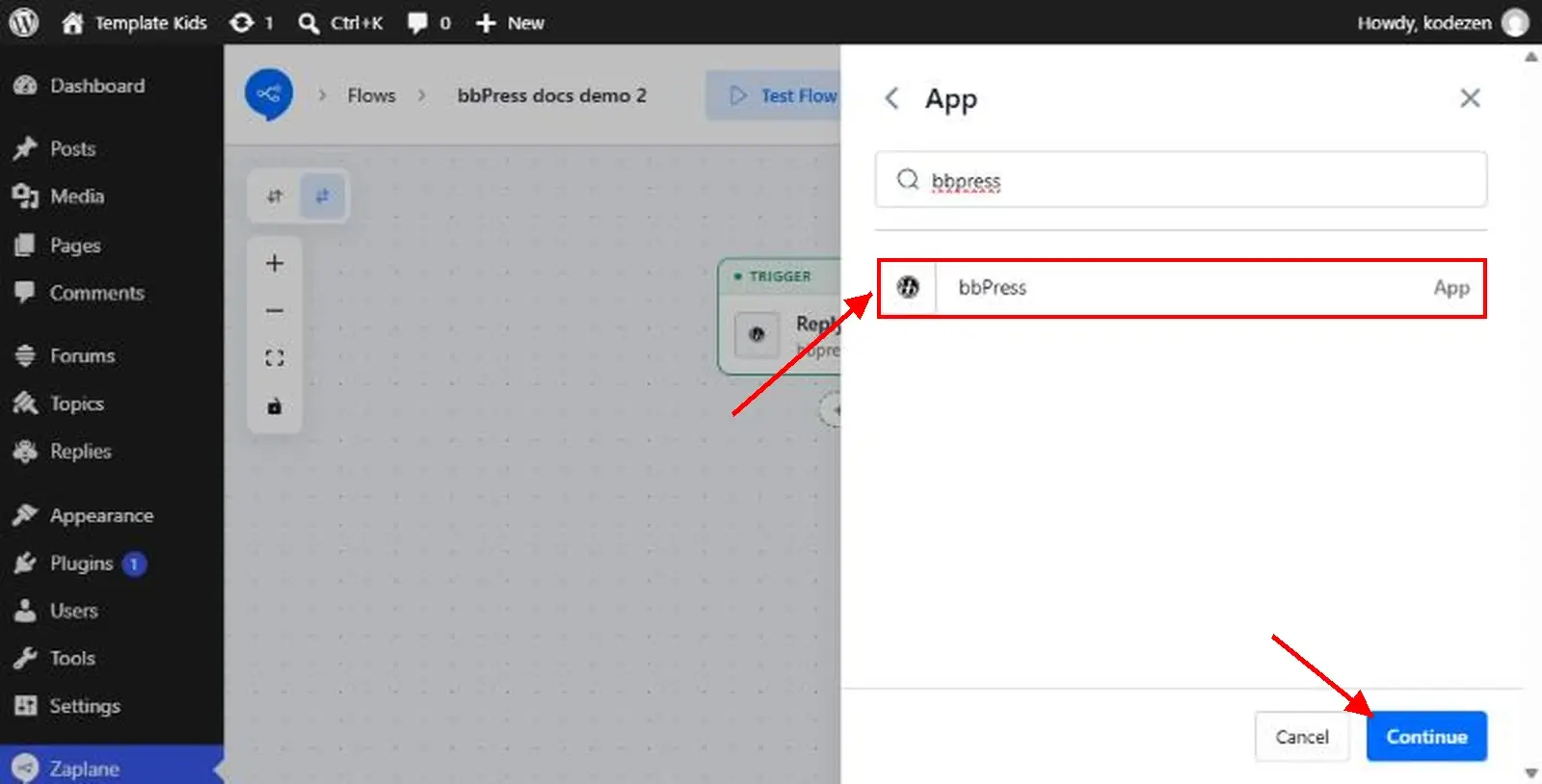
Step 3: Select the bbPress app
Find bbPress in the app list, select it, then click Continue.
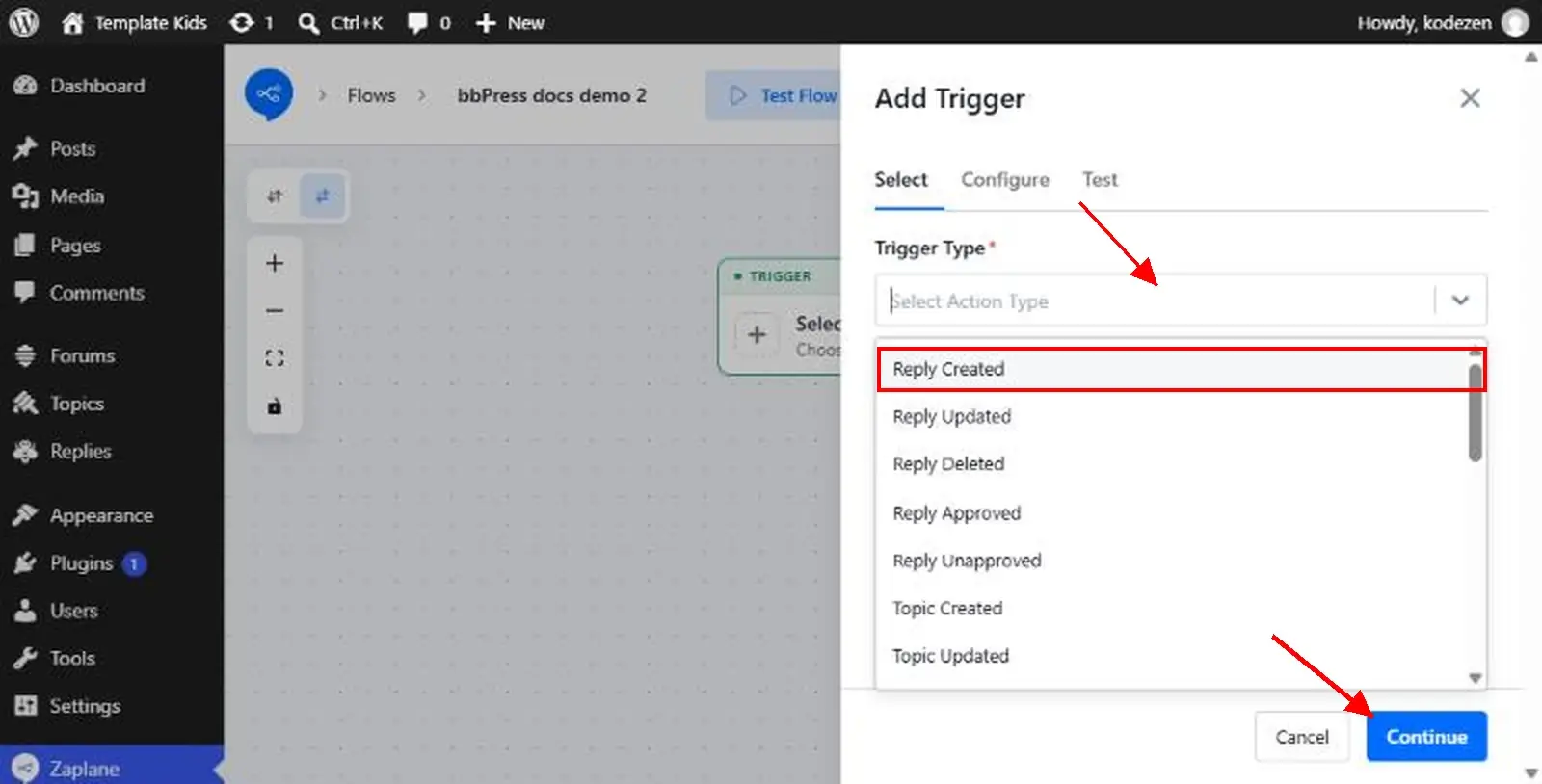
Step 4: Choose the trigger type
Open the Trigger Type dropdown and pick the event that should start your workflow. For example, choose Reply Created to run the workflow when someone posts a reply. Then click Continue.
bbPress offers 22 trigger types:
Step 5: Configure the trigger
On the Configure tab, the Forum and Topic dropdowns are optional filters. Leave them empty to react to replies in every forum and on every topic, or pick one to narrow the workflow down. Then click Continue.
Only Topic Created (Forum filter) and Reply Created (Forum and Topic filters) have filters. The other trigger types run for every matching event.
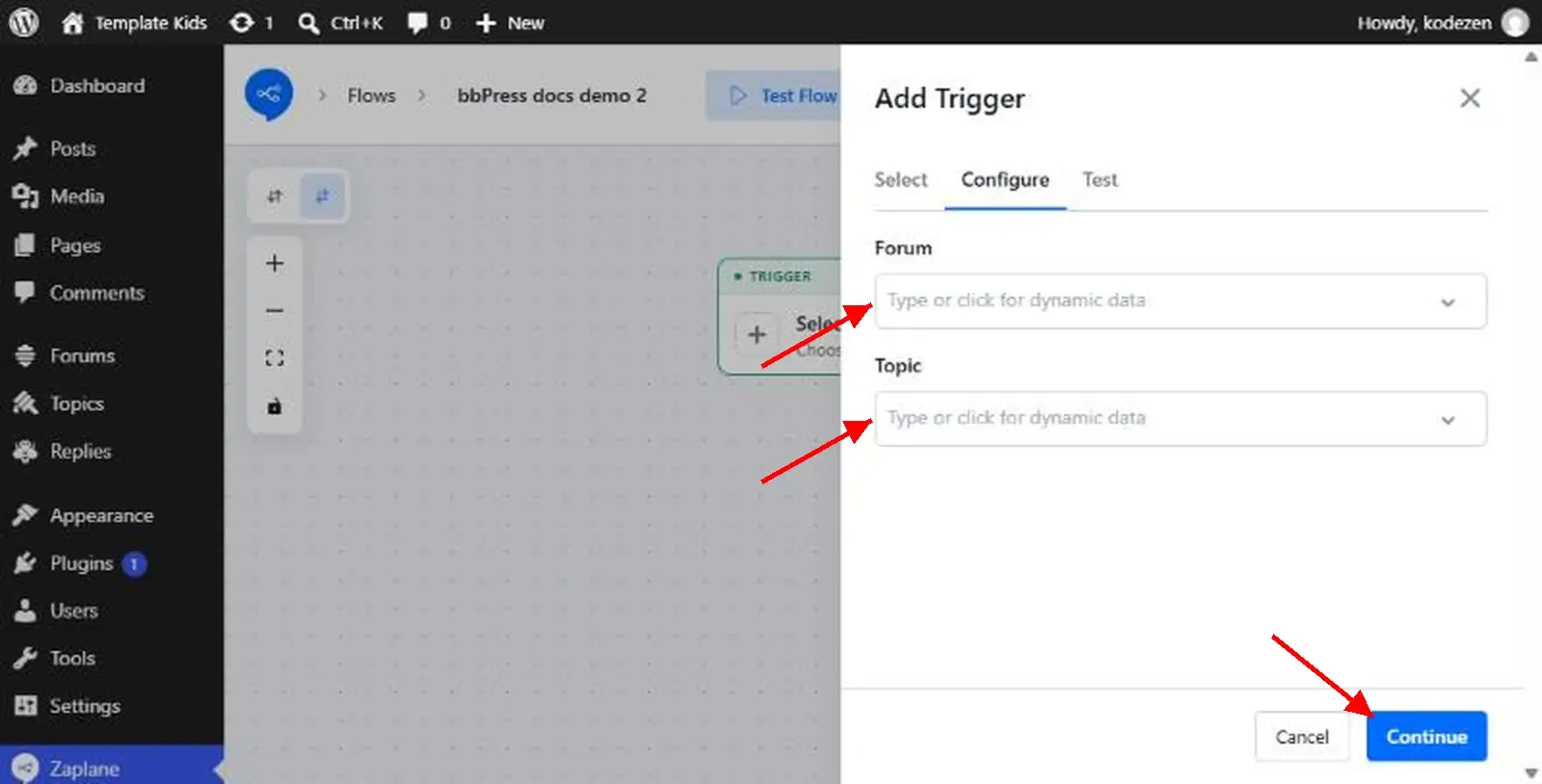
Step 6: Test the trigger
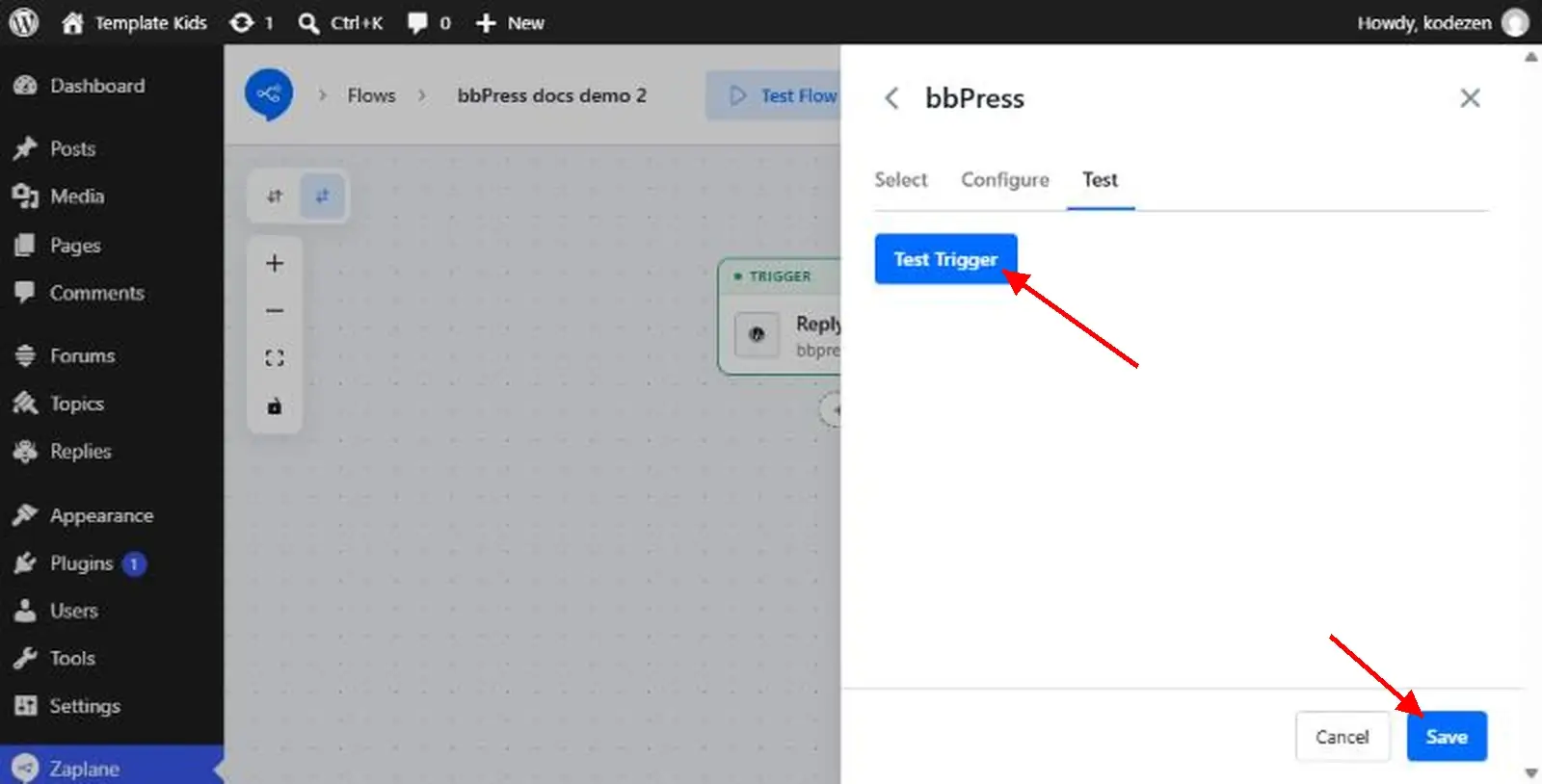
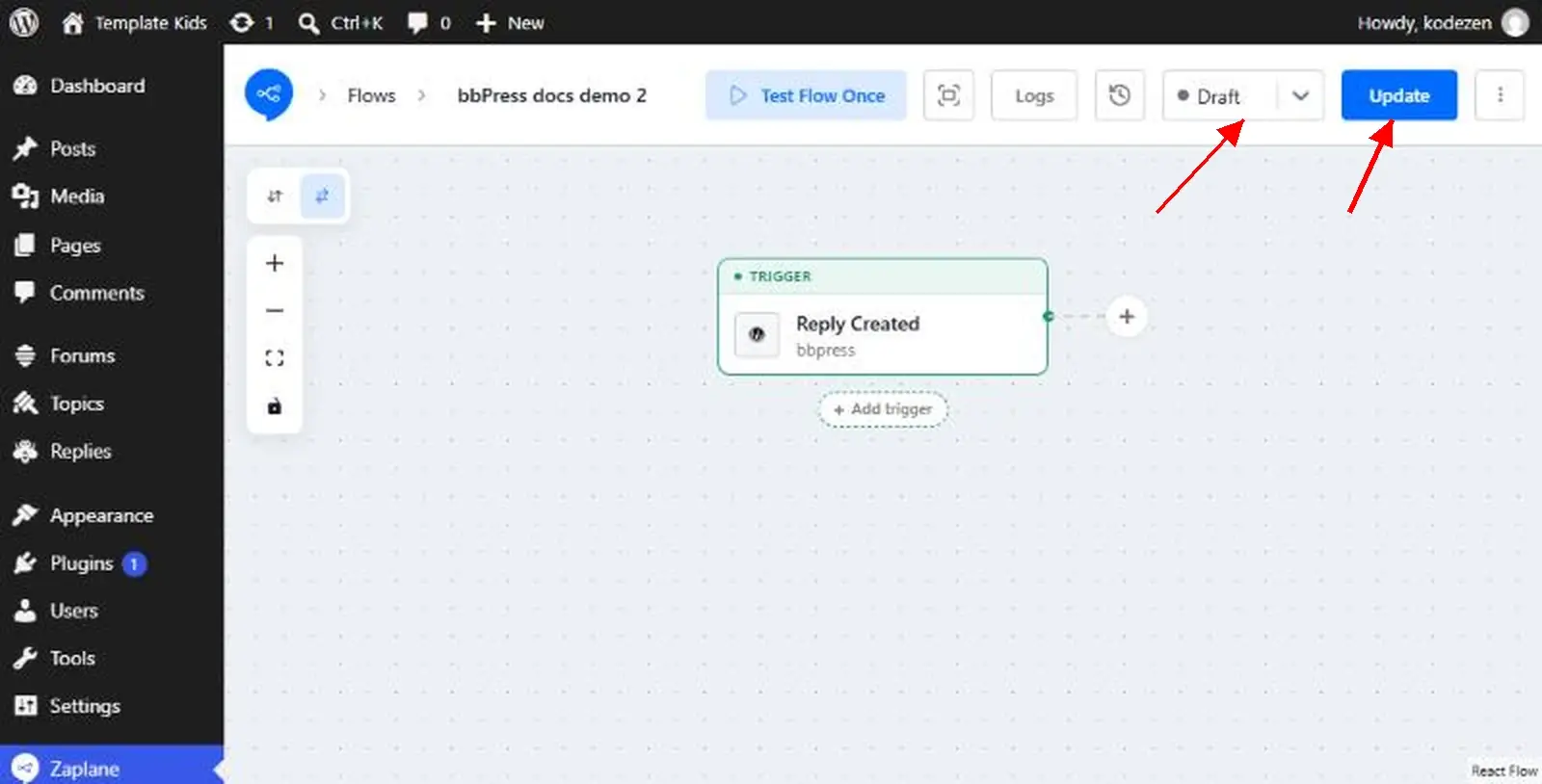
Step 7: Update and activate the workflow
Back on the canvas, click Update to save your workflow. Make sure the status is set to Active.
From now on, every time the bbPress event happens, Zaplane runs your workflow automatically.
Data you can use in later steps
Each trigger passes the details of the event to the next step. A reply trigger sends the reply (ID, content, URL, status, author name and email), plus the topic and forum it belongs to. Topic triggers send the topic and forum. Tag triggers send the tag. Delete triggers also send whether the item went to the trash or was removed permanently.
Done
Your bbPress trigger is connected. Add actions after the trigger to decide what happens next. See Use the bbPress actions in Zaplane.