

This guide shows you how to add a bbPress action to a Zaplane workflow. The example uses Reply to Topic, which posts a reply on a topic automatically whenever your trigger fires.
Before you start
Step 1: Create a workflow and set up a trigger
Go to Zaplane > Workflows in your WordPress dashboard, then click Create Workflow to open the workflow editor.
Before adding a bbPress action, you need to set up a trigger first. Here is how to do it quickly:
Once the trigger is saved, add the bbPress action. To use bbPress as the trigger instead, see Connect bbPress with Zaplane.
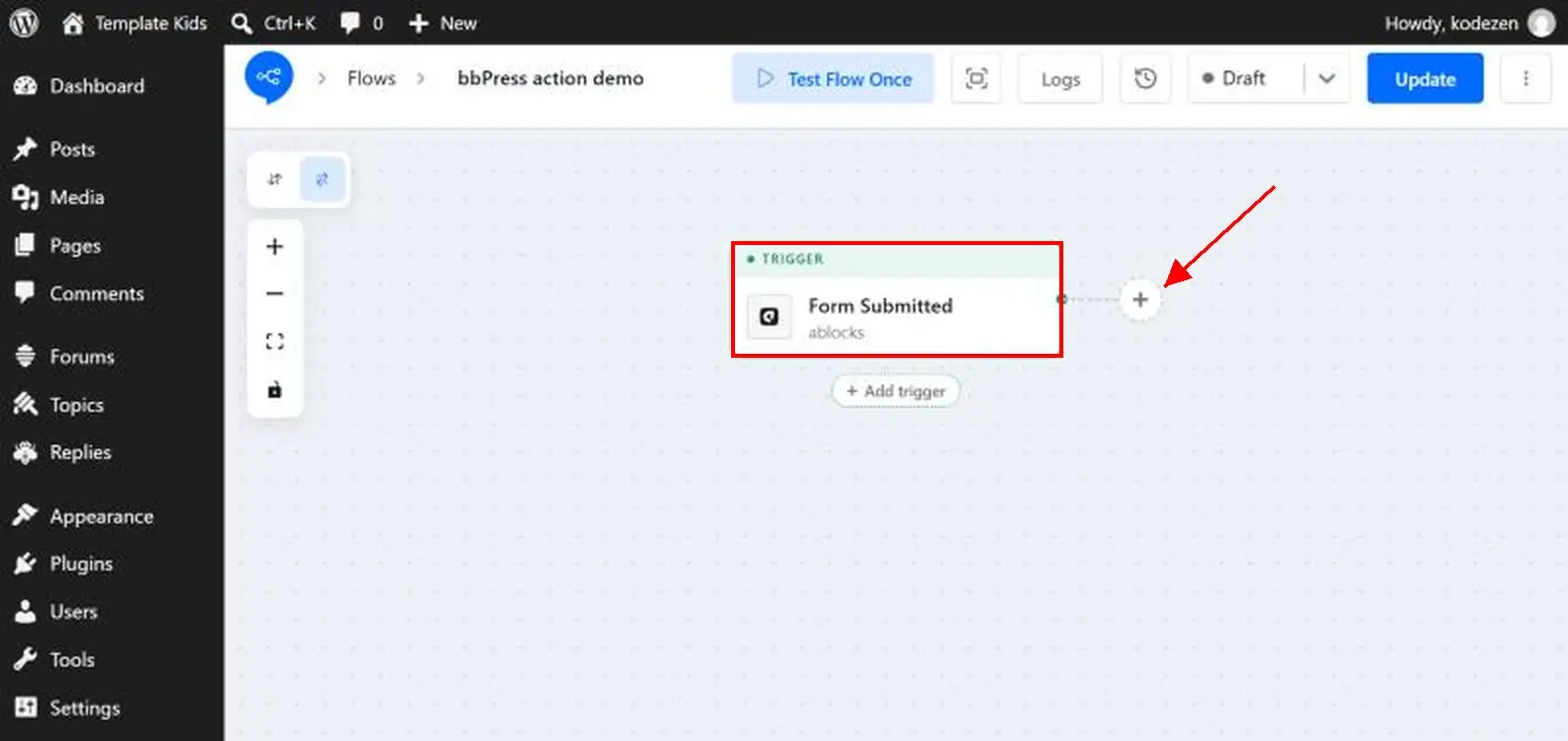
Step 2: Add an action
Click the + button next to your trigger, then select Apps in the Add Action panel.
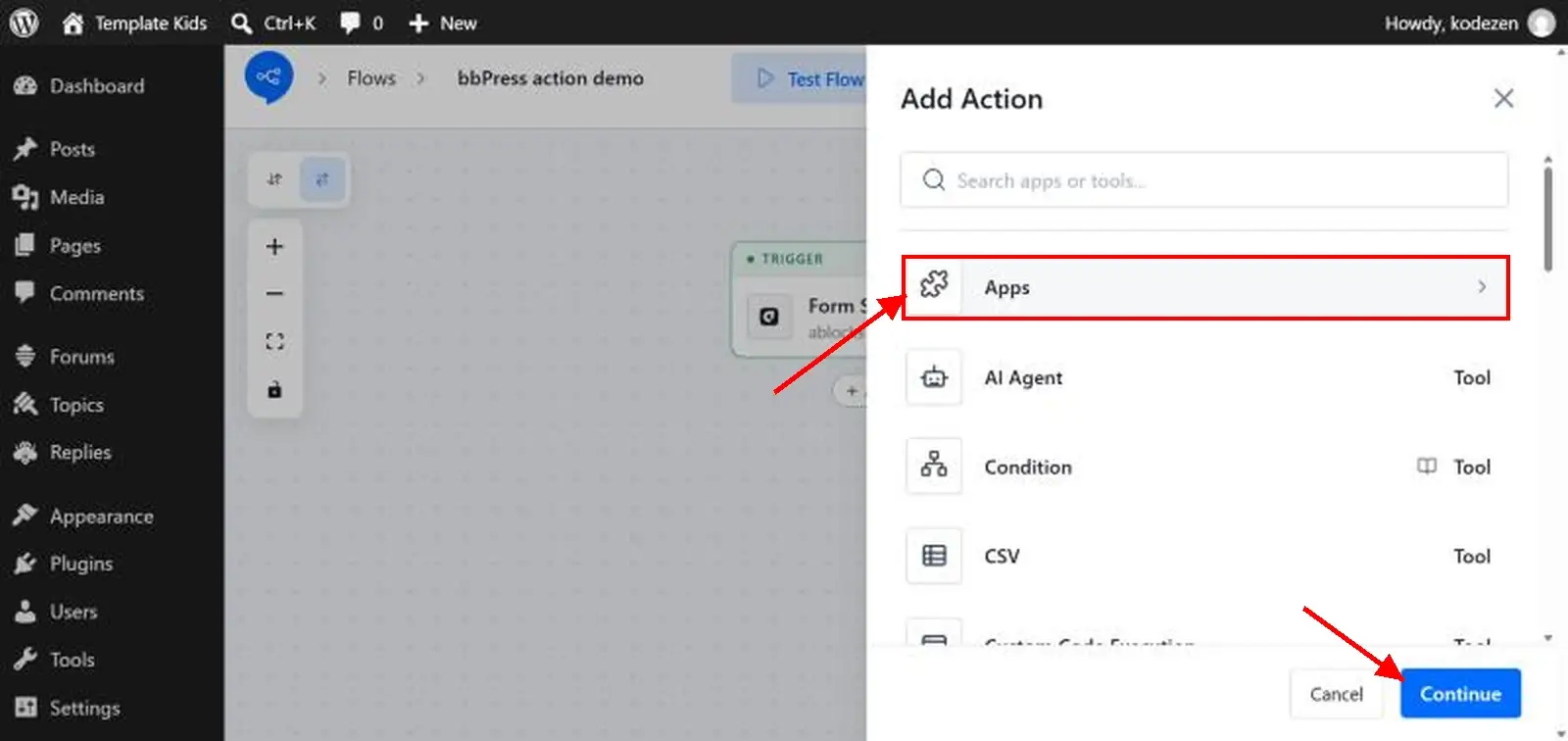
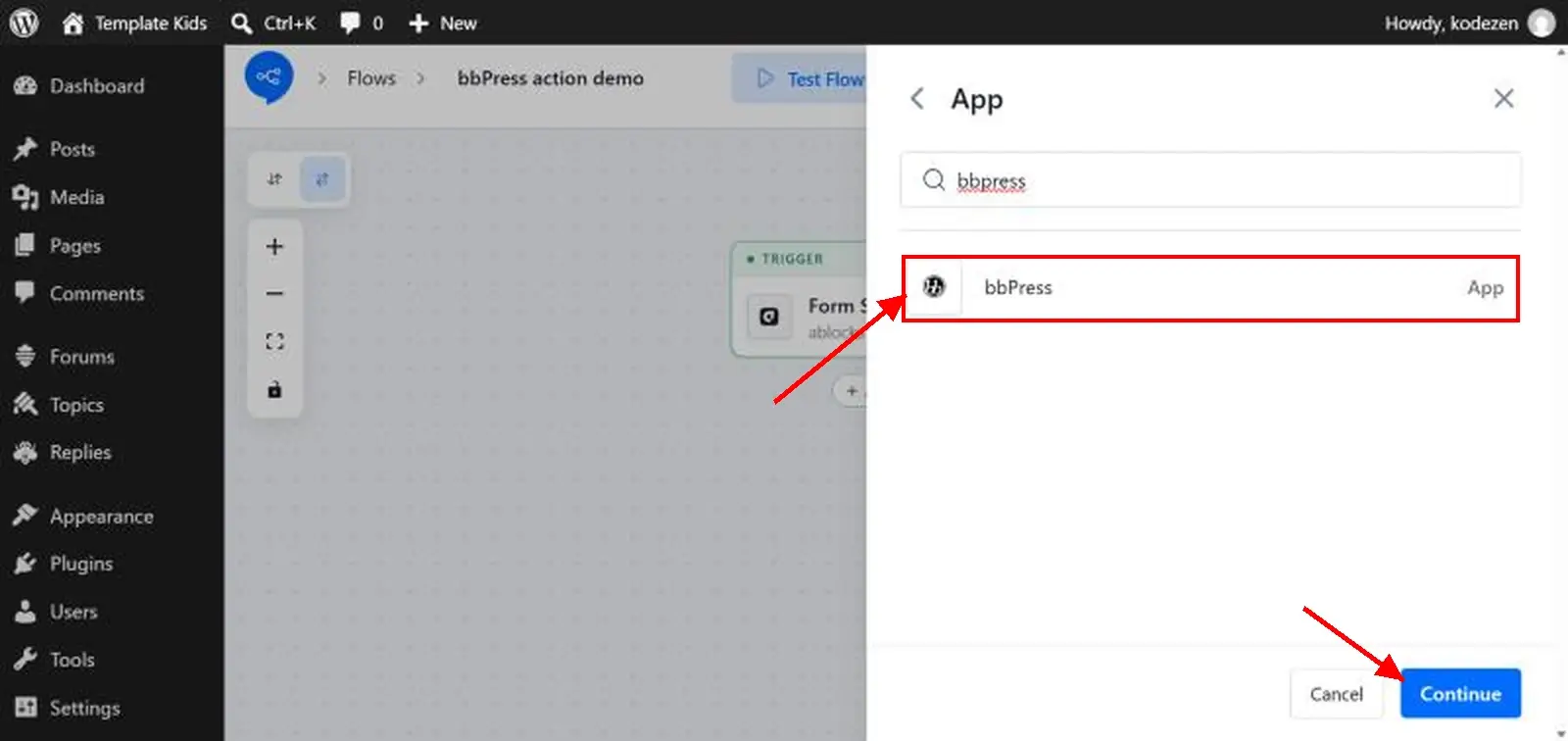
Step 3: Select the bbPress app
Find bbPress in the app list, select it, then click Continue.
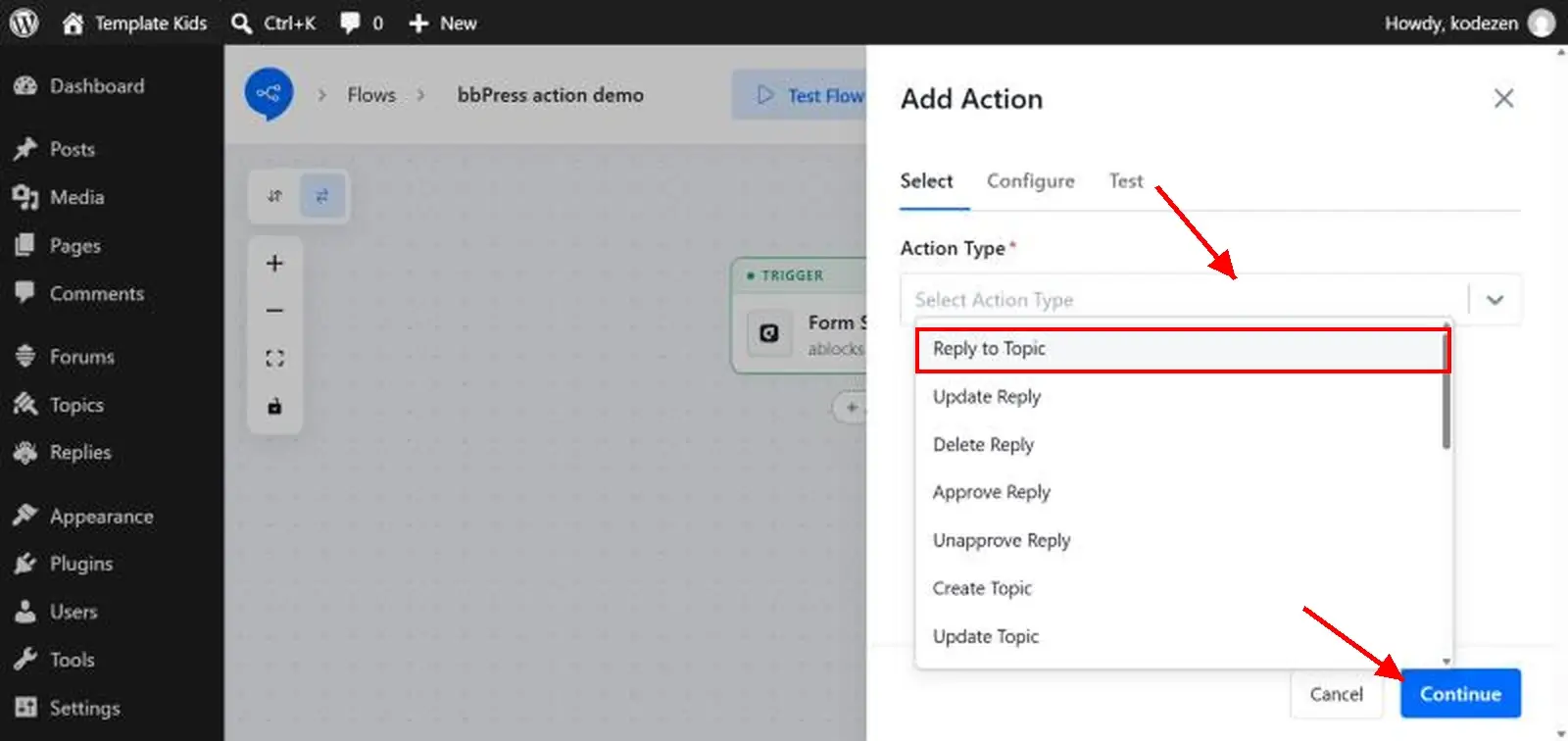
Step 4: Choose the action type
Open the Action Type dropdown and select Reply to Topic. Then click Continue.
bbPress offers 20 actions:
The Delete actions have a Delete Method field. Choose Move to Trash to keep the item recoverable, or Delete Permanently to remove it for good.
Step 5: Configure the action
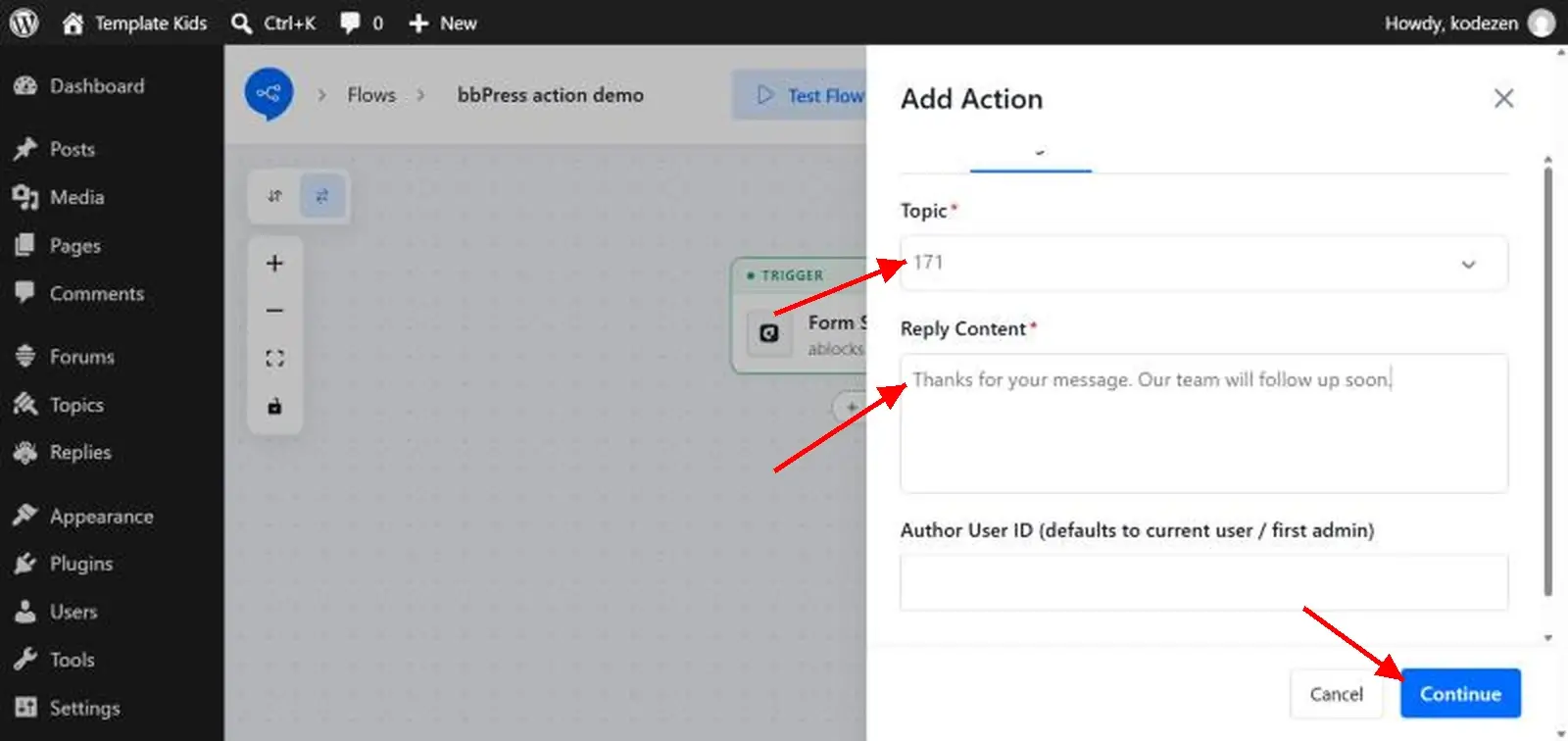
On the Configure tab, fill in the fields:
@ to insert data from your trigger.Then click Continue.
Step 6: Test the action
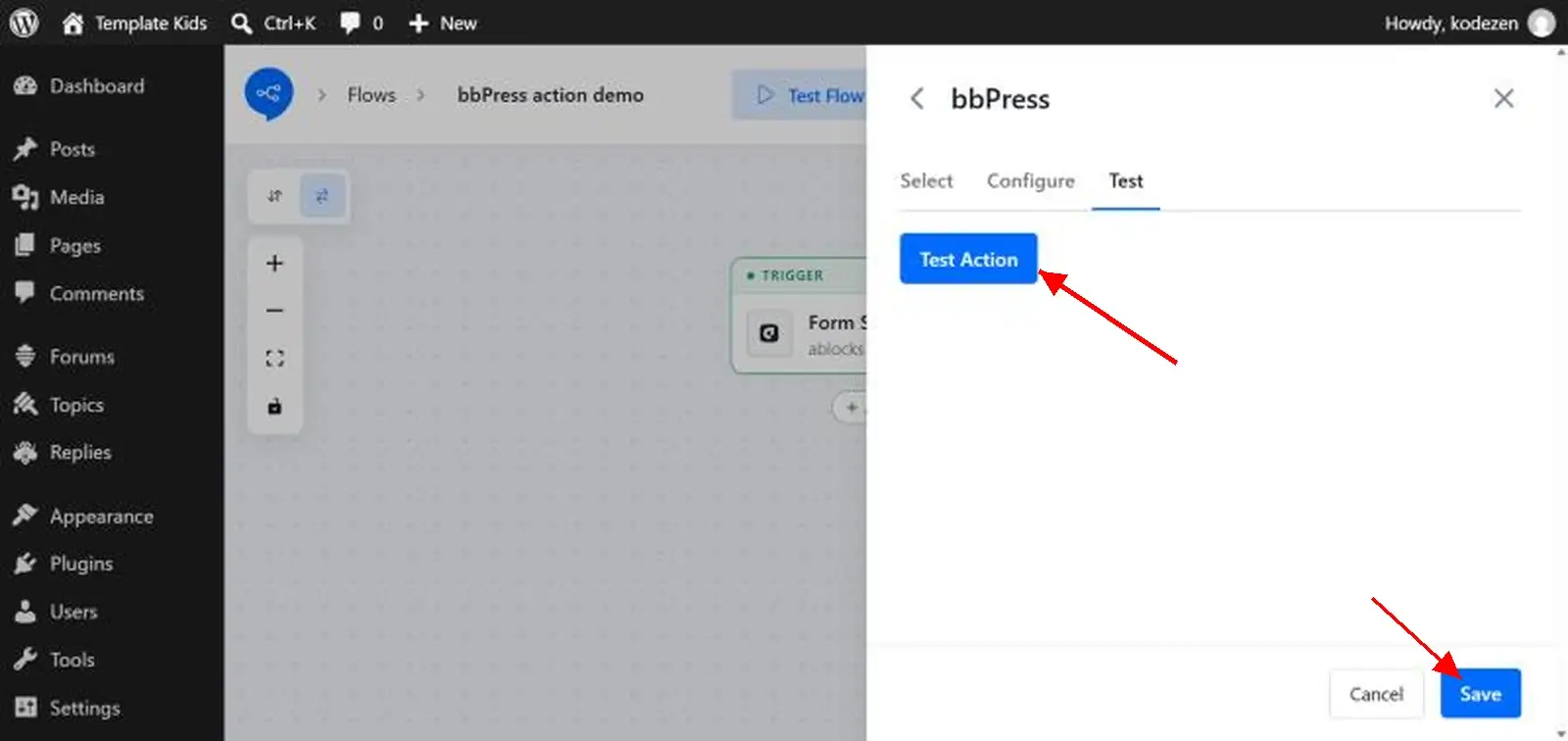
On the Test tab, click Test Action to run the action once. This posts a real reply on your site. If it works, click Save.
Step 7: Update and activate the workflow
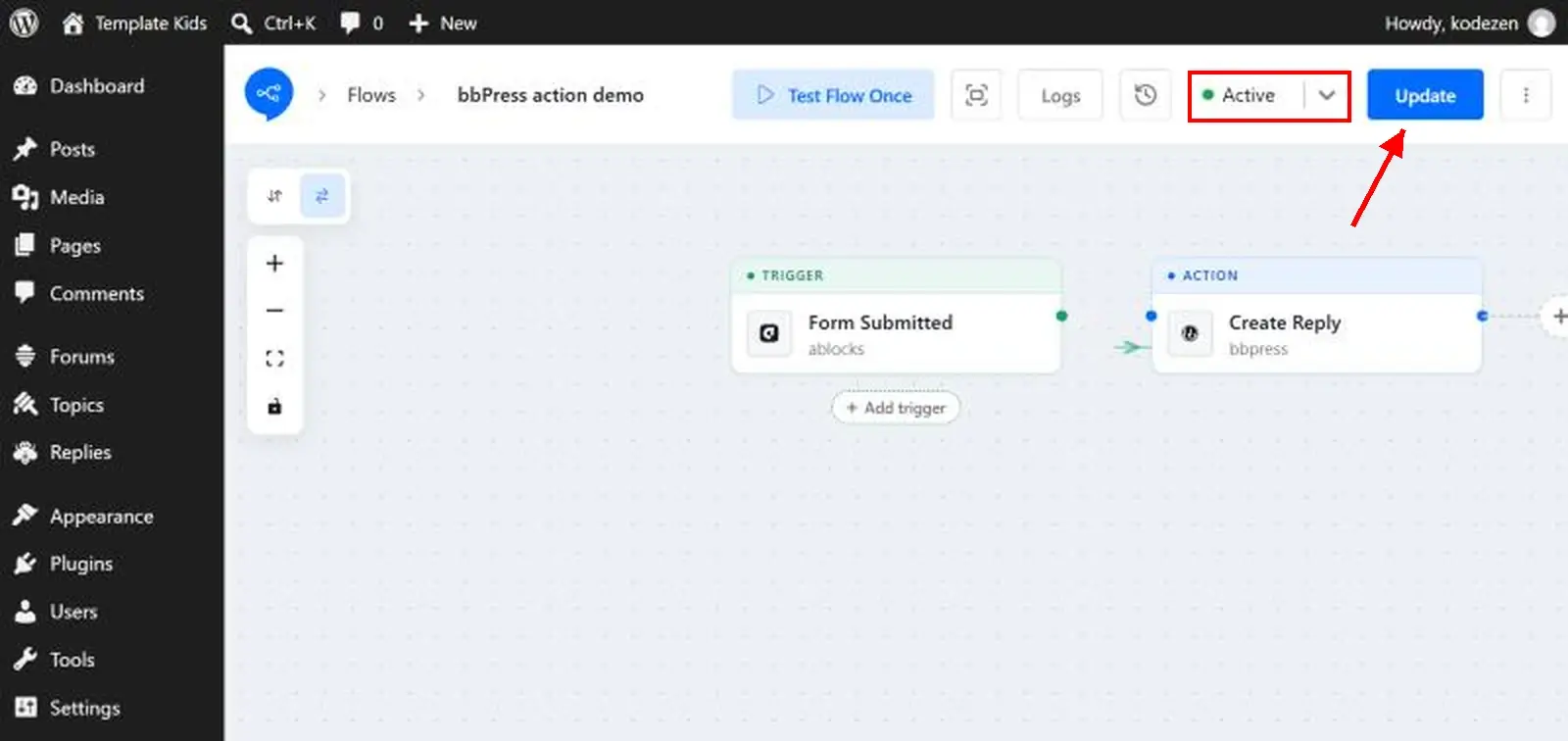
Back on the canvas, click Update to save your workflow. Make sure the status is set to Active.
Every time your trigger fires, Zaplane now posts the reply automatically.
Done
Your bbPress action is connected and ready to go.