

The JSON Parser tool converts a JSON string into individual fields you can use in later steps — for example, turning a webhook’s raw payload into a name and email you can pass to another action.
Step 1: Create a Workflow
Go to Zaplane > Workflows from your WordPress dashboard, then click Create Workflow to open the workflow editor.
Before adding a JSON Parser tool, you need to set up a trigger first. Here is how to do it quickly:
- Click Select an app under the Trigger box, then choose Apps.
- Search for and select your trigger app — in this example, we are using aBlocks Contact Form.
- Choose the Trigger Type that matches the event you want to watch for, then click Continue.
- On the Configure tab, set up any required options, then click Continue.
- On the Test tab, click Test Trigger to confirm it is working correctly, then click Save.
Once your trigger is saved, proceed to the next step to add the JSON Parser tool.
Step 2: Add the JSON Parser Tool
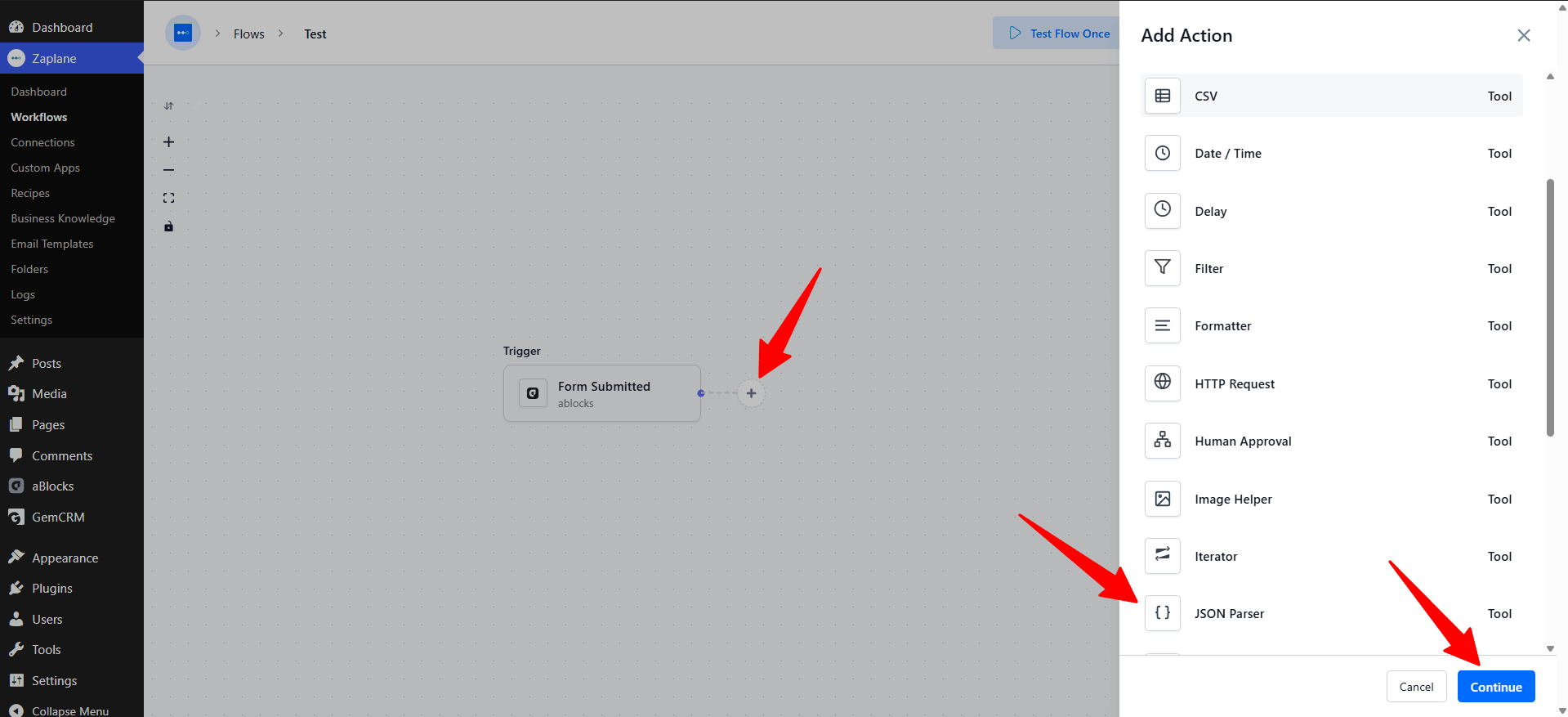
Click the + icon on your workflow canvas to open the Add Action panel, then select JSON Parser from the list of built-in tools.
Step 3: Choose the Action Type
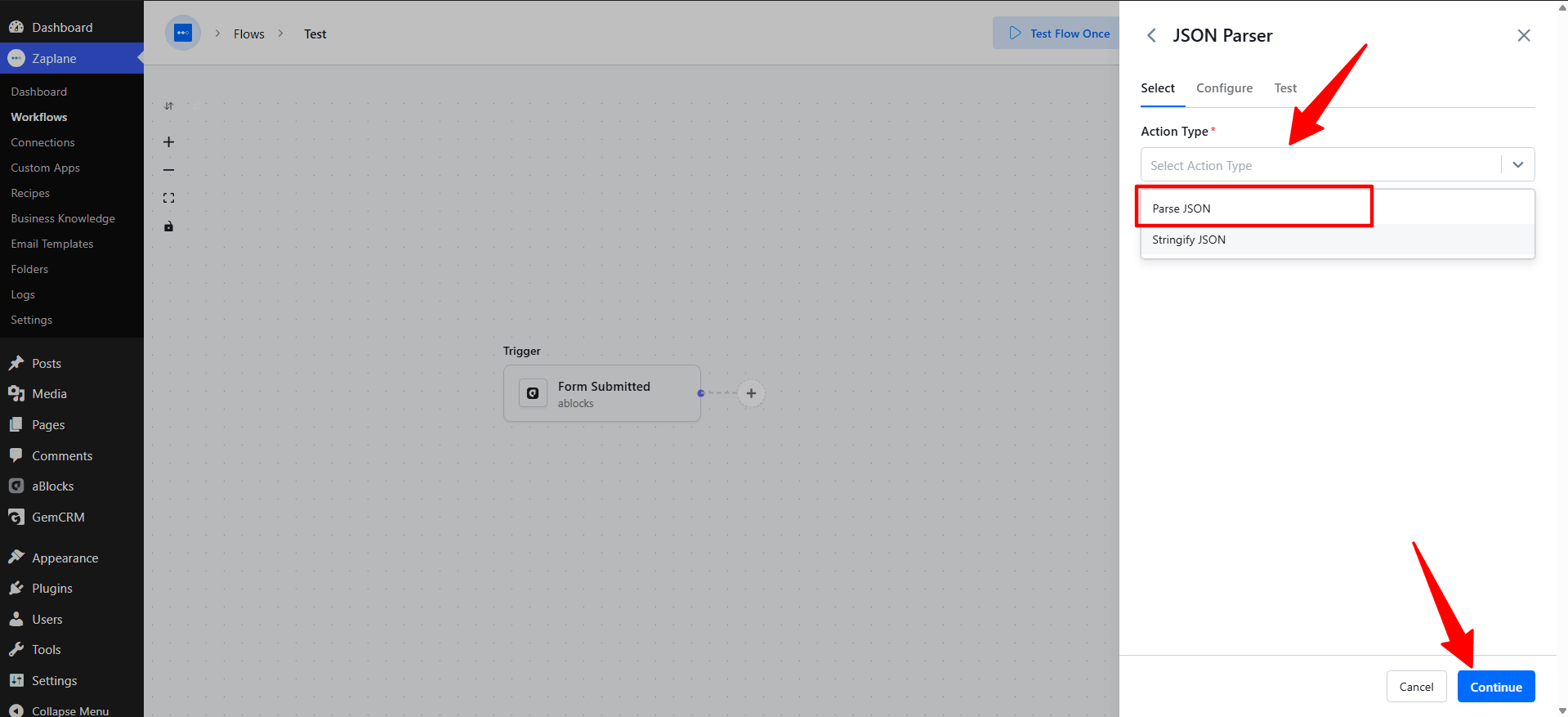
On the Select tab, open the Action Type dropdown and choose Parse JSON (an option to Stringify JSON is also available if you need to go the other way), then click Continue.
Step 4: Configure the Action
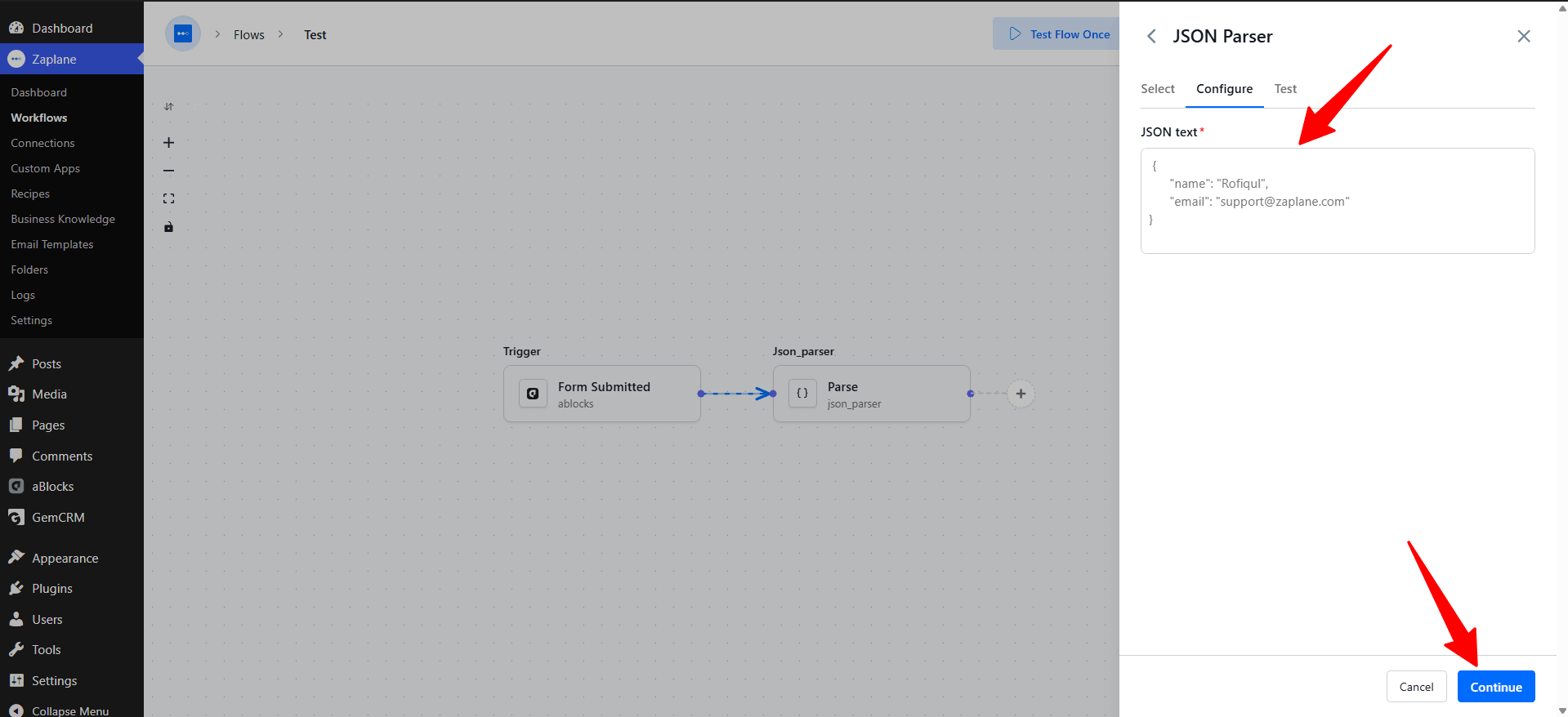
On the Configure tab, enter the JSON text you want to parse — you can type it directly or insert dynamic data from an earlier step. Click Continue when done.
Step 5: Test and Save the Action
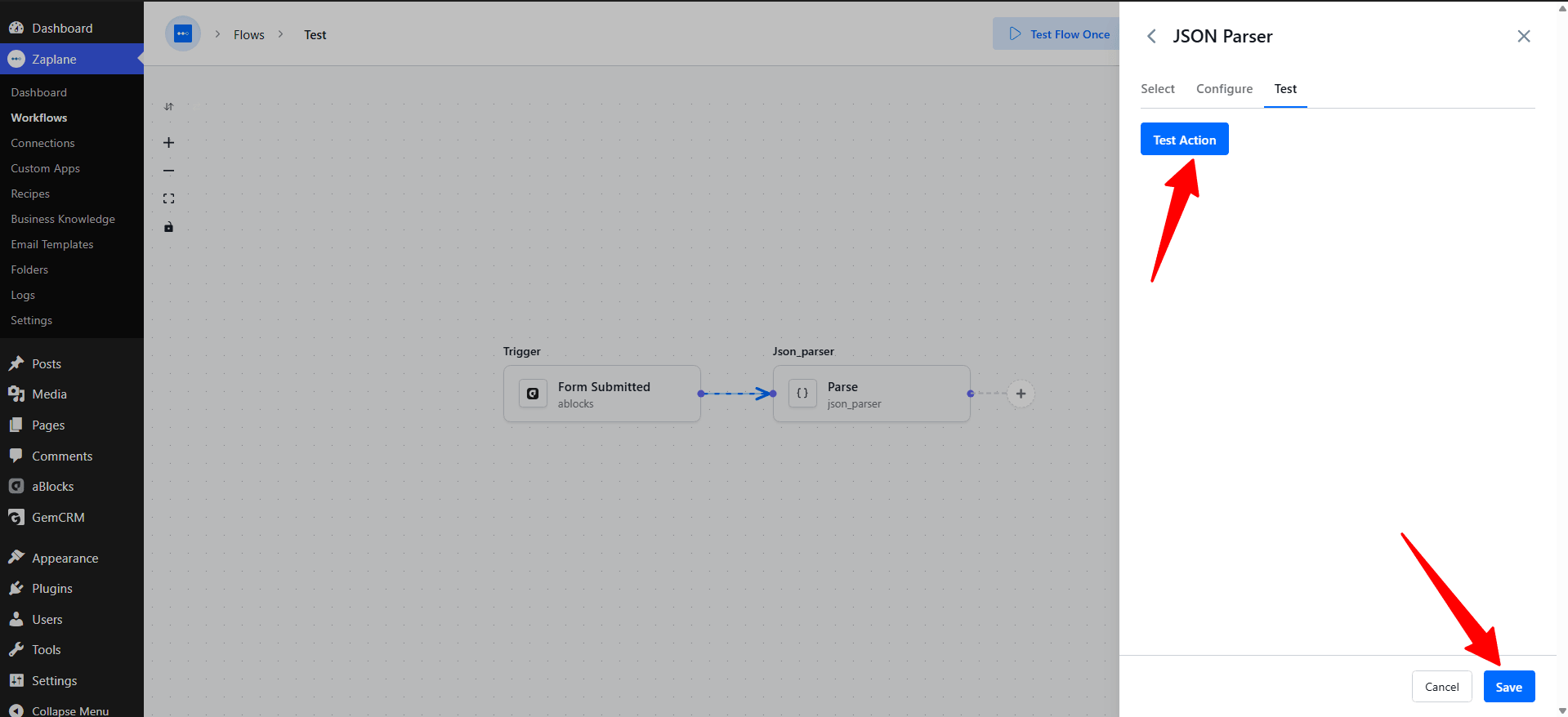
On the Test tab, click Test Action to run the parser against your sample data and confirm the fields come through correctly, then click Save.
Step 6: Update and Activate the Workflow
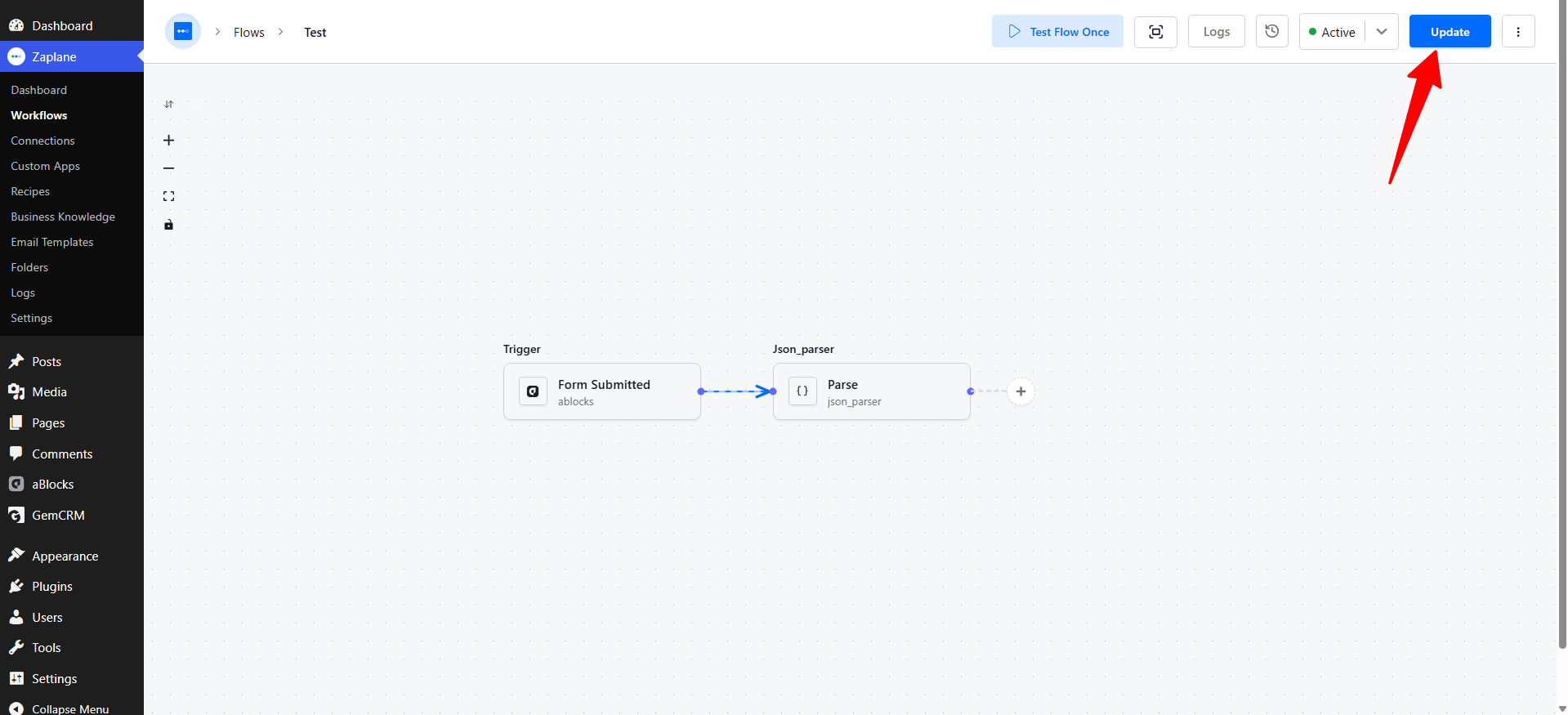
Back on the workflow canvas, click Update to save your changes and keep the workflow Active.
Step 7: Use the Parsed Fields in Another Action
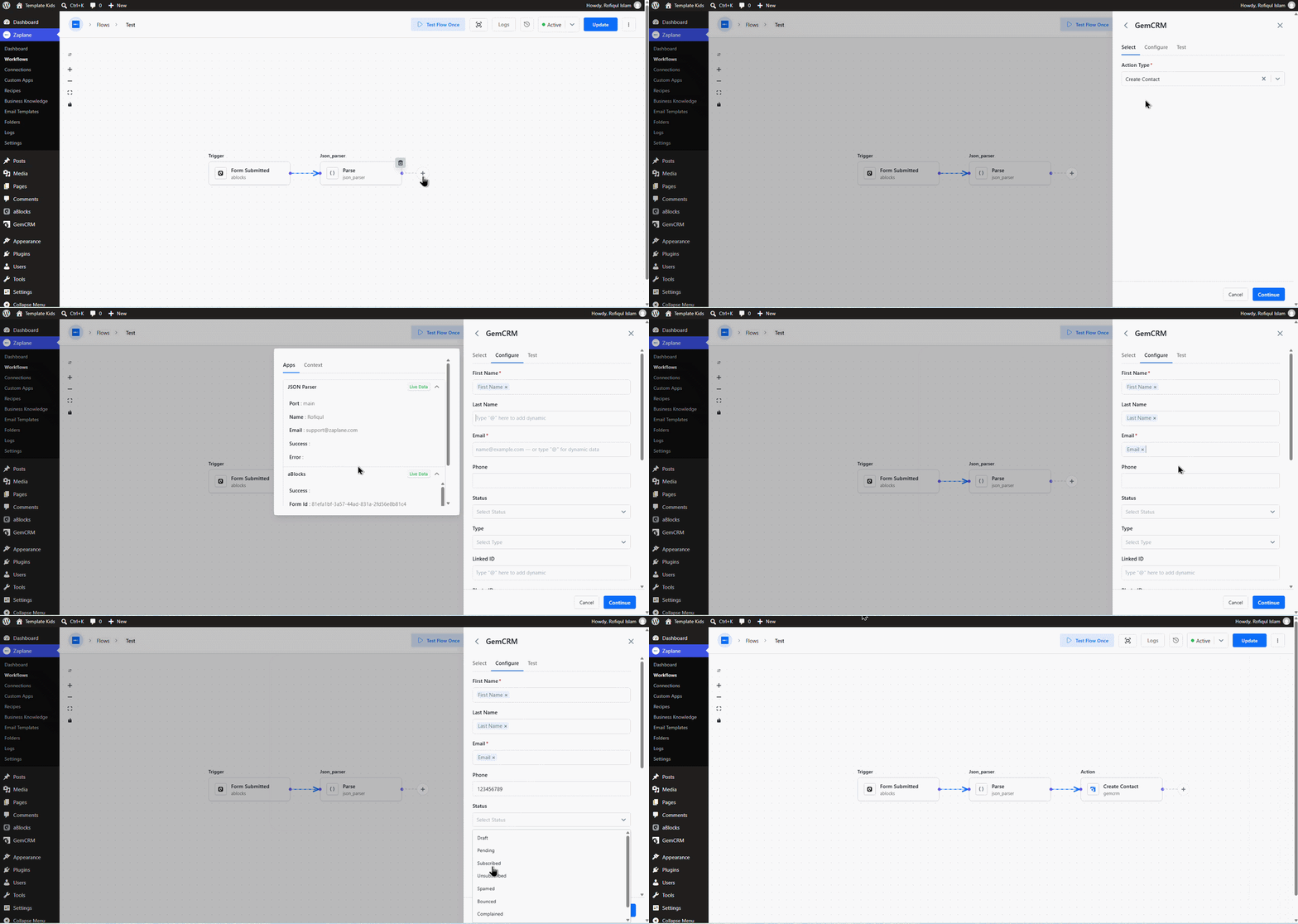
With the JSON parsed, click the + after the JSON Parser step to add a next action — for example, creating a contact in GemCRM — and map the parsed fields (like name and email) into it.
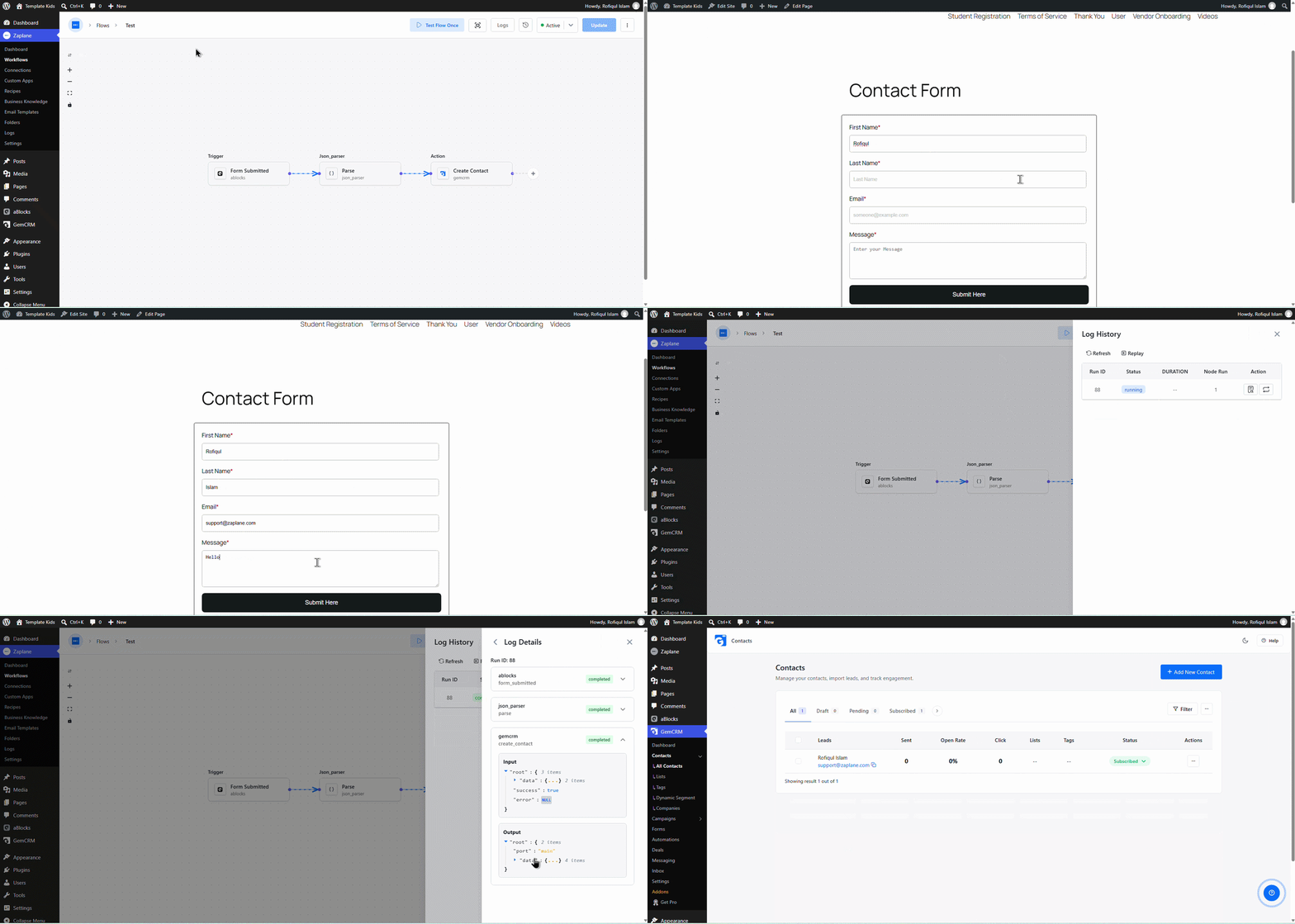
Your Zaplane workflow now parses the JSON automatically every time it runs, and passes the individual fields on to whatever action comes next.
Done!
The JSON Parser tool is now live in your workflow and will parse incoming JSON every time this step is reached.