

This guide shows you how to add the Custom Code Execution tool to a Zaplane workflow, so you can run your own PHP code whenever your trigger fires.
Step 1: Create a Workflow
Go to Zaplane > Workflows from your WordPress dashboard, then click Create Workflow to open the workflow editor.
Before adding the Custom Code Execution tool, you need to set up a trigger first. Here is how to do it quickly:
Once your trigger is saved, proceed to the next step to add the Custom Code Execution tool.
Step 2: Add an Action
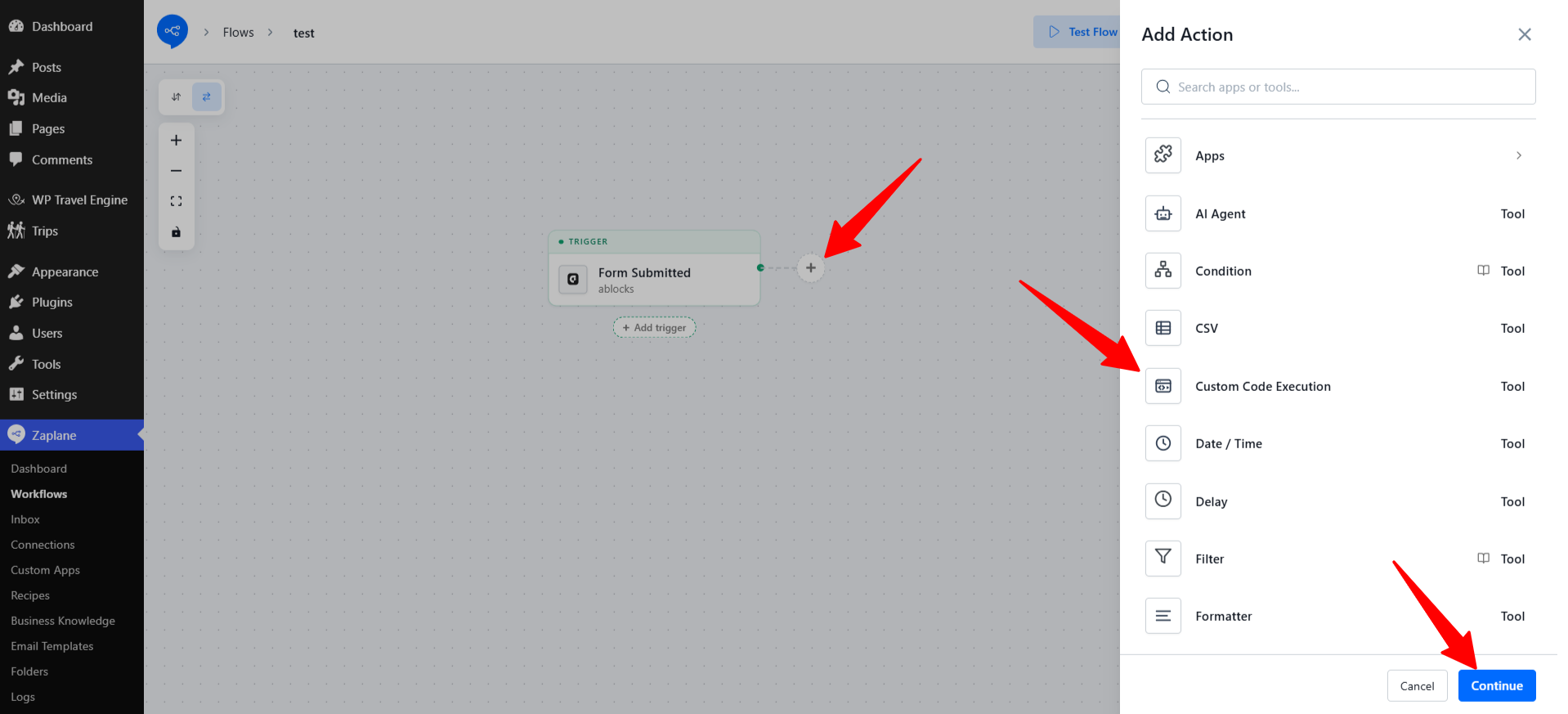
Click the + button next to your trigger, then select Custom Code Execution in the Add Action panel.
Step 3: Choose the Action Type
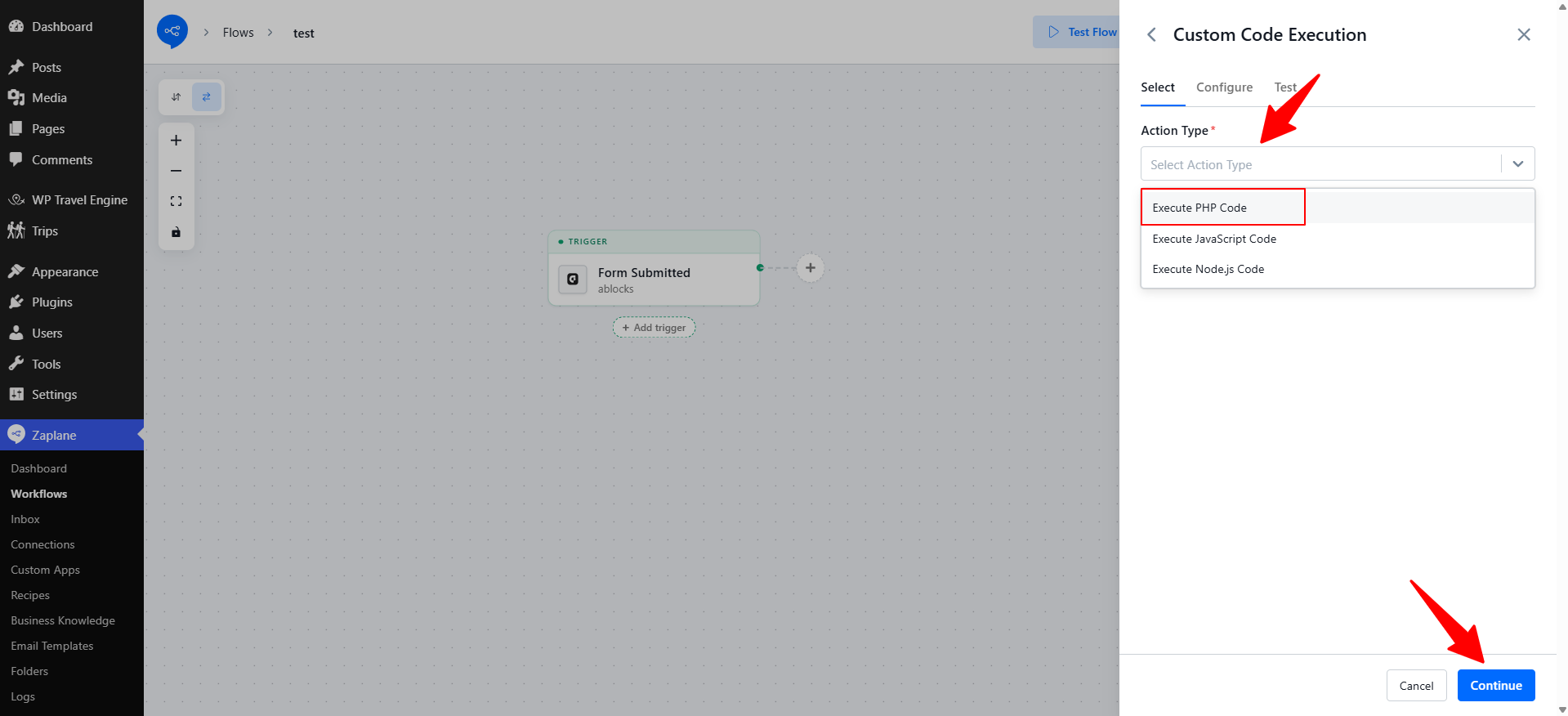
Open the Action Type dropdown and pick the language you want to run. Custom Code Execution offers several action types, for example Execute PHP Code. Click Continue.
Step 4: Configure the Action
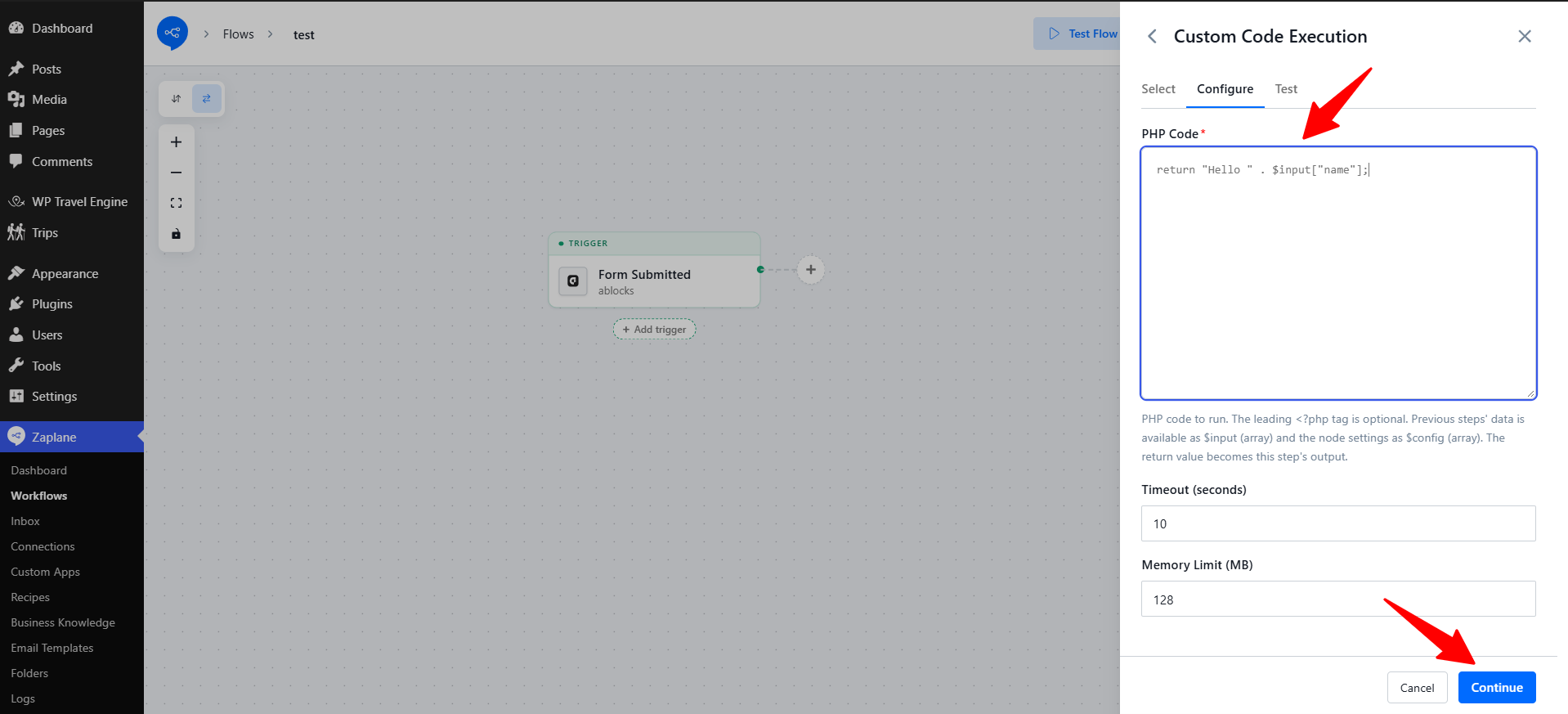
On the Configure tab, enter your code in PHP Code. Data from previous steps is available as $input, and the value you return becomes this step’s output. You can also set Timeout (seconds) and Memory Limit (MB), then click Continue.
Step 5: Test the Action
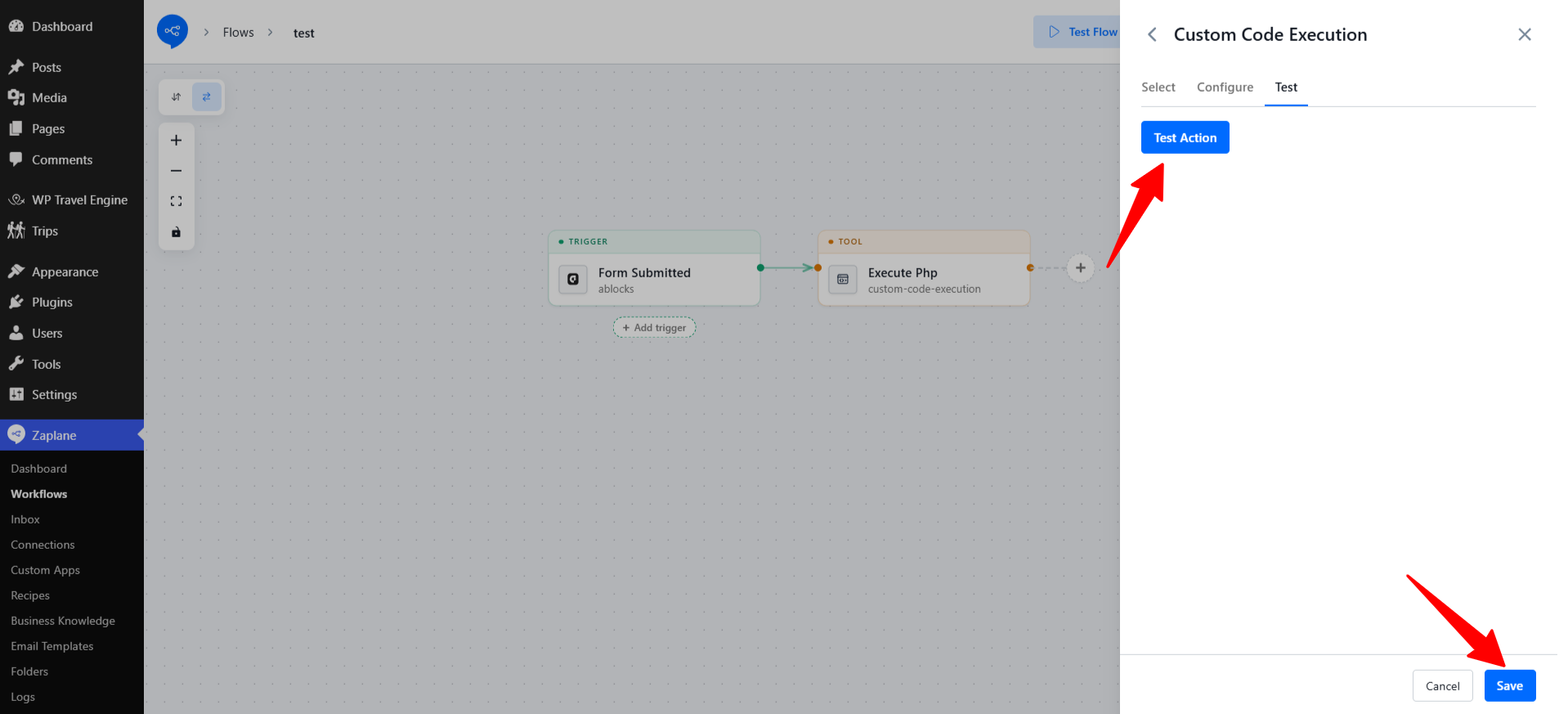
On the Test tab, click Test Action to run your code once. If it works, click Save.
Step 6: Update and Activate the Workflow
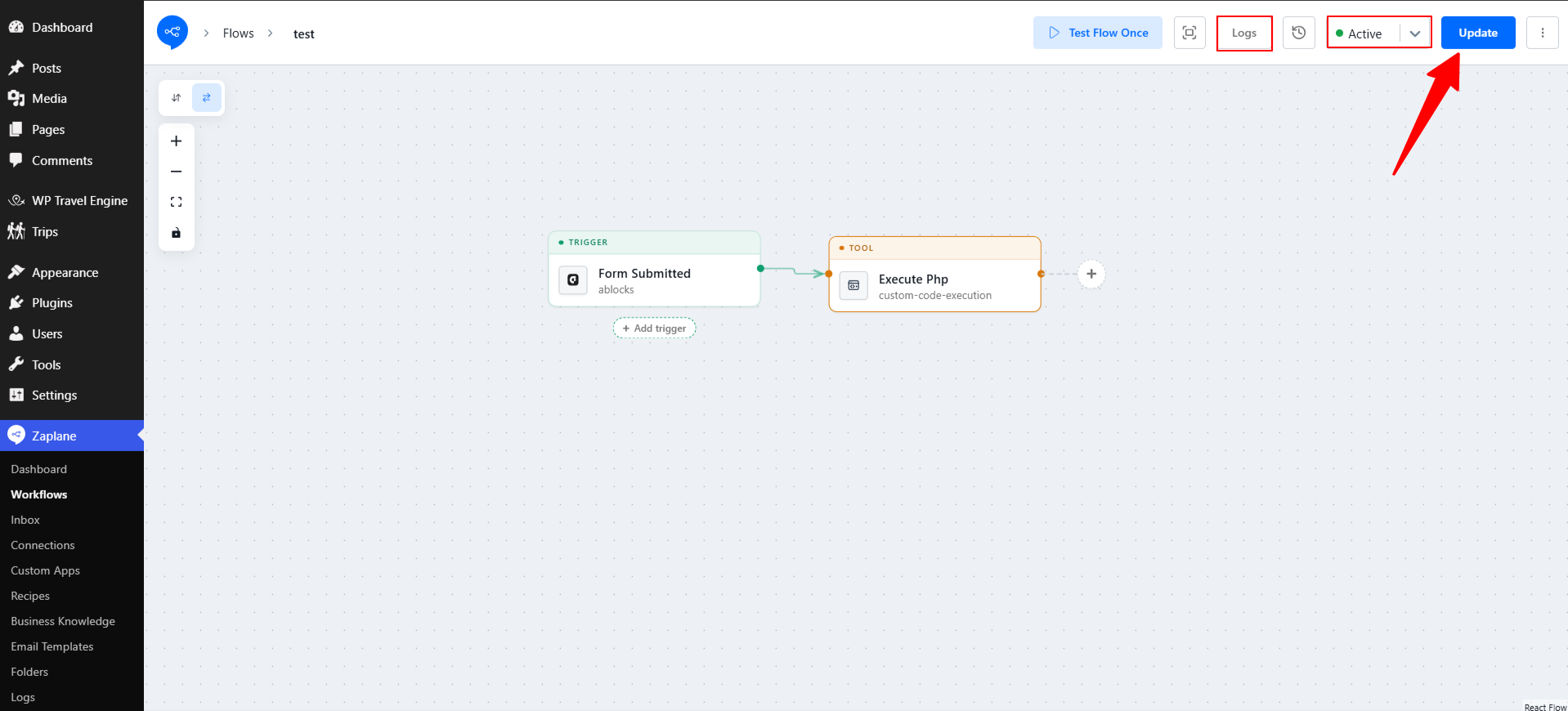
Back on the canvas, click Update to save your workflow and make sure the status is set to Active. Every time your trigger fires, Zaplane now runs your code automatically.
Done!
Your Custom Code Execution tool is added and ready to go.